Make integration
Accept the invitation before you start. The ShipPDF app is still under review by Make. You must accept the ShipPDF app invitation to use it in your scenarios. Sign in to Make and accept the invitation, then return to your scenario and search for ShipPDF.
Generate invoices, quotes, labels, and other PDFs from your Make scenarios. Choose a published ShipPDF template, map data from another app, and send the finished PDF to the next step in your workflow.
Before you start
You need a Make account, a ShipPDF workspace with API access and generation credits, and a published template. If you haven’t created a template yet, follow the Quickstart.
Define the template’s input fields and repeating sections in ShipPDF, then publish it. Make uses the published version, including its data fields. See Data Schema and Default Data.
Connect ShipPDF to Make
- In ShipPDF, open your workspace’s API keys page and choose Create key. Give it a name such as “Make”.
- Enable the scopes below and grant access to the projects and templates your scenarios will use. Copy the key when it is created.
- In your Make scenario, add a ShipPDF → Create a PDF module.
- Beside Connection, choose Add, name the connection, and enter your ShipPDF API key. Paste only the key, without a
Bearerprefix, then save the connection.
| Scope | Used for |
|---|---|
projects:read |
Showing projects in pickers and List projects |
templates:read |
Showing templates and loading their input fields |
documents:create |
Generating PDFs |
documents:read |
Checking document status and retrieving PDF links |
webhooks:manage |
Setting up Watch PDFs; only needed if you use that trigger |
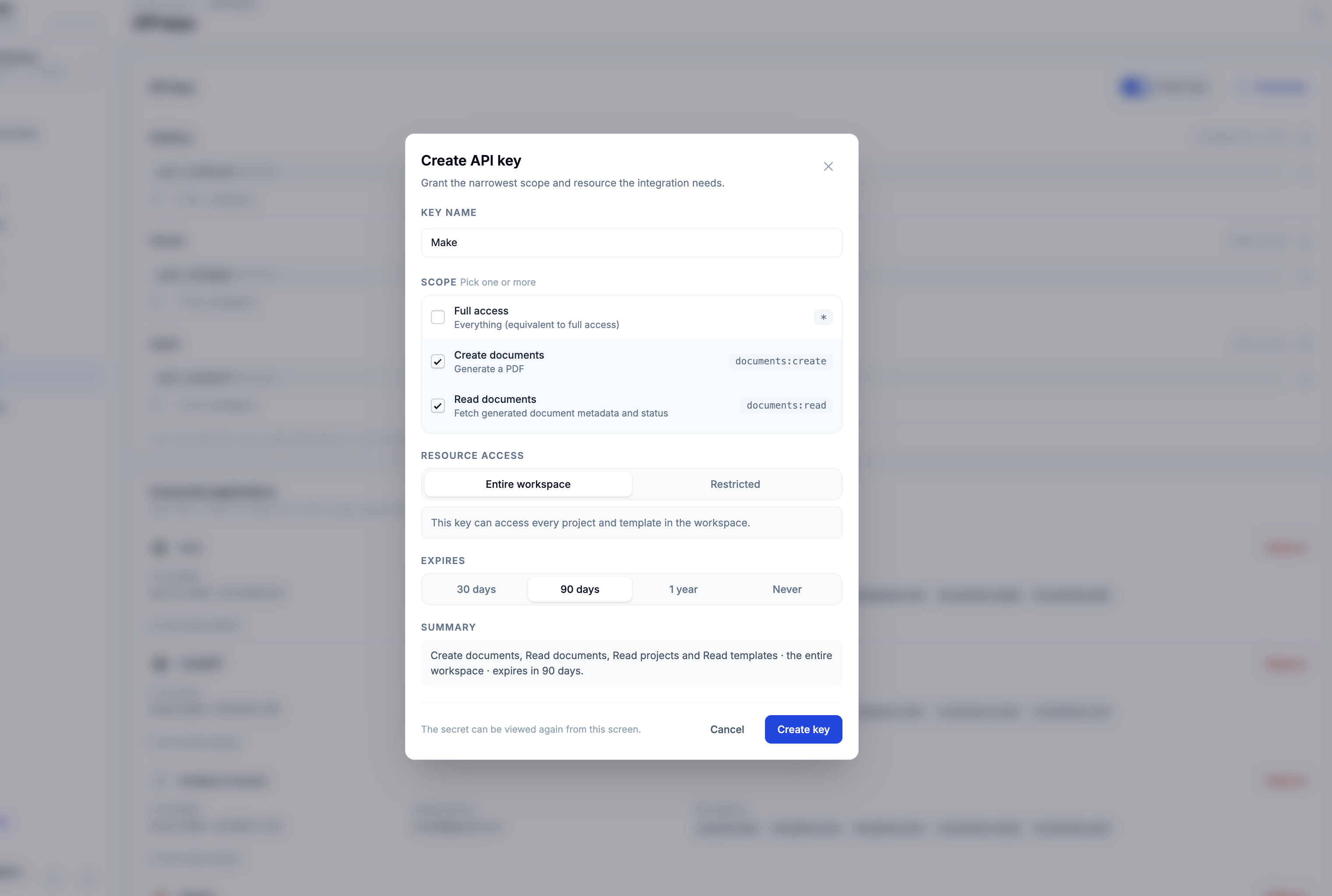
Reuse this connection in your other ShipPDF modules. For the key creation walkthrough, see Authentication.
Available modules
| Module | What it does |
|---|---|
| Create a PDF | Generates a document from a published template and your data. Returns a Document ID. |
| Get a PDF | Looks up a document by its Document ID to retrieve its status and, when ready, its PDF URL. |
| Watch PDFs | Starts a scenario when ShipPDF sends a completed or failed document to its webhook. |
| List projects | Lists the projects your connection can access. |
| List templates | Lists templates in a selected project, with an optional name search. |
| Make an API call | Calls another ShipPDF API endpoint using your existing connection. |
Create a PDF
Add ShipPDF → Create a PDF after the app that provides your data, such as a form, spreadsheet, or CRM. Select your Connection, Project, and Template.
Use template fields
For Payload type, choose Use template fields. The Data section loads the selected template’s input fields. Enter fixed values or click a field to map a value from an earlier module.
Nested fields appear in groups. For repeating sections such as invoice items, use Add item to enter rows, or enable Map to pass an array from an earlier module. Each item’s values should match the template’s fields.
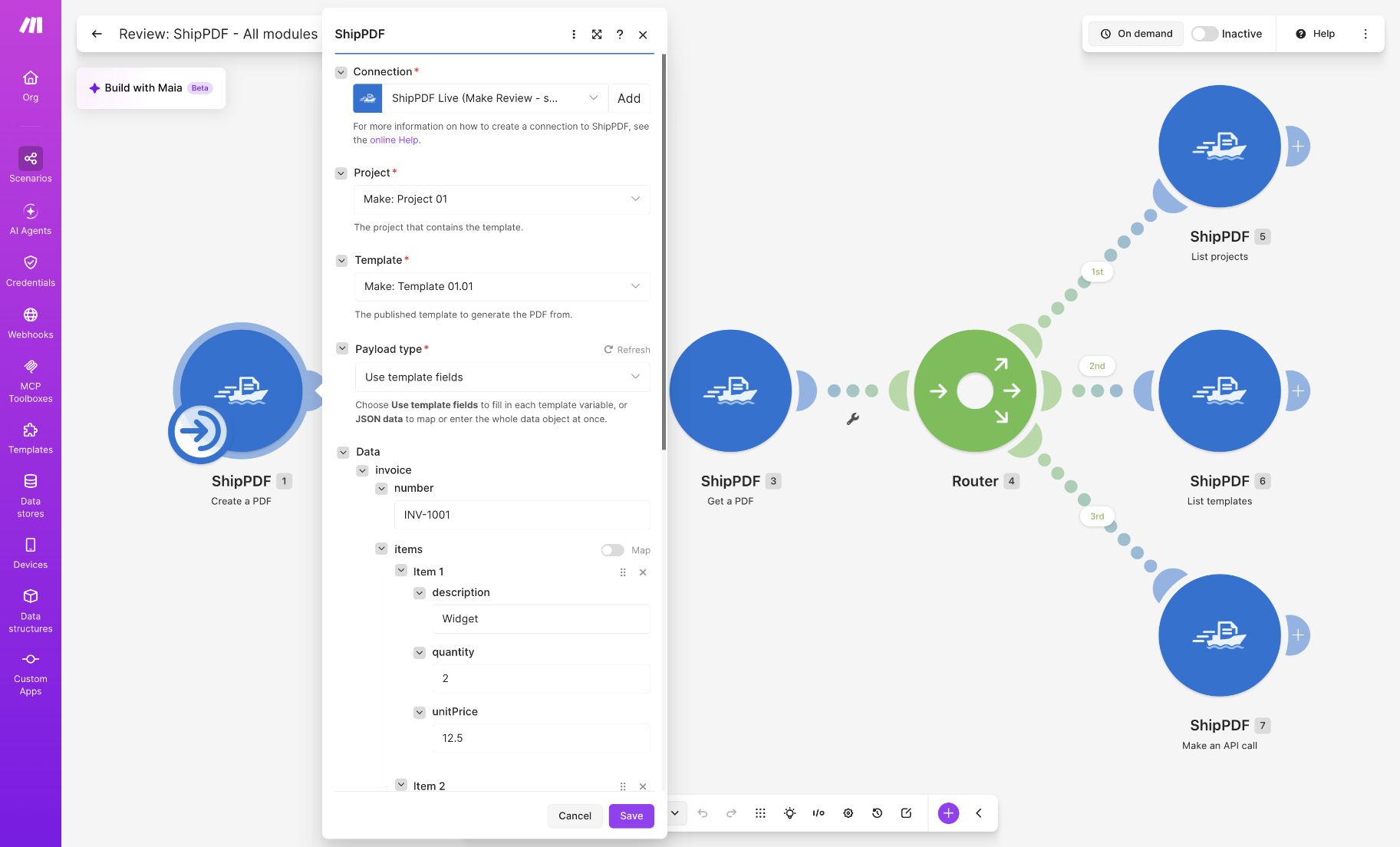
The example above uses invoice.number with INV-1001 and an item with description Widget, quantity 2, and unit price 12.5. Your fields will depend on your template.
JSON data
Choose JSON data for Payload type if you already have the whole data object or prefer to enter it as JSON. For the invoice example, enter:
{
  "invoice": { "number": "INV-1001" },
  "items": [
    { "description": "Widget", "quantity": 2, "unitPrice": 12.5 },
    { "description": "Shipping", "quantity": 1, "unitPrice": 5 }
  ]
}
Use the field names from your own template. Enter the data object itself; do not wrap it in an extra data property. You can also map values from earlier modules into the JSON.
Optional settings
- Webhook URL: An HTTPS address that receives the document when generation completes or fails. Leave this empty when using Get a PDF or Watch PDFs.
- Metadata: A JSON object returned with the document, such as
{"order_id":"1234"}. Use it to match the result to the source record. - Idempotency key: A unique value for one intended generation, such as an order ID. Retrying with the same key returns the original document and avoids another generation charge. Use a new key when you intend to generate a new document.
Save the module and choose Run once to test your own scenario. Open its output bundle and note the Document ID. Generation happens in the background, so the first response may be queued rather than a finished PDF.
Get the finished PDF
Use Get a PDF when you want to continue in the same scenario:
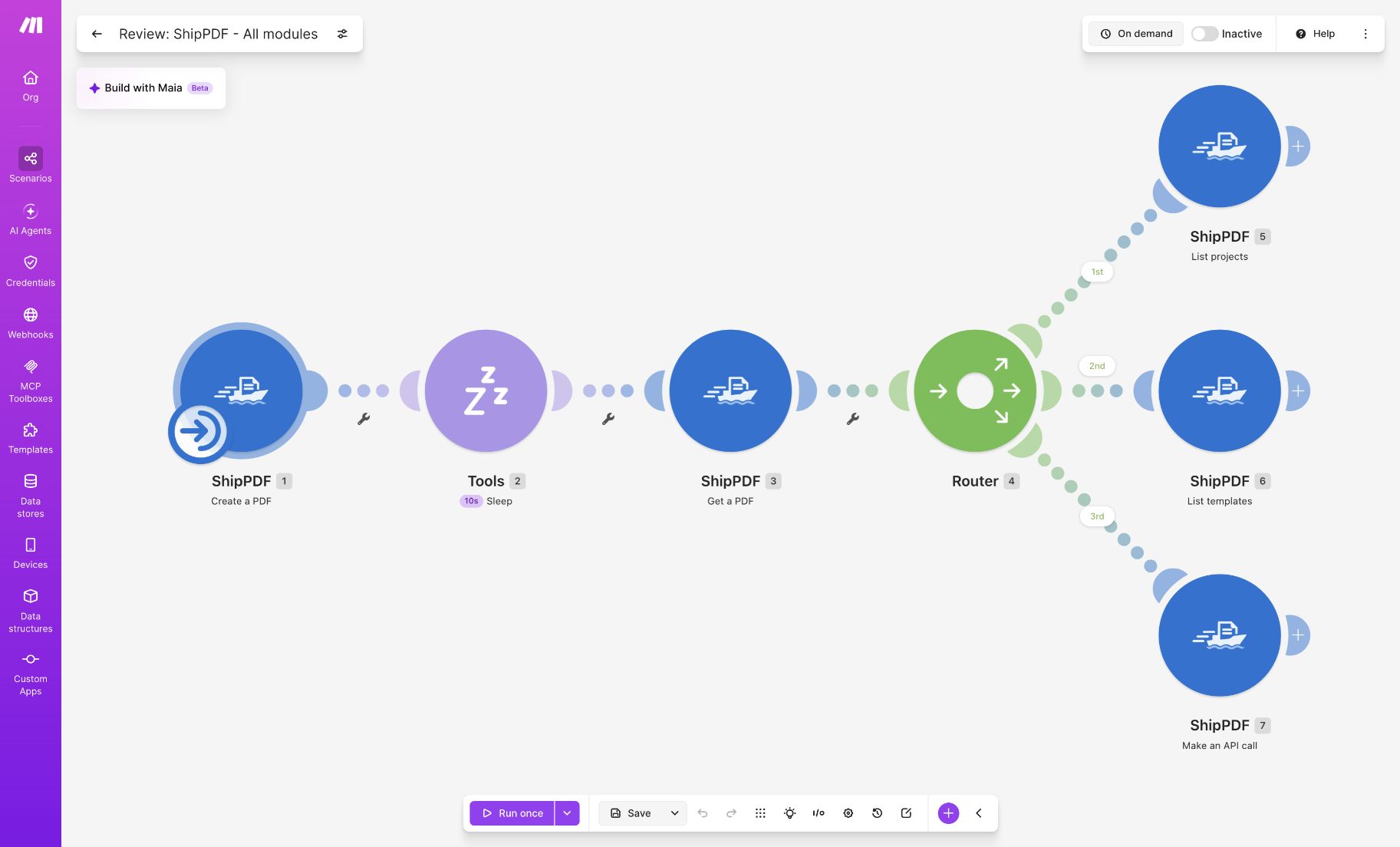
- After Create a PDF, add Tools → Sleep. Start with a 10-second delay and adjust it for your documents.
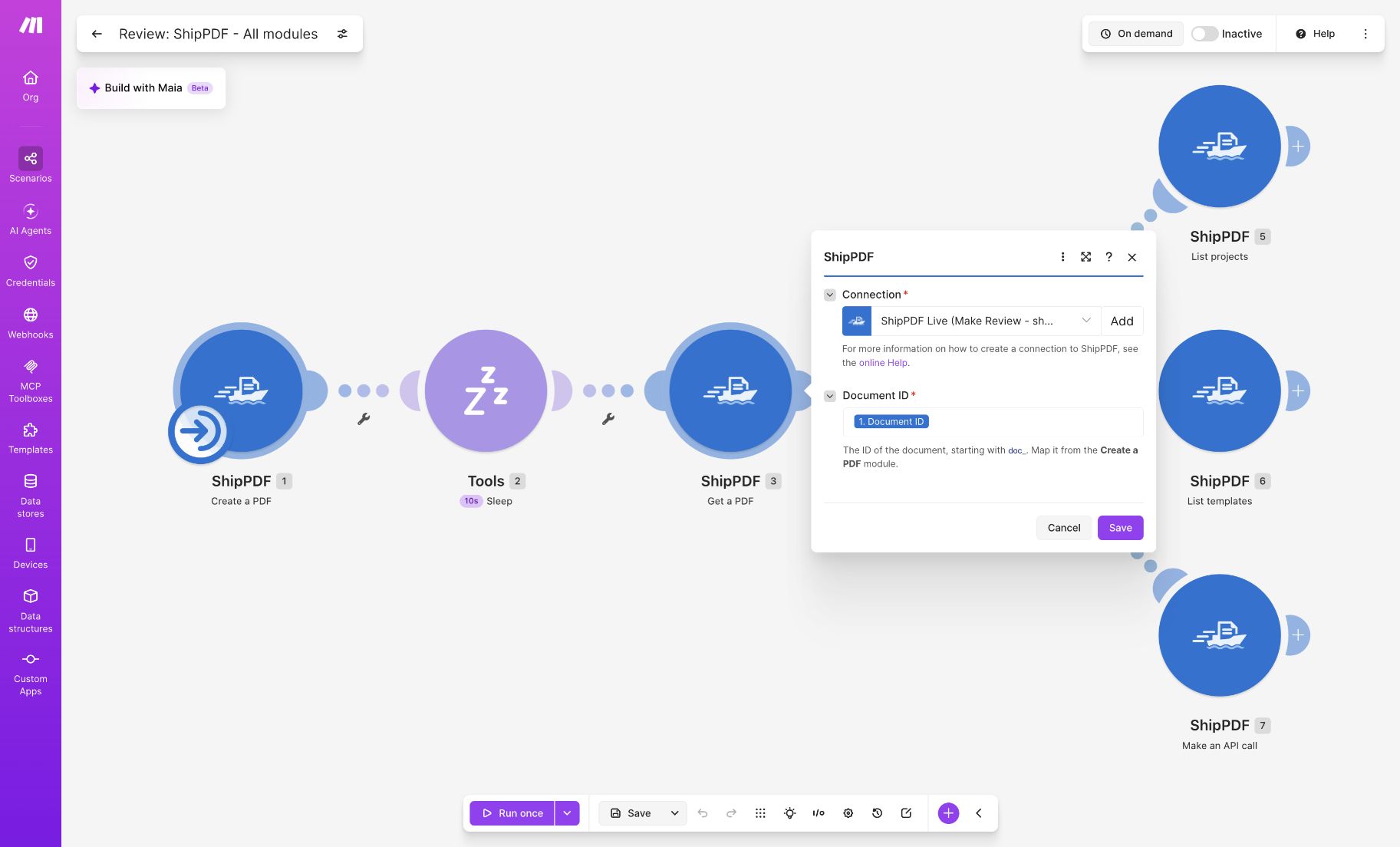
- Add ShipPDF → Get a PDF and select the same connection.
- Map Document ID from Create a PDF into Document ID.
- Check the returned status. Continue to your delivery step only when it is
completedand a PDF URL is available.
A delay does not guarantee completion. If the status is queued or processing, wait and check the same Document ID again. If it is failed, inspect the error and fix the template or data before generating another PDF. For workflows that should continue as soon as generation finishes, use Watch PDFs below.
Map the completed document’s PDF URL into the next module. If the destination expects a file attachment, add Make’s HTTP → Download a file module with that URL, then map the downloaded file into your email or storage module.
PDF URLs expire. Download or store the file if you need a lasting copy. Run Get a PDF again with the same Document ID to retrieve a fresh link without generating another document.
Watch PDFs
Watch PDFs is an instant trigger. Use it as the first module in a separate scenario to react when PDFs finish, including documents generated outside Make.
- Create a new scenario and add ShipPDF → Watch PDFs as its first module.
- Select an existing Webhook, or choose Add to create one. For a new webhook, give it a name, select your ShipPDF connection, project, and events, then save it. Creating it through the connection needs
webhooks:manageand access to the project. - Copy the Webhook URL supplied by Make.
- In your ShipPDF workspace, open Webhooks and create a webhook. Enter a name, paste Make’s URL into Payload URL, and keep Enabled checked.
- Choose the Scope. Select Template and the template you want to watch, as shown below, or Project to watch the project’s templates. Under Events, choose Completed and failed PDFs or just the PDF events your workflow needs.
- Save the webhook in ShipPDF. The screenshot’s
https://hook.eu1.make.com/xxxis a placeholder; use the exact URL copied from your Make module. - Return to Make and choose Run once to listen for a test event. Generate a PDF from a template covered by your ShipPDF webhook and check that Watch PDFs receives it. Add the actions that should handle the result, then save and activate the scenario.
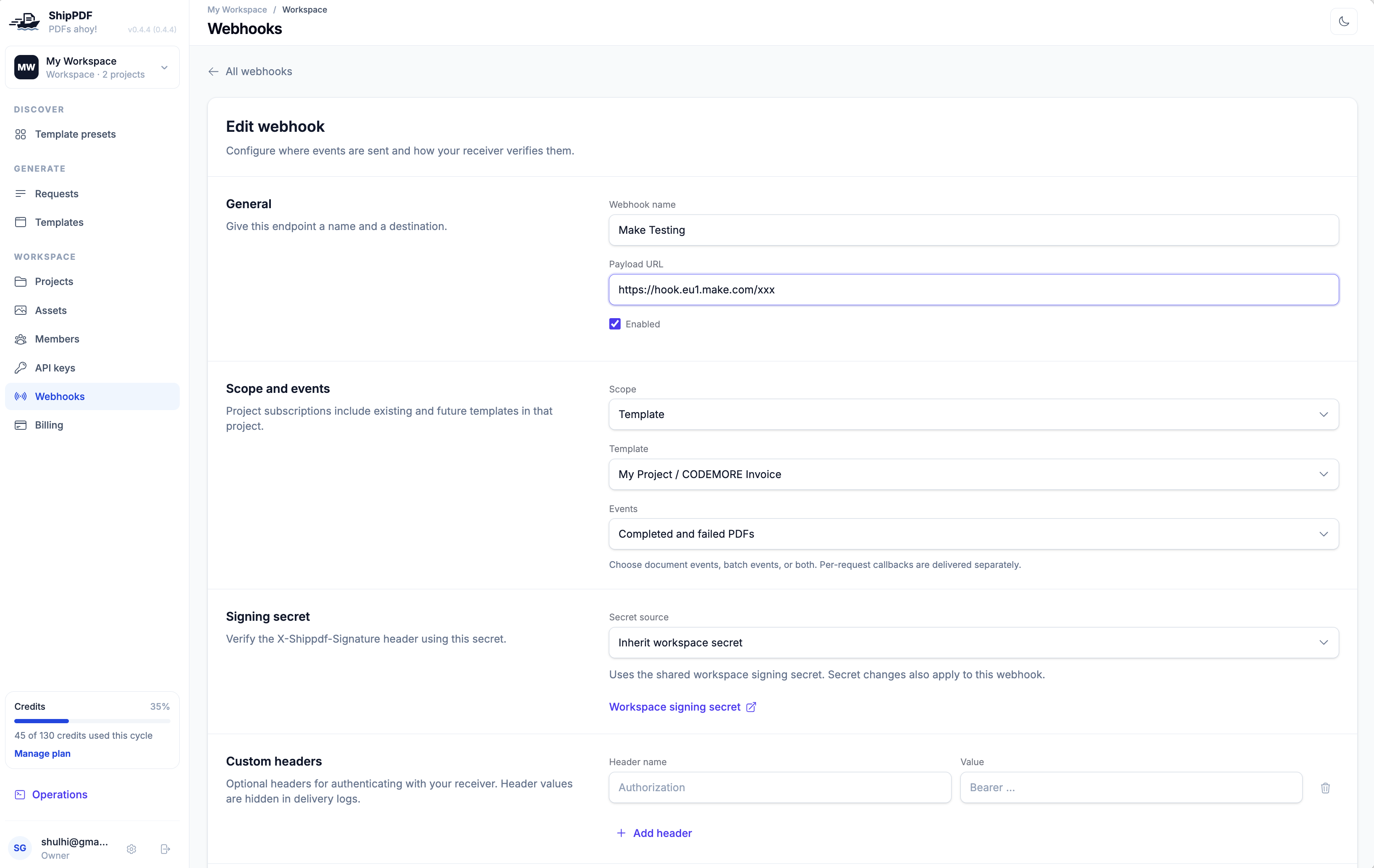
The webhook saved in ShipPDF sends matching events to Make. You can leave Webhook URL empty in Create a PDF when using this workspace webhook. Use the Document ID or your metadata to match each result to the correct record. If watching both completed and failed PDFs, filter or route on the event or document status so only completed documents go to your delivery step.
List projects and templates
List projects: Select your connection and run the module to find projects it can access. Use a returned project ID when mapping a project into another module.
List templates: Select your connection and Project. Optionally enter Search text to find templates whose names contain it, and set Limit to control the maximum results per execution. You can map a project from an earlier module. Use a returned template ID in Create a PDF; the template must be published before you generate a document.
You can select a project and template directly in Create a PDF. The list modules are useful when your scenario needs to discover or choose them from earlier data.
Make an API call
Use this module for a ShipPDF operation that does not have its own Make module. Select your connection, enter a URL path relative to https://api.shippdf.com, and choose the Method. Add query parameters or a JSON body if the operation needs them. Authorization is included automatically.
For a simple connection check, set URL to /v1/whoami and Method to GET. See the API reference for other paths and their required scopes.
Troubleshooting
- ShipPDF does not appear in Make: Accept the app invitation at the top of this page, then reopen the module picker in your scenario.
- Connection or permission error: Check that the key is valid, has the scopes needed by the module, and can access the selected project and template.
- Missing template or outdated fields: Publish the template in ShipPDF. After changing its fields, publish again, reselect the template in Make, and use Refresh to reload its fields.
- No PDF URL yet: Check the document’s status with Get a PDF, or use Watch PDFs to handle completion. A queued document is still being generated.
- Watch PDFs does not trigger: Check that the scenario is active and the ShipPDF webhook is enabled. Its Payload URL must match the URL supplied by Make, and its scope and events must include the document you generated. If creating the Make webhook fails with a permission error, check the connection’s
webhooks:managescope.
Generating a new PDF spends a ShipPDF generation credit. Checking an existing document with Get a PDF does not generate another PDF. Make also accounts for scenario usage separately.