Attio integration
Generate invoices, proposals, quotes, and other PDFs from an Attio record using a published ShipPDF template. Map record attributes into template fields, save the mapping for reuse, enter additional details and line items, then download the generated PDF or save a copy to the record’s Files tab.
Before you start
You need a ShipPDF account with API access and enough generation credits, a published template, and an Attio workspace. An Attio workspace admin configures the shared ShipPDF connection for the team.
Important: design your template to match your CRM data. Define fields with compatible value types for the Attio record attributes you plan to map, and add repeating sections for any line items you will enter.
Create and publish your template in ShipPDF before using it in Attio. The Attio app uses the published template revision; publish your changes before loading updated fields. See Create your template and Data Schema and Default Data.
Example template in ShipPDF
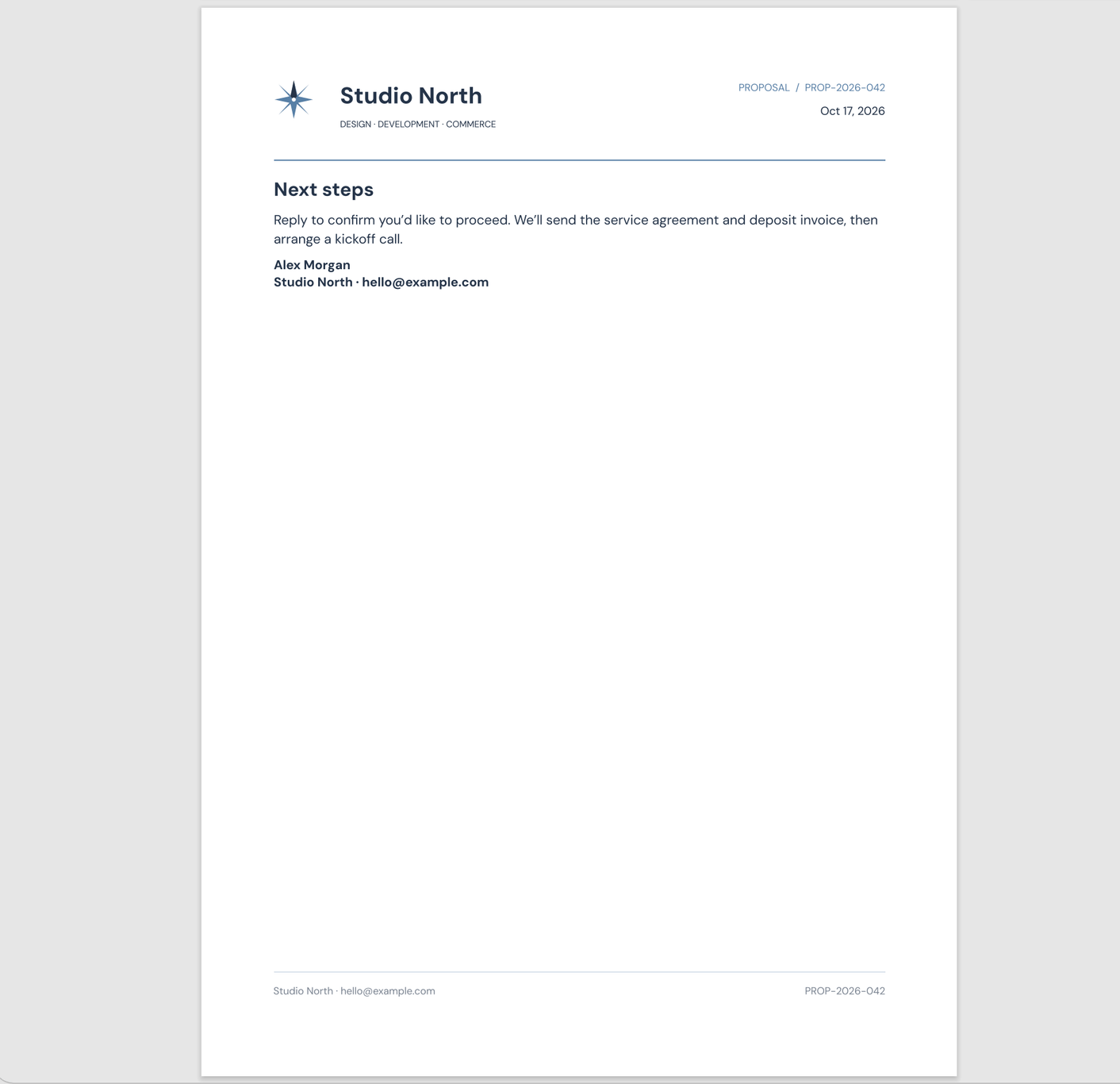
This guide uses CRM Sales Proposal — Studio North, a template with two explicit pages designed in the ShipPDF editor: 1. Overview and 2. Budget. The canvas contains each page’s layout and data-field placeholders; the Data Fields panel shows the fields and collections available for mapping in Attio.
1. Overview
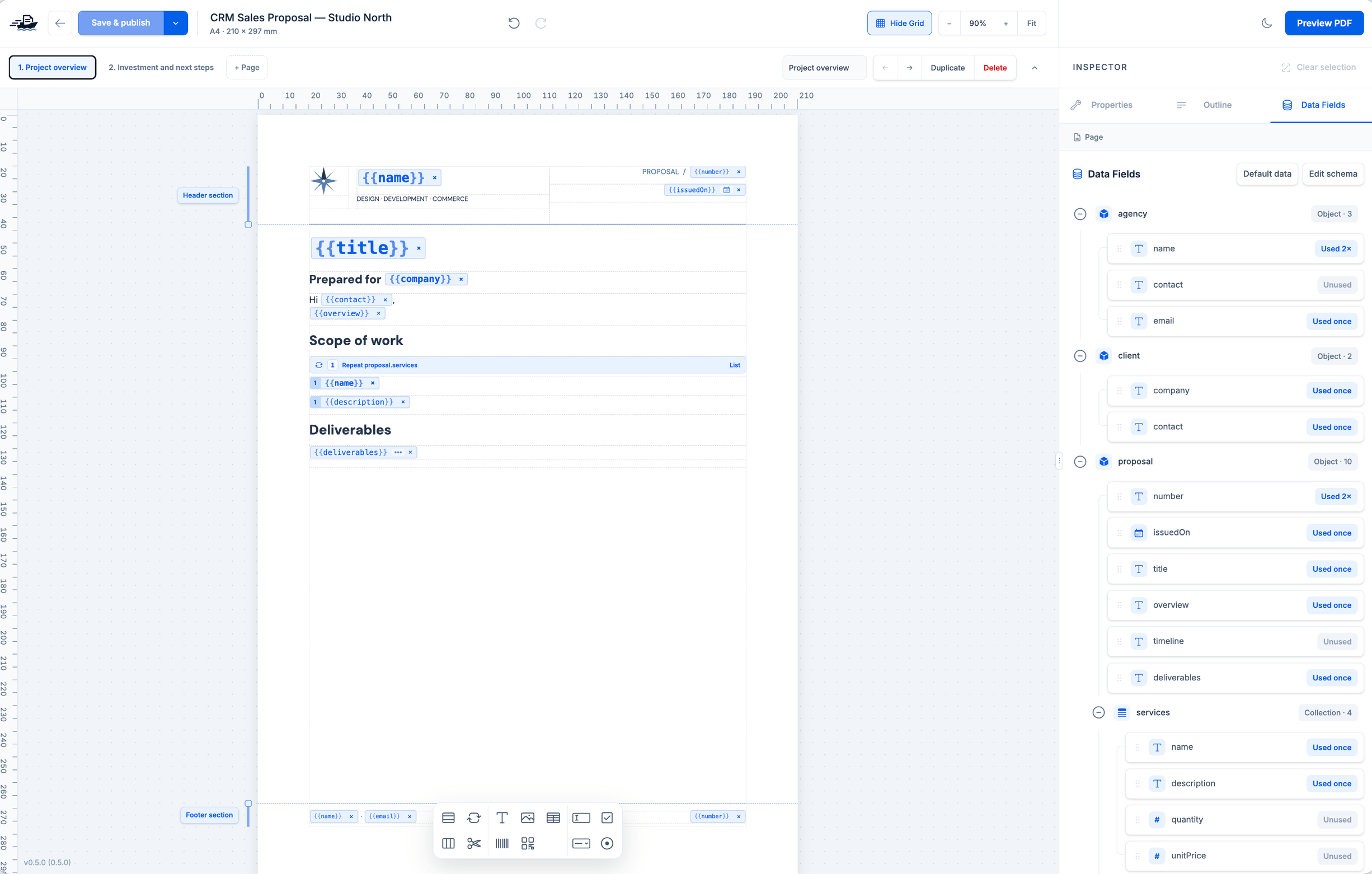
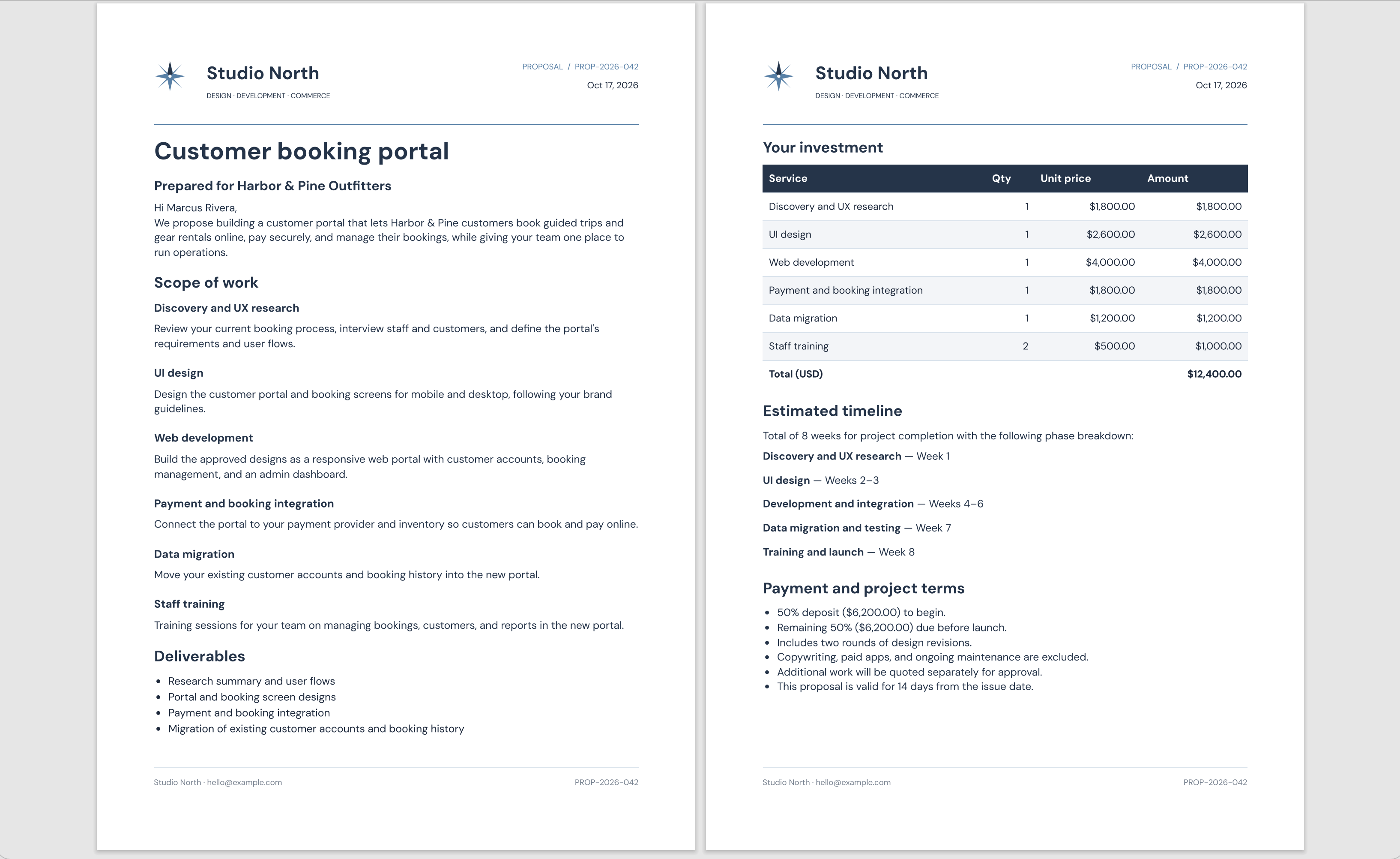
The Overview page, named Project overview in the editor, contains the proposal title, client details, scope of work, and deliverables. For example, client.company fills the company name and client.contact fills the greeting. The scope of work repeats the name and description for each item in proposal.services.
2. Budget
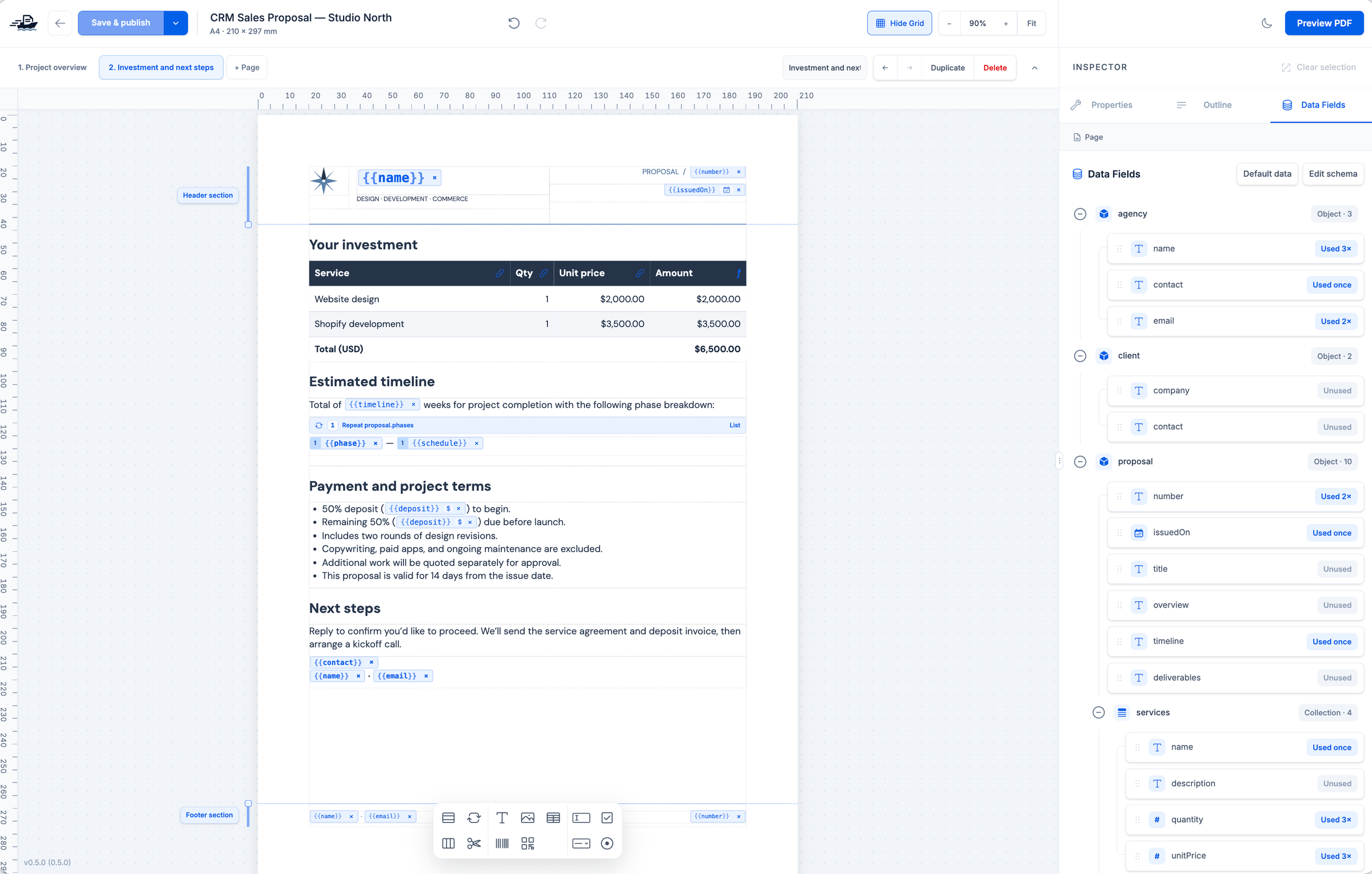
The Budget page, named Investment and next steps in the editor, uses the services in a pricing table and repeats proposal.phases for the timeline. These are the same collections you will map to linked Services and Phases records in Attio. The editor’s sample values help you design the layout; the generated PDF uses the data you map and review in Attio.
Two template pages can produce more than two PDF pages. Long descriptions, service tables, and phase timelines can create automatic overflow pages. ShipPDF continues each explicit page’s content onto additional PDF pages as needed, then starts the next explicit page on a new PDF page. For example, Budget starts after Overview and any of its overflow pages. See Pages and overflow for how pagination works and how to control page breaks.
Use Save & publish after changing the template. Attio loads the published fields and layout. Continue with installation below, or go to Map template fields if your connection is already ready.
Install ShipPDF in Attio
An Attio workspace admin installs the app and connects it once for the team. ShipPDF uses OAuth: sign in and approve access to your ShipPDF workspace. You do not need to create or paste an API key.
1. Find and install ShipPDF
In Attio, click your workspace name, open Workspace settings, and select Apps in the sidebar. Search for ShipPDF.
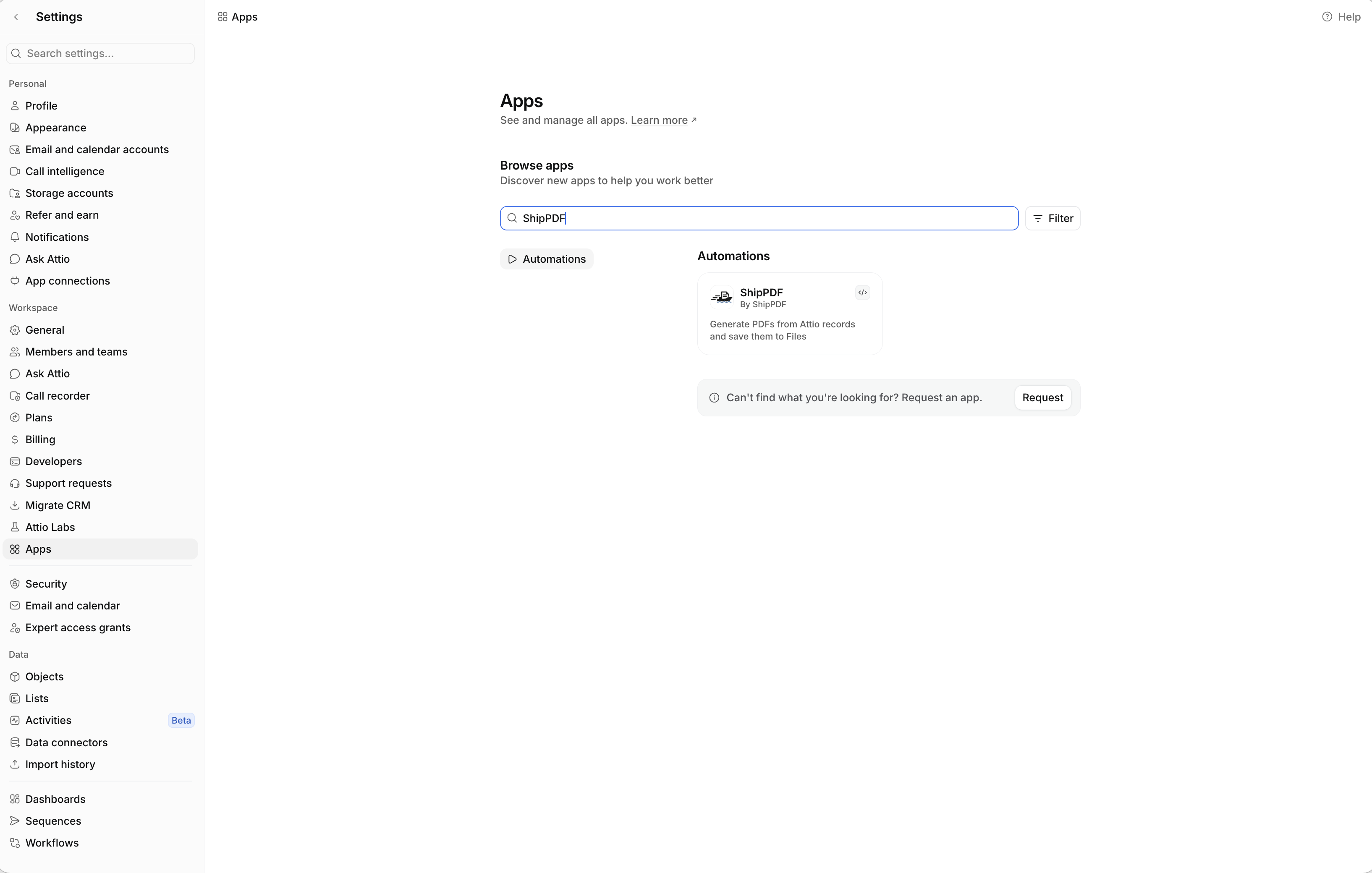
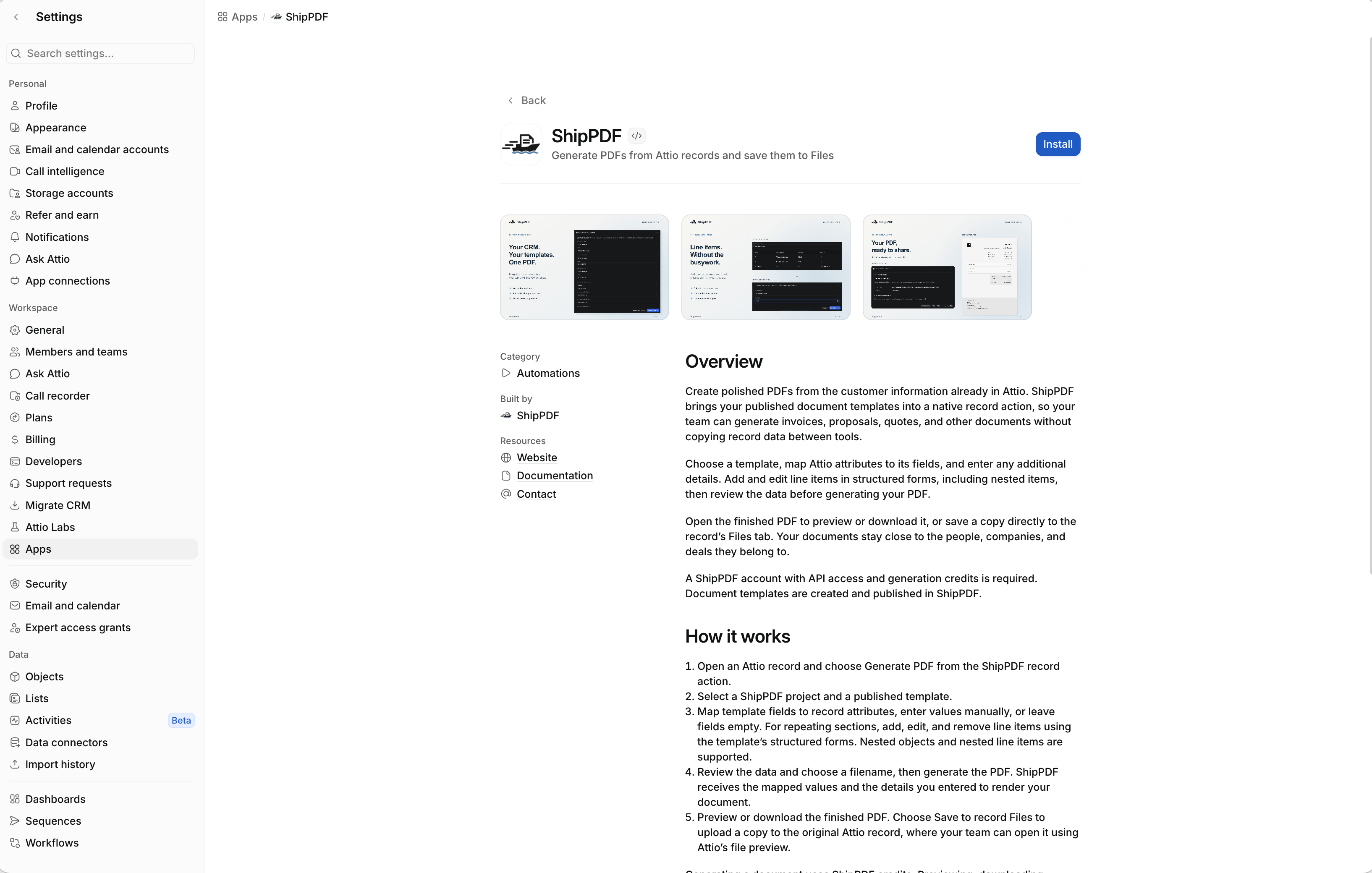
Open the ShipPDF listing and click Install. Review and approve the requested Attio permissions.
| Attio permission | Used for |
|---|---|
Record access (record_permission:read) |
Reading the record’s values and checking access to the source record |
Object configuration (object_configuration:read) |
Reading attribute definitions for the field picker |
Files read and write (file:read-write) |
Finding and uploading generated PDFs in record Files |
2. Connect your workspace
After installation, open the app’s Connections tab. Under Workspace connection, click Connect.
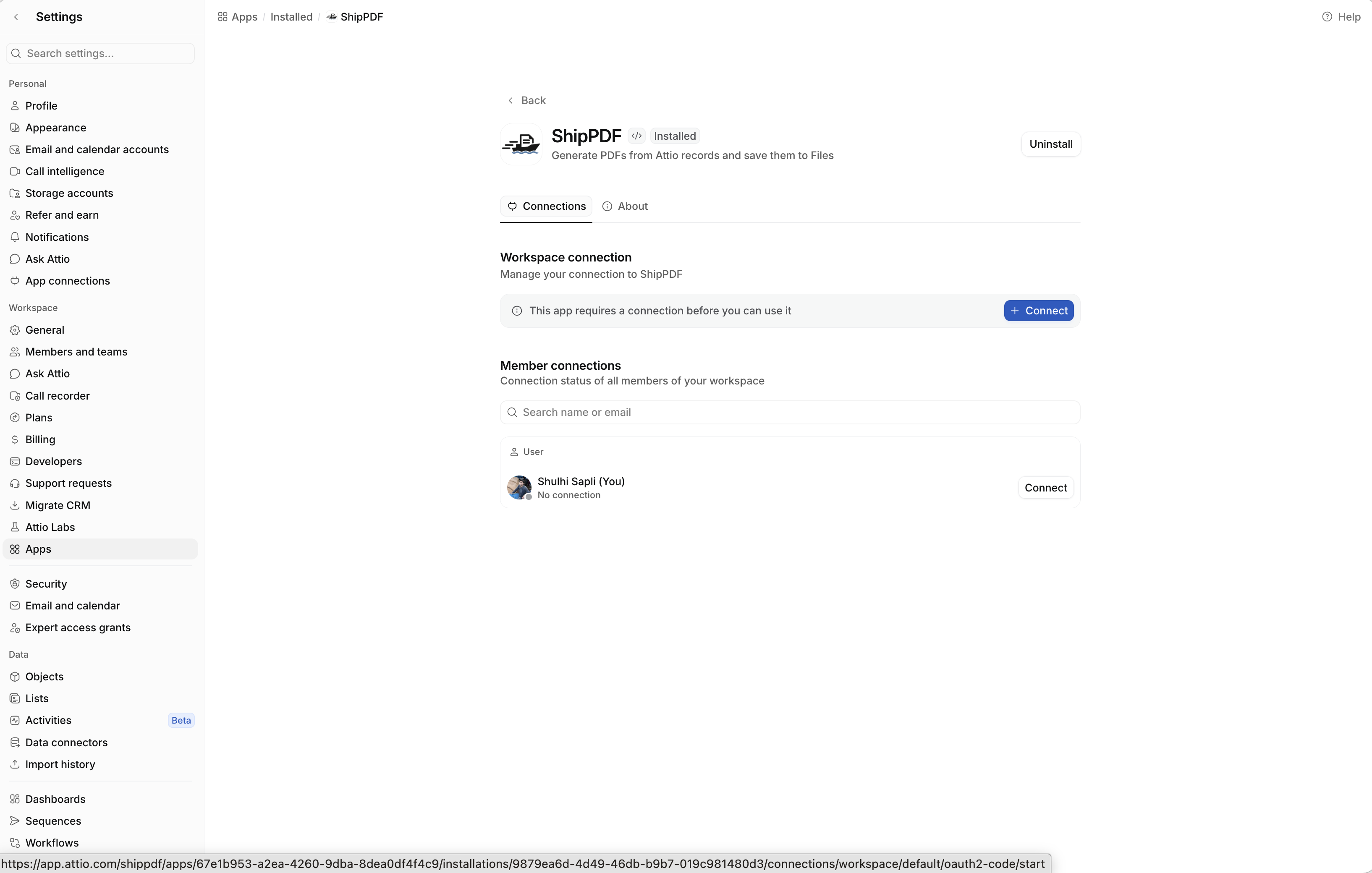
3. Authorize access in ShipPDF
Sign in to ShipPDF if prompted. On Connect Attio to ShipPDF, select the ShipPDF workspace containing your projects and templates. Approve the document and saved-mapping permissions listed below, then click Allow access.
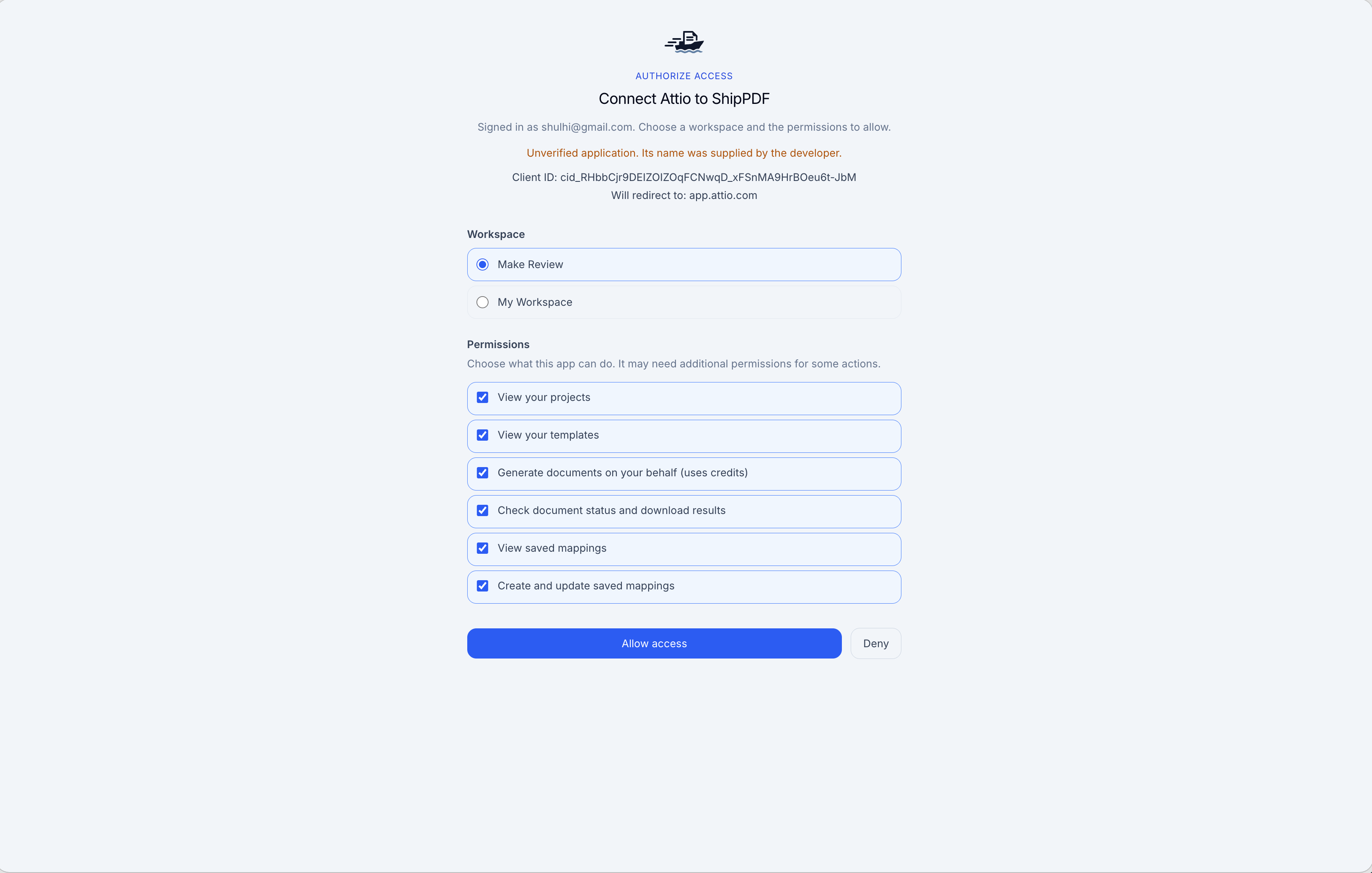
| ShipPDF permission | Scope | Used for |
|---|---|---|
| View your projects | projects:read |
Listing available projects |
| View your templates | templates:read |
Listing templates and loading their published fields |
| Generate documents on your behalf | documents:create |
Generating PDFs using your workspace’s credits |
| Check document status and download results | documents:read |
Checking generation status and retrieving download links |
| View saved mappings | mappings:read |
Finding and loading reusable mappings |
| Create and update saved mappings | mappings:write |
Saving new mappings and updating shared rules |
If your workspace was connected before saved mappings were available, ask an Attio admin to reauthorize the connection with mappings:read and mappings:write. Refreshing an existing connection’s token does not add these permissions.
4. Confirm the connection and open a record
You return to Attio after authorization. Check that Workspace connection shows Connected with a green status indicator.
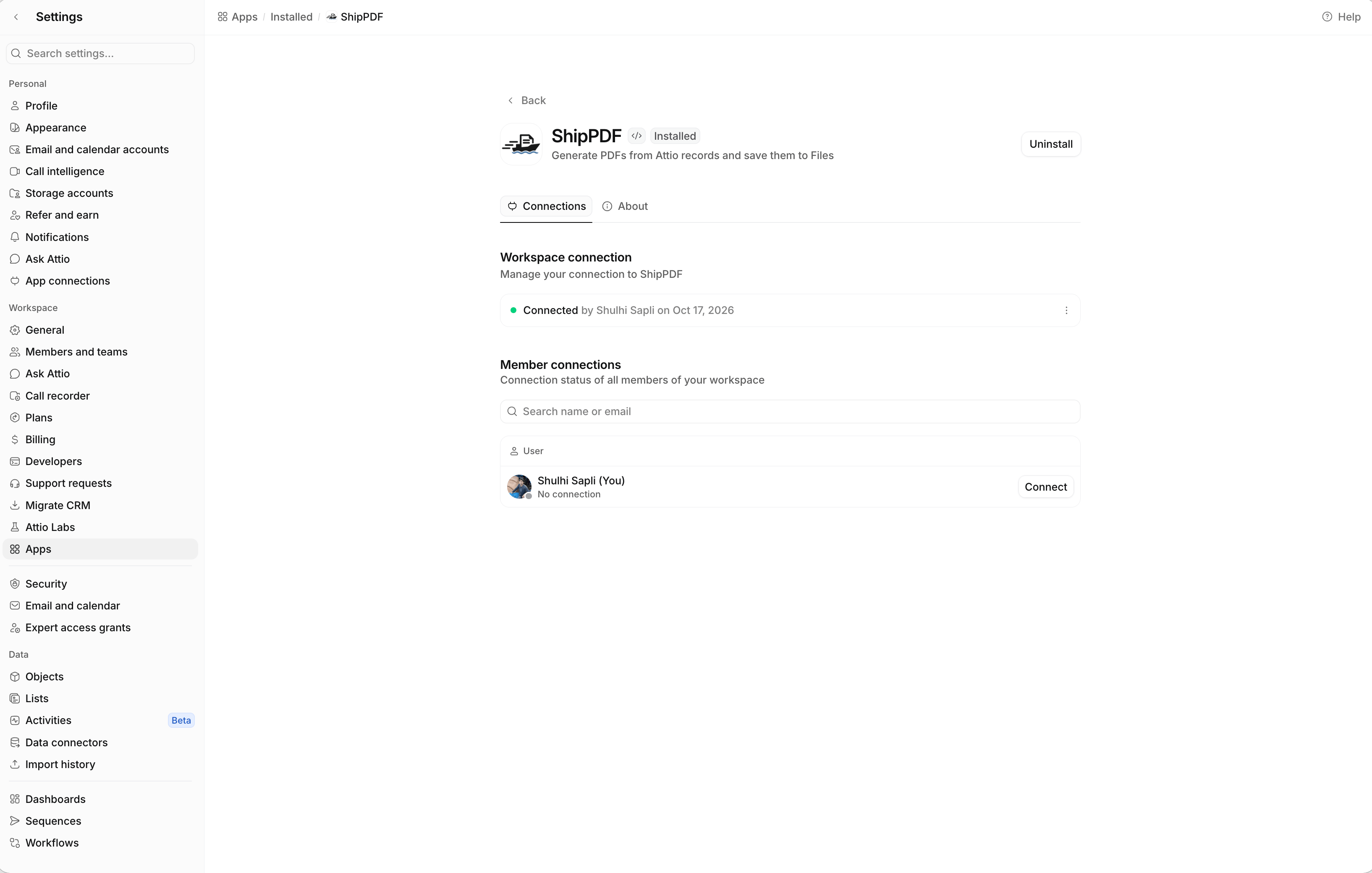
The team shares this workspace connection. No connection under Member connections is expected; each teammate does not need a separate ShipPDF connection.
Open an Attio record and find the ShipPDF icon in its action bar. Hover over it to see Generate PDF ShipPDF, then click it to start generating a document.
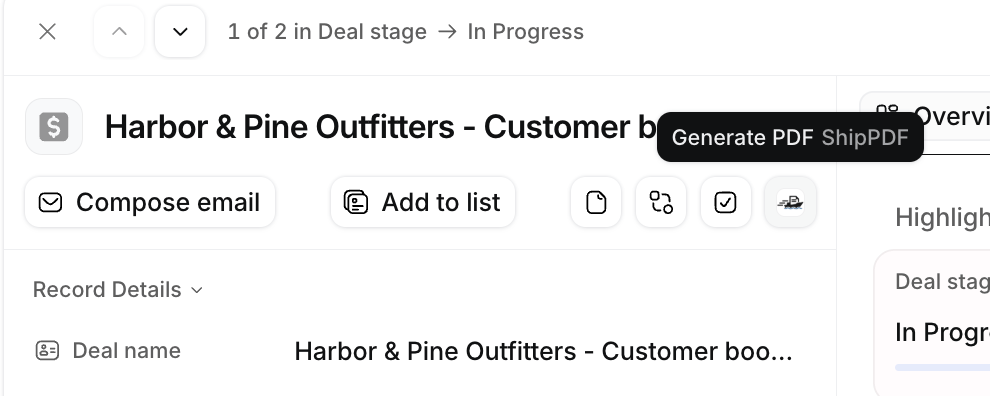
For more about Attio’s app settings and admin access, see Install and connect an app.
Generate a PDF
Choose a template
Open the Attio record you want to use and choose Generate PDF from its record actions. If saved mappings are available, choose Create new mapping to start a new setup; otherwise, the project picker opens directly. To reuse an existing setup, see Reuse a mapping on another deal.
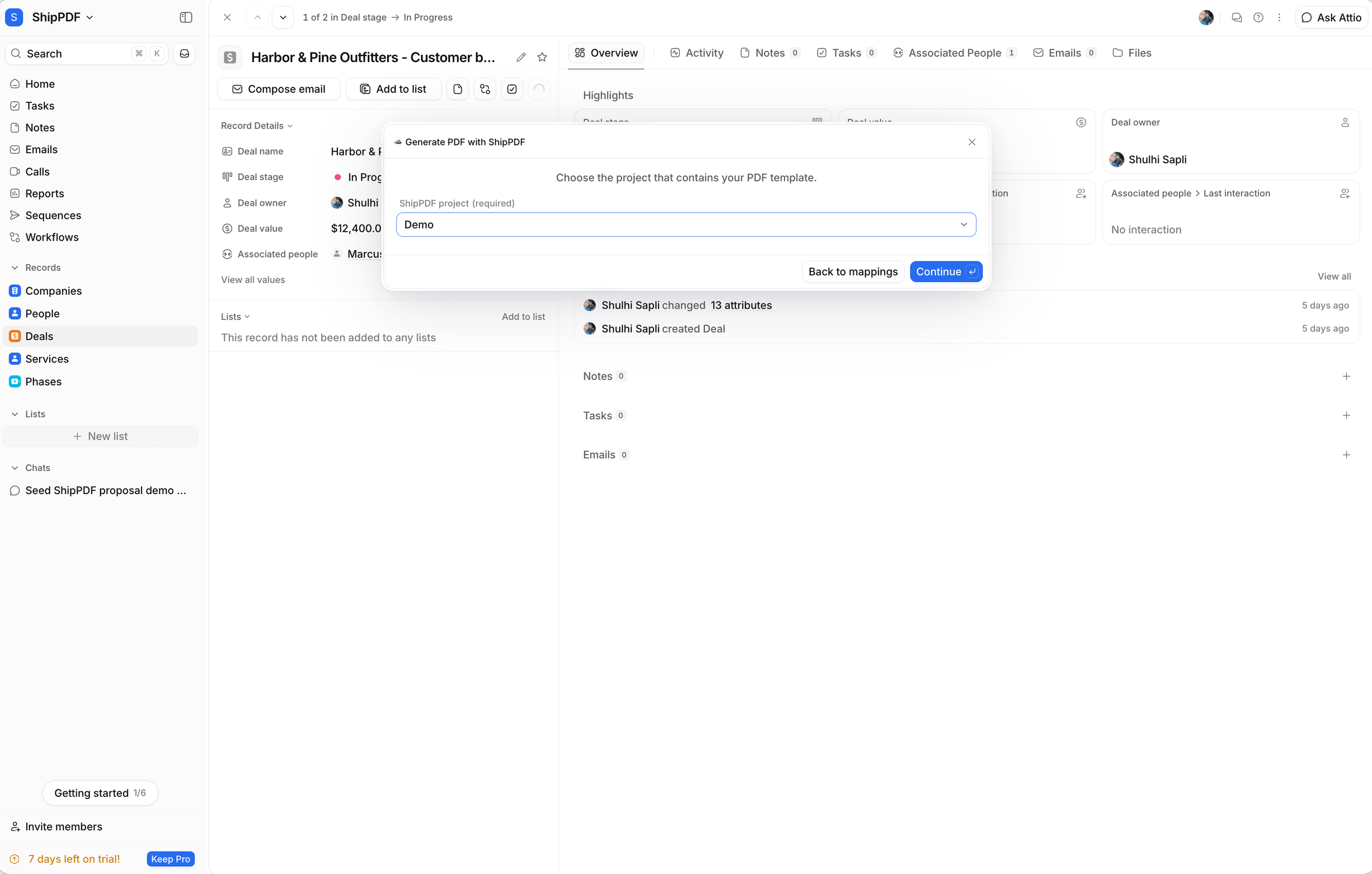
Select the ShipPDF project and click Continue.
Choose a published template and click Continue.
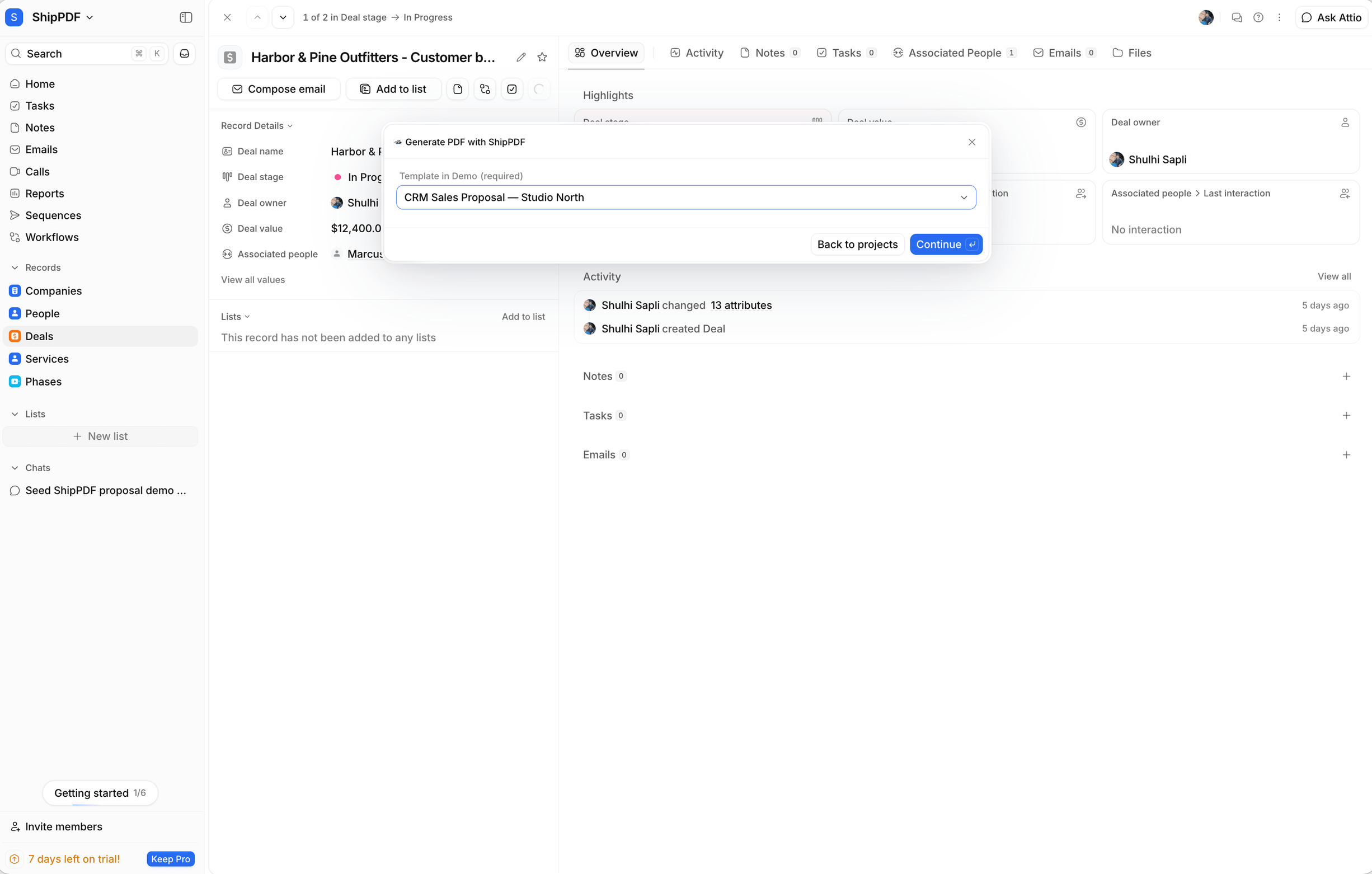
Your template determines which fields and repeating sections appear in the next step. The examples below use a proposal with client details, services, and project phases; your fields depend on your published template.
Map template fields
For each template field, choose an Attio record attribute, Enter a value, or Leave empty. The field names come from your published ShipPDF template. Fields use dot notation: client.company identifies company inside the template’s client object.
The source picker includes record attributes with values and linked-record attributes. To use a field from a linked person, company, or other record, select the linked-record attribute and choose Choose field. Select the record and field, check the preview, then choose Use value. If several records or values are available, select the one you want to use.
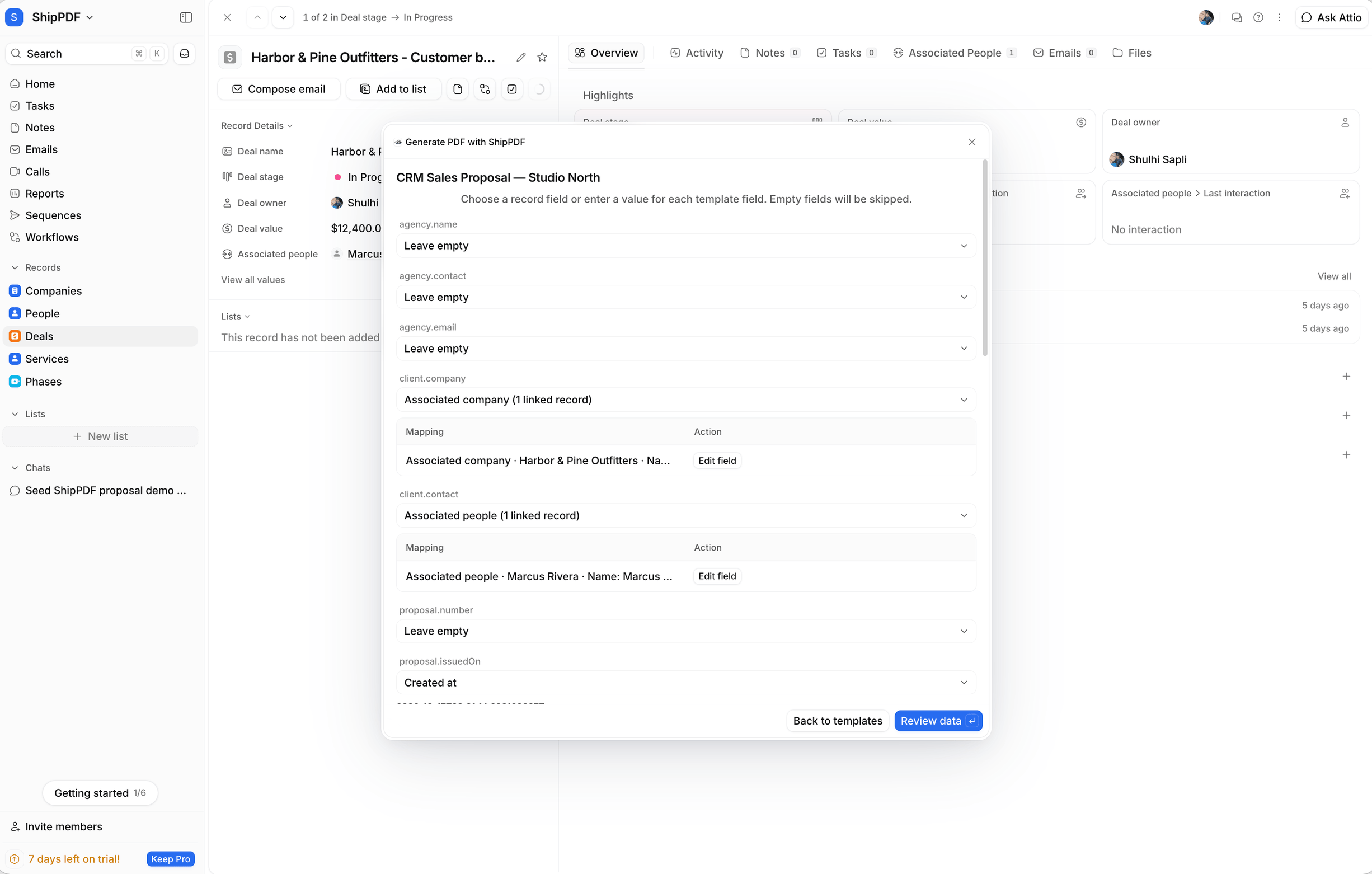
A single-value template field needs a single source value; a template list can accept a compatible multi-value attribute. For repeating sections, use linked-record column mappings or enter line items as described below.
Leave empty omits the field from the submitted data. It does not copy the template’s sample data. Save the mapping on the review screen to reuse these field choices on other records of the same Attio object, such as other Deals.
Add line items and nested items
Import linked records
For a repeating section, choose a linked-record attribute from the source picker, then click Map columns. Each linked record becomes one line item. Map each template column to an attribute from the linked records, enter a shared value for every row, or choose Leave empty. Check the preview and choose Use line items to apply the mapping.
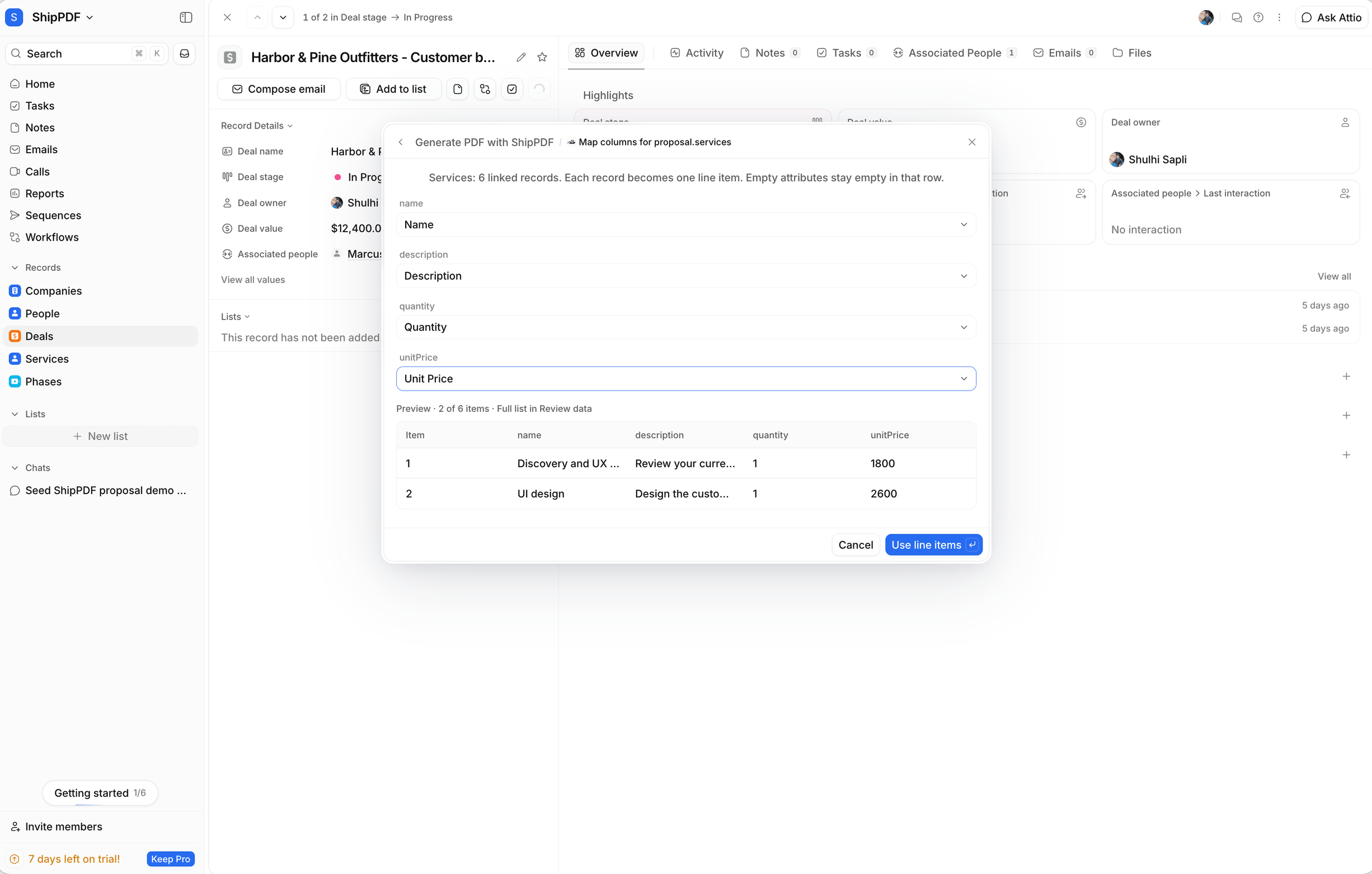
In this example, proposal.services uses Services (6 linked records) to fill the name, description, quantity, and unitPrice columns. The separate proposal.phases section uses Phases (5 linked records) for the phase and schedule columns. The column editor previews the first two rows; Review data shows the full list.
Use Edit columns to change an imported section’s mappings. Reopening the column editor reloads its linked records; apply the mappings again with Use line items. Each collection supports up to 100 linked records from one object type. Relationships inside those linked records are not followed recursively.
Enter items manually
To enter rows yourself, select Enter line items, then Add line item. The item form follows the template’s schema, with inputs for text, numbers, checkboxes, dates, timestamps, nested objects, and lists. Use Edit or Remove to change existing rows.
For example, an invoice’s items might contain:
| Description | Amount |
|---|---|
| Website design | 1250 |
| Implementation | 750 |
Nested collections open their own item editors. Save the nested item, then save its parent item to retain the changes. Cancelling the parent discards its unsaved changes, including edits to nested items.
Each manual collection supports up to 100 entries. Calculated fields are handled by the ShipPDF template and are not editable inputs.
Review and generate
Choose Review data after mapping your fields and line items. Check the values and all imported or manually entered rows, then enter a filename. Fields marked Left empty will be omitted from the submitted data.
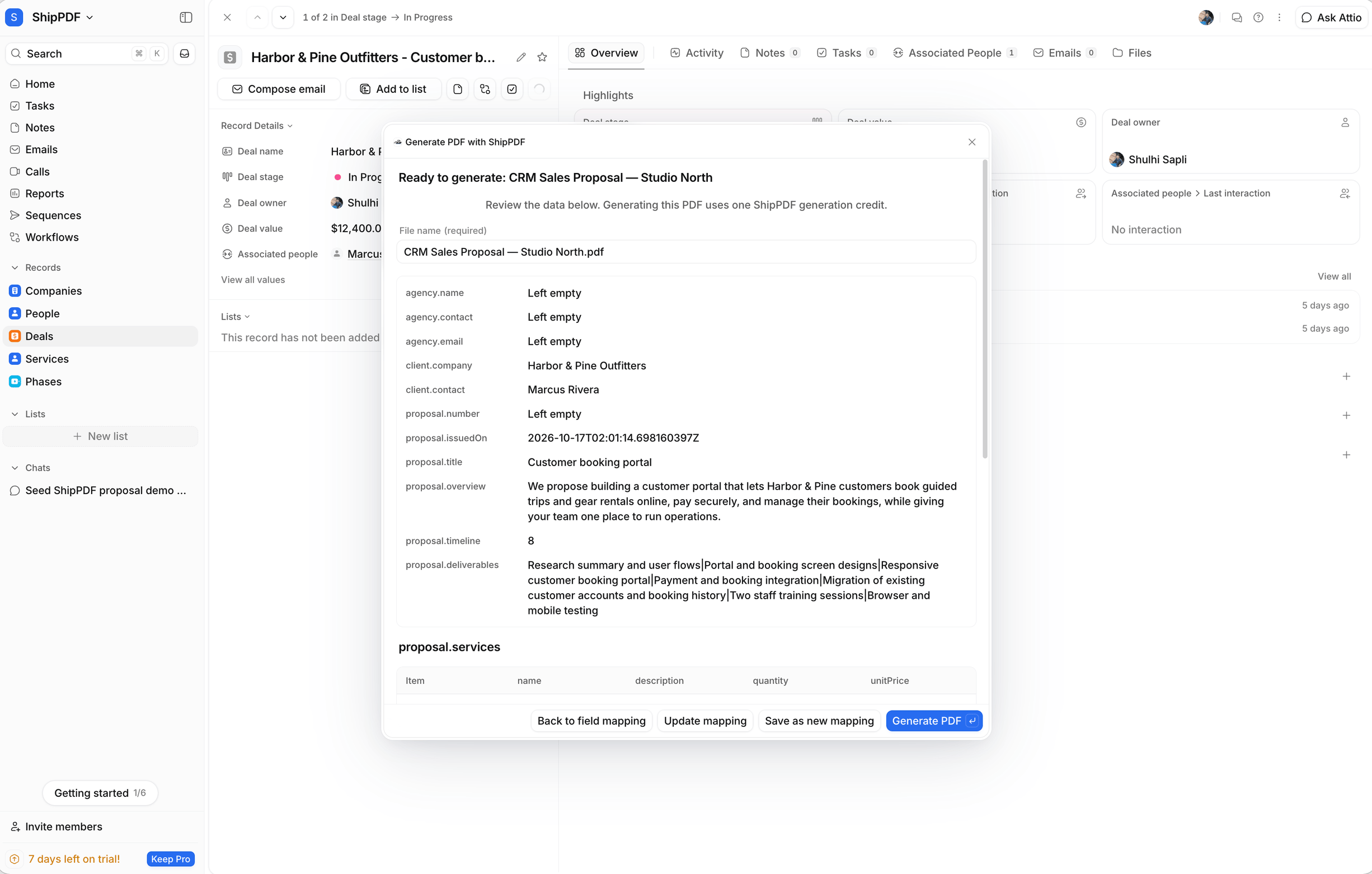
If anything needs changing, choose Back to field mapping, edit the fields, and review again.
Save a reusable mapping
Choose Save as new mapping, enter a recognizable Mapping name, and choose Save mapping. For example, save this setup as CRM Sales Proposal - Customer Booking Portal. The saved mapping keeps the template, field sources, linked-record column rules, and any fixed defaults for reuse on records of the same Attio object in your workspace.
When you loaded an existing mapping, Update mapping saves changes to that shared mapping for future documents. Save as new mapping creates a separate setup. Choosing Generate PDF uses your current draft without automatically saving or updating the mapping.
Record attributes and linked records are read again when you reuse the mapping. Manually entered values and line items are saved as fixed defaults, so check them before saving anything specific to one deal. Saving a mapping does not generate a PDF or spend a generation credit.
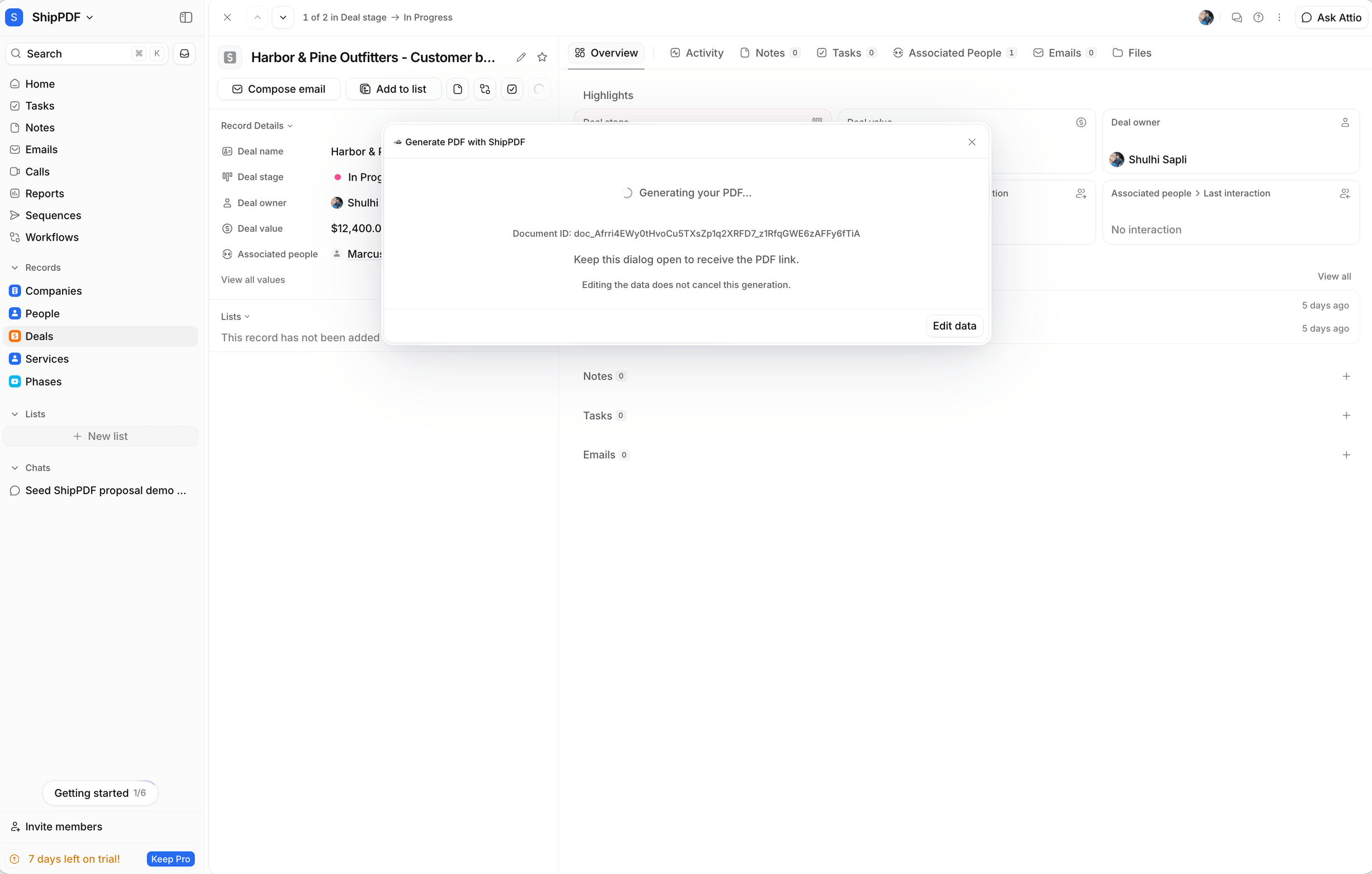
When ready, choose Generate PDF and keep the dialog open while the document is generated. Generating the PDF uses one ShipPDF generation credit; reviewing the data does not.
Preview, download, and save
Open the finished PDF
When generation finishes, the dialog shows Your PDF is ready, your filename, the document reference, and the Generated status.
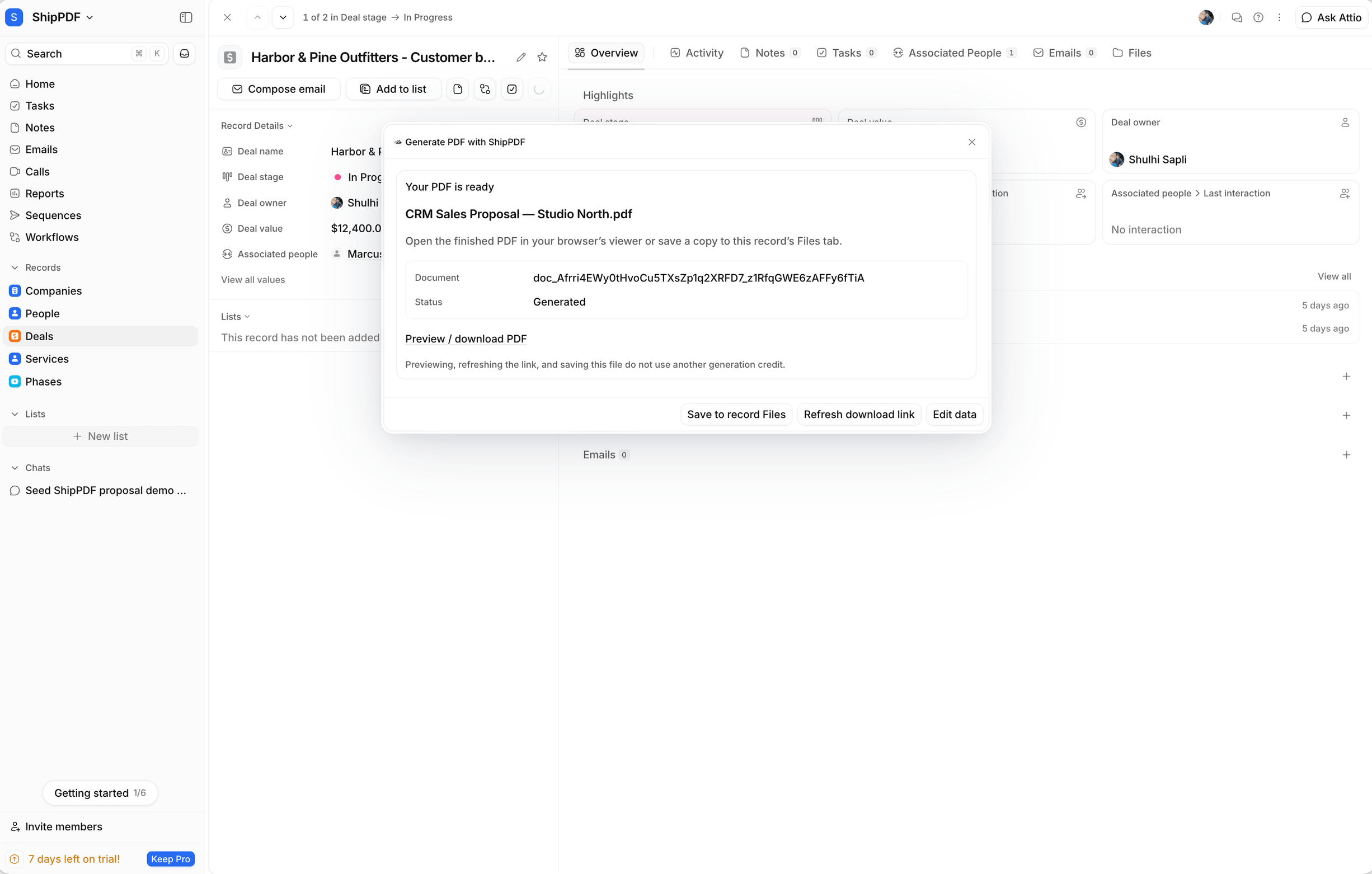
Choose Preview / download PDF to open the generated file in a new browser tab. Your browser’s PDF viewer can display or download it, depending on your browser settings. Review all pages before sharing the document.
Save a copy to the record
Return to the ShipPDF dialog in Attio and choose Save to record Files to upload a PDF copy to the original record. After saving, the status changes to Saved to record Files. Choose View saved PDF in Files to open that record’s Files tab.
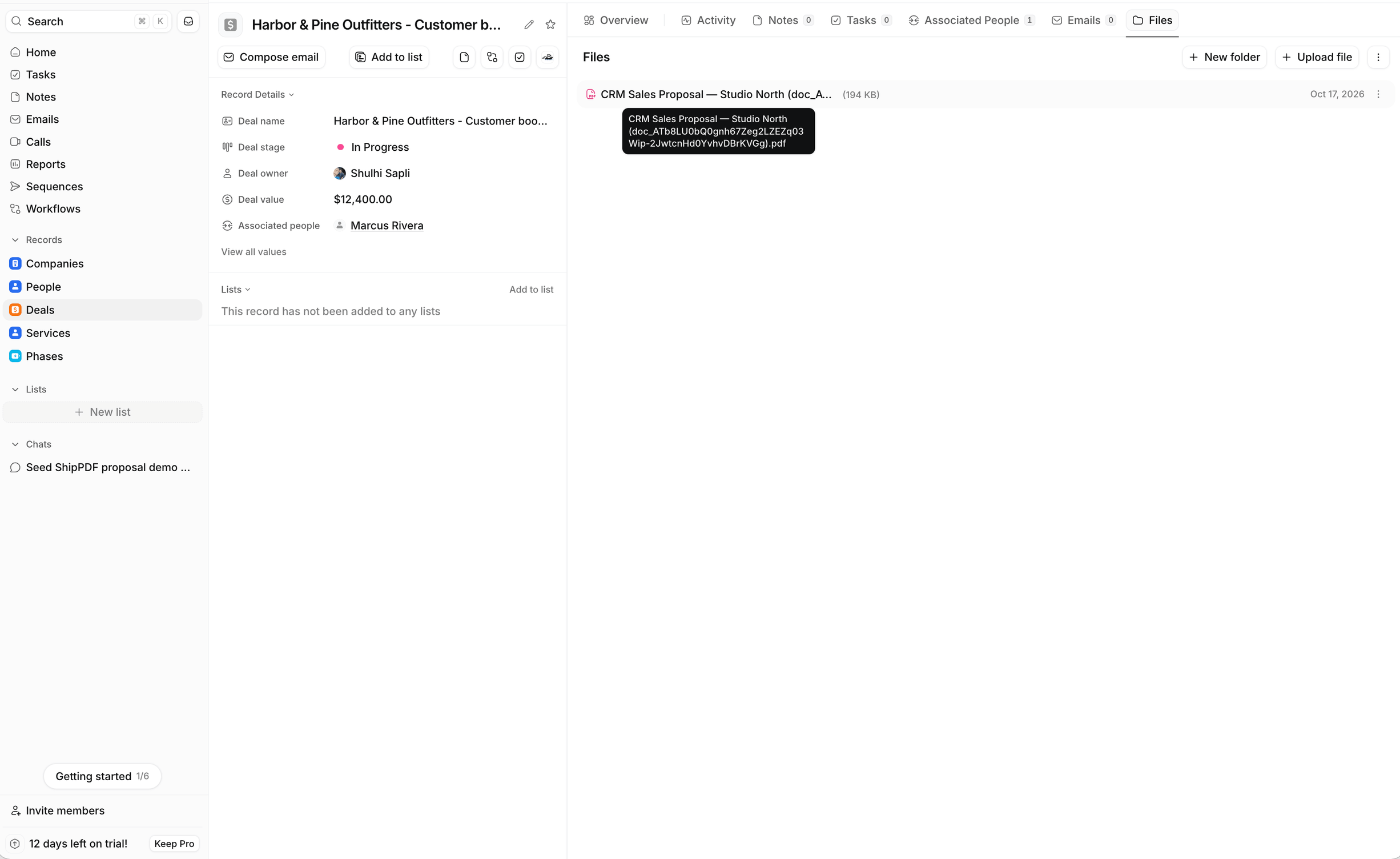
The uploaded copy is stored in Attio; it does not depend on the ShipPDF download link remaining valid. Saved filenames include the ShipPDF document reference.
Saving supports PDFs up to 50 MB and requires the app’s Files permission. Saving is a separate action after generation; a PDF is not attached automatically.
Save a lasting copy in your CRM. ShipPDF download links expire after 15 minutes by default. You can choose Refresh download link to get a fresh link for the same document, but we recommend Save to record Files to keep a copy in Attio that remains available after the download link expires.
Previewing, refreshing the link, and saving the same PDF do not spend another generation credit.
Reuse a mapping on another deal
After saving your mapping, open another Deal and choose Generate PDF. In Saved mapping, select CRM Sales Proposal - Customer Booking Portal and choose Continue. Saved mappings are shared for the same Attio workspace and object; a Deal mapping is available on other Deals.
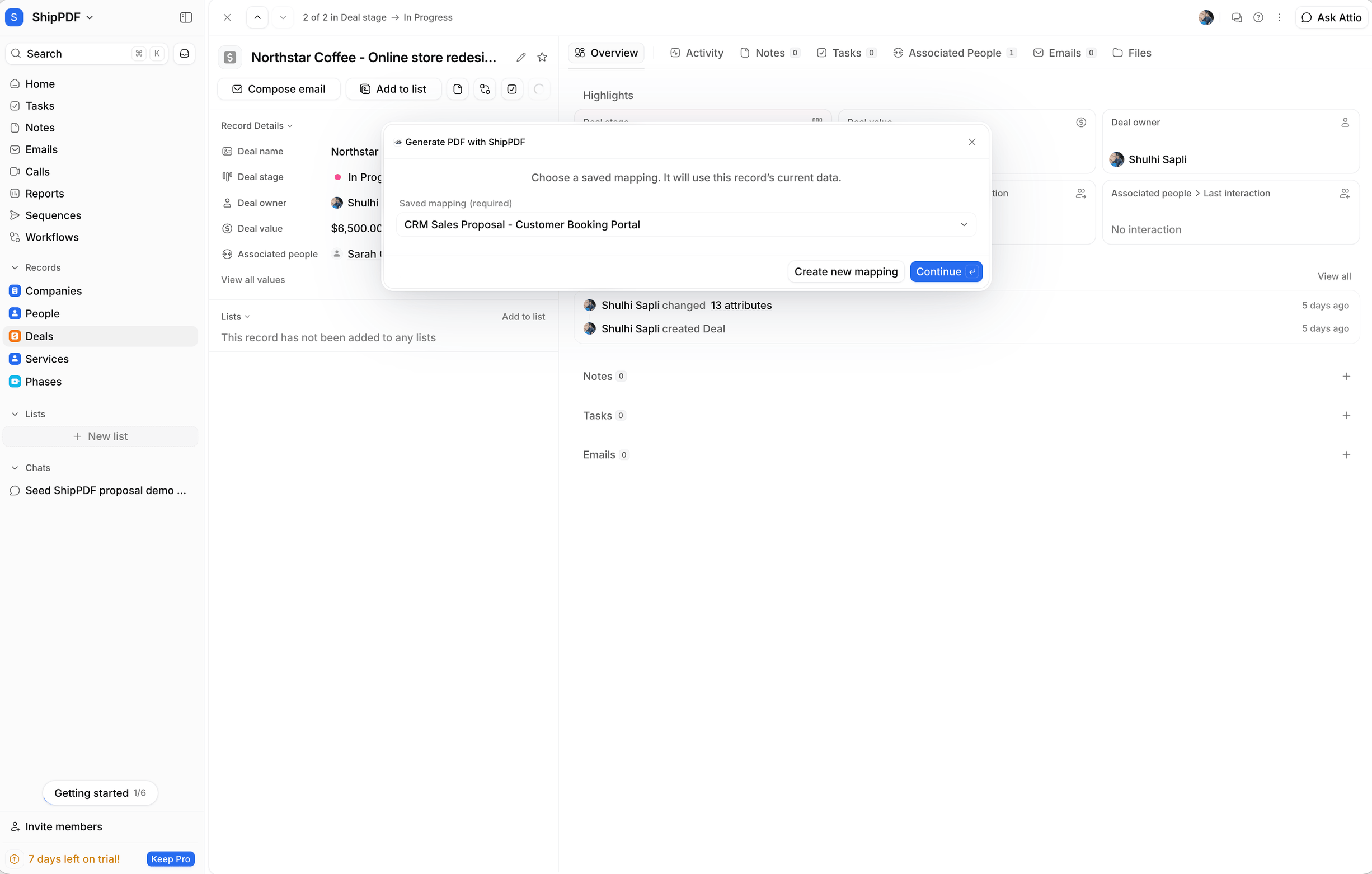
The app loads the saved template and rules, then reads this deal’s current attributes and linked records. You do not need to choose the project and template or map every field again. Check the loaded mapping and choose Review data. If a relationship has several records or values, make the requested selection for this document. Resolve any fields flagged as changed or unavailable before continuing.
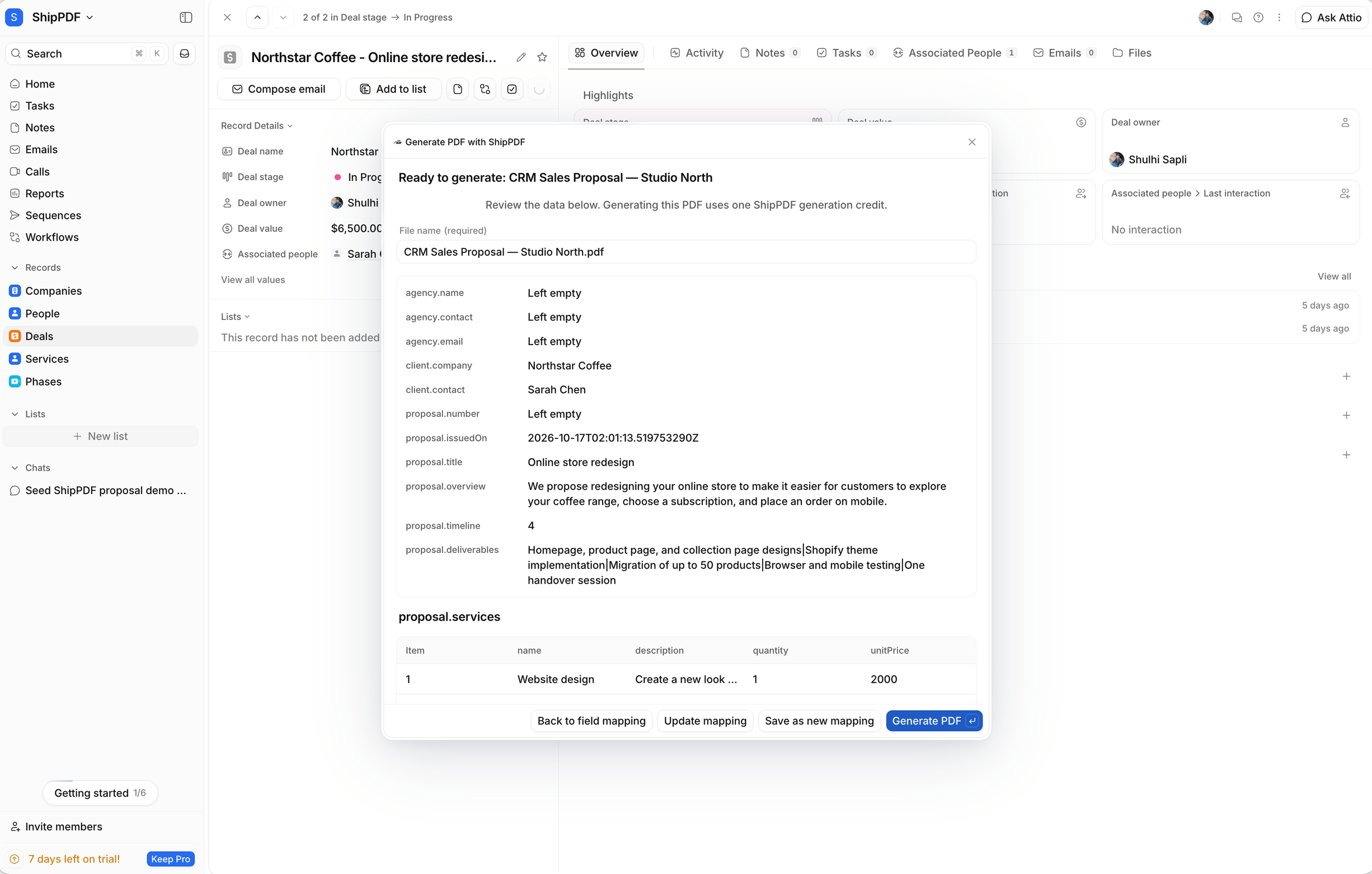
Check the filename, fixed defaults, and line items, then choose Generate PDF. Changes made for this document stay local unless you choose Update mapping or Save as new mapping.
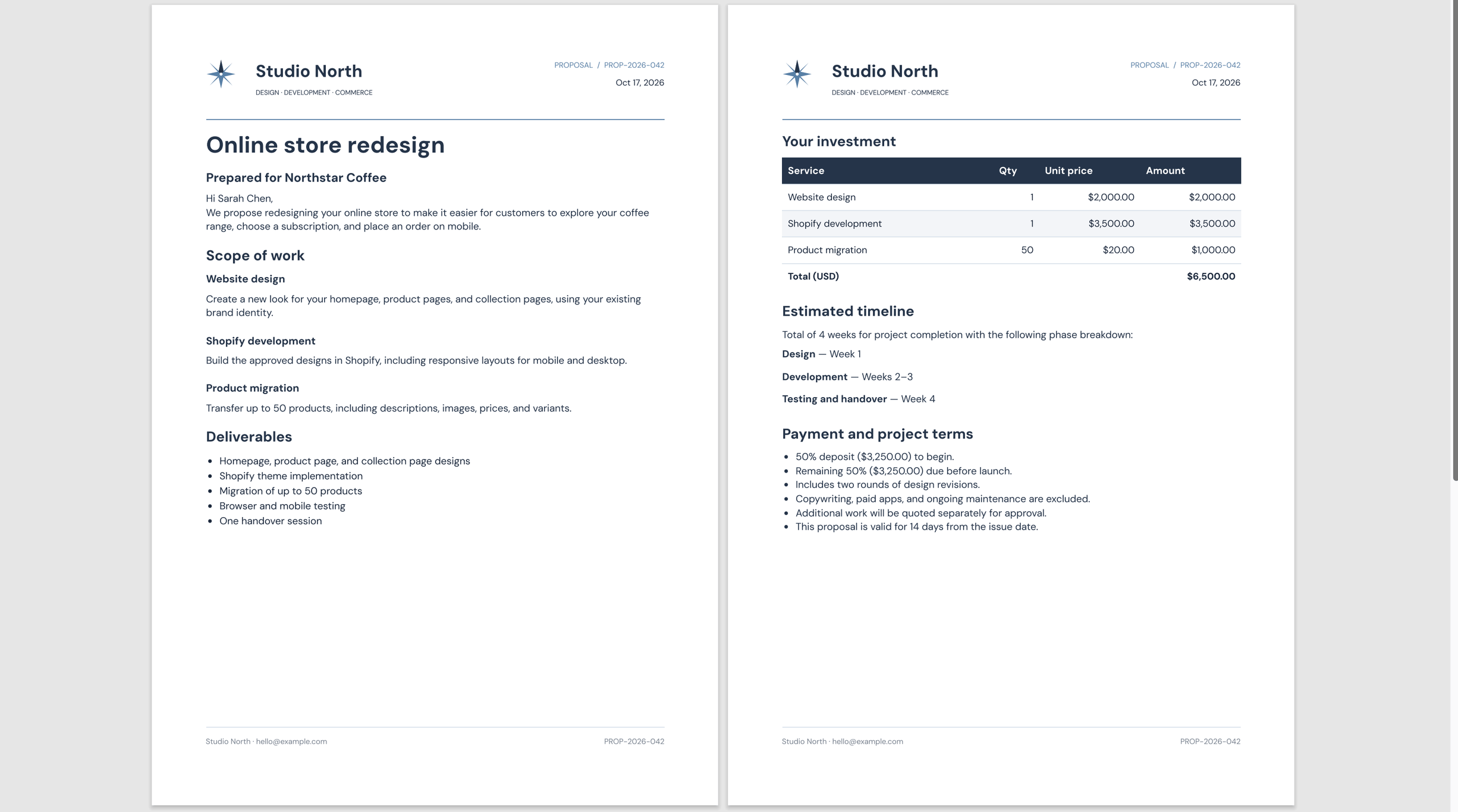
Preview the new PDF, then use Save to record Files to keep it with the Northstar Coffee deal. Generating a PDF for this second deal uses a new generation credit; selecting and loading the saved mapping does not.
Generation credits and retries
Generating a PDF spends a ShipPDF generation credit. Reviewing the mapped data does not generate a PDF. Opening the finished PDF, downloading it, refreshing its link, and saving the same document to Attio Files do not spend another generation credit.
If automatic status checks stop, choose Check status to continue checking the same document. Closing the dialog does not cancel a queued generation; you can find the document in ShipPDF.
Retrying the same submission within the open dialog reuses its generation request. Starting again in a new dialog is a new submission and may spend another credit.
Troubleshooting
No workspace connection
Ask an Attio workspace admin to open Workspace settings → Apps → ShipPDF → Connections and click Connect under Workspace connection. Sign in to ShipPDF, select the intended workspace, and allow all permissions listed above. The connection is shared across the workspace; a member connection is not required.
Connection or permission error
Ask an Attio workspace admin to reconnect ShipPDF from the app’s Connections tab. Select the correct ShipPDF workspace and allow all permissions listed above. If Attio requests an update to the app’s own permissions, have an admin approve it too.
Project or template missing
Confirm that the connection uses the intended ShipPDF workspace. Reconnect if you selected a different workspace during authorization. Publish the template before selecting it. If you changed the template’s schema, publish those changes and select the template again to load its updated fields.
Saved mappings do not load or save
Ask an Attio admin to reauthorize the shared ShipPDF connection with View saved mappings (mappings:read) and Create and update saved mappings (mappings:write). Confirm that the mapping belongs to the same Attio workspace and object. You can choose Create new mapping to generate a document without saving a configuration while resolving the connection issue.
Unable to save to Files
Check that the Attio installation has Files read and write access and that the PDF is no larger than 50 MB. If Attio requests a permissions update for an existing installation, have an admin approve it. You can still use the PDF download link while resolving a Files issue.
Generation failed
Review the error, check the template and submitted values in ShipPDF, and correct the problem before starting a new generation. Refreshing a download link cannot repair a failed render.
For help, contact support@shippdf.com with the error and document reference when available. Do not include access tokens or other credentials.
Keep your documents on brand
Build your logo, colors, typography, and layout into reusable ShipPDF templates, then generate proposals, quotes, and invoices from your Attio records. Your team can spend less time copying client details and formatting documents, keep branding consistent across every PDF, and save the finished files alongside the deals they belong to.