Quickstart using the app
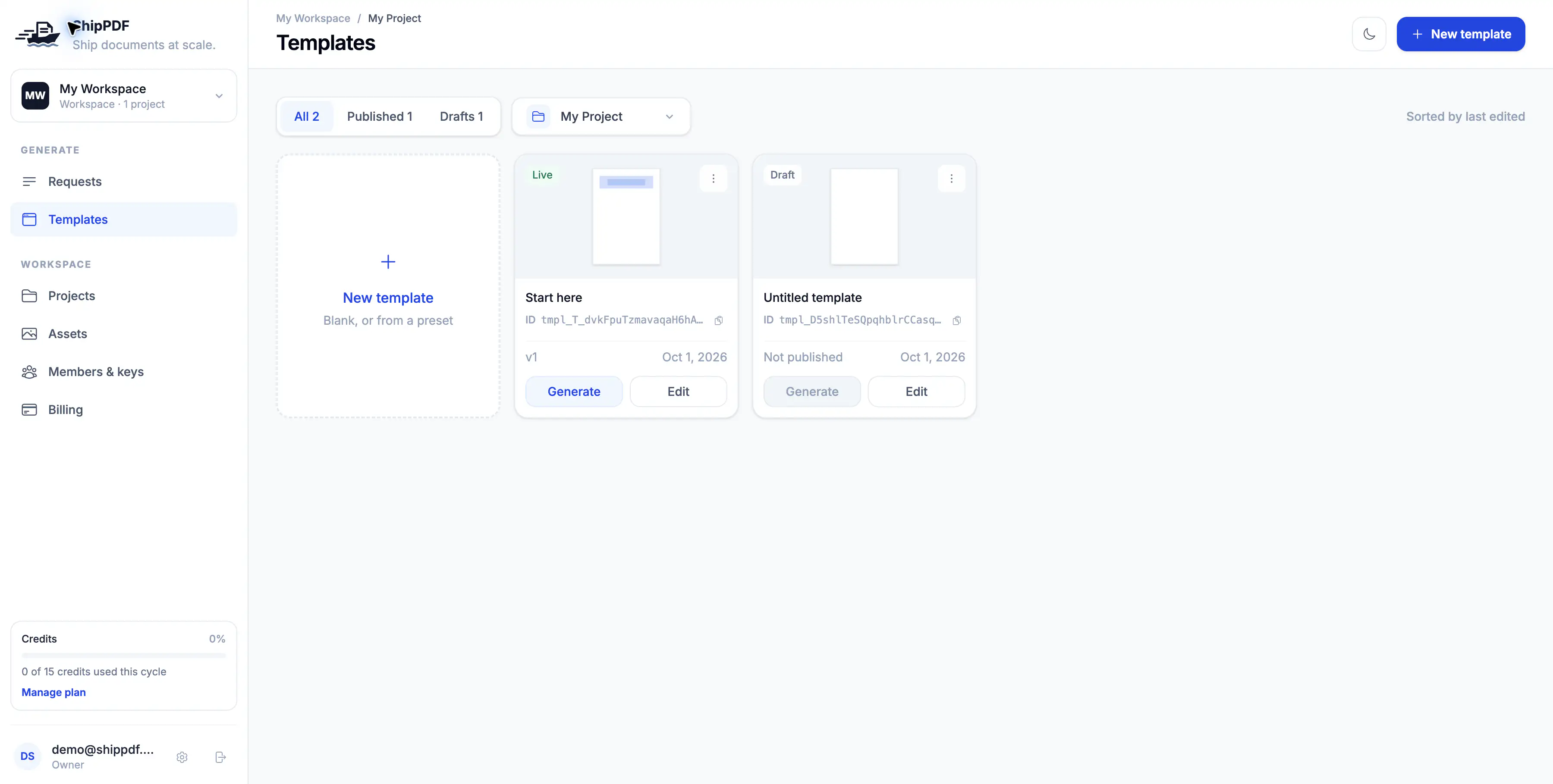
Generate a PDF directly in ShipPDF without an API token or an AI connection. Start with the published Invoice quickstart template from Create your reusable dynamic template. Your workspace needs generation credits, and your account needs permission to generate documents.
1. Open the generator
In your project’s template list, find Invoice quickstart and select Generate. If that action is disabled, publish the template first.
2. Enter your document data
The generator starts with the published template’s Default Data. Use Form to enter the values individually, or select JSON and replace the data with:
{
  "invoice": {
    "number": "INV-1043",
    "customer_name": "Northstar"
  }
}
In Form, these are the number and customer_name fields inside invoice.
Correct any validation errors until Matches schema appears. Check the
preview for Invoice INV-1043 and Customer: Northstar.
These values belong to this document. They do not edit the template or its Default Data. Replace any example values you do not want in the finished PDF.
3. Generate and download
Select Generate PDF. This uses one generation credit. The app waits for the document to finish; you do not need to poll an endpoint yourself.
When it is ready, select Download generated PDF. Open the file and confirm the invoice number and customer name. If generation fails, review the displayed error and correct the cause before generating again.
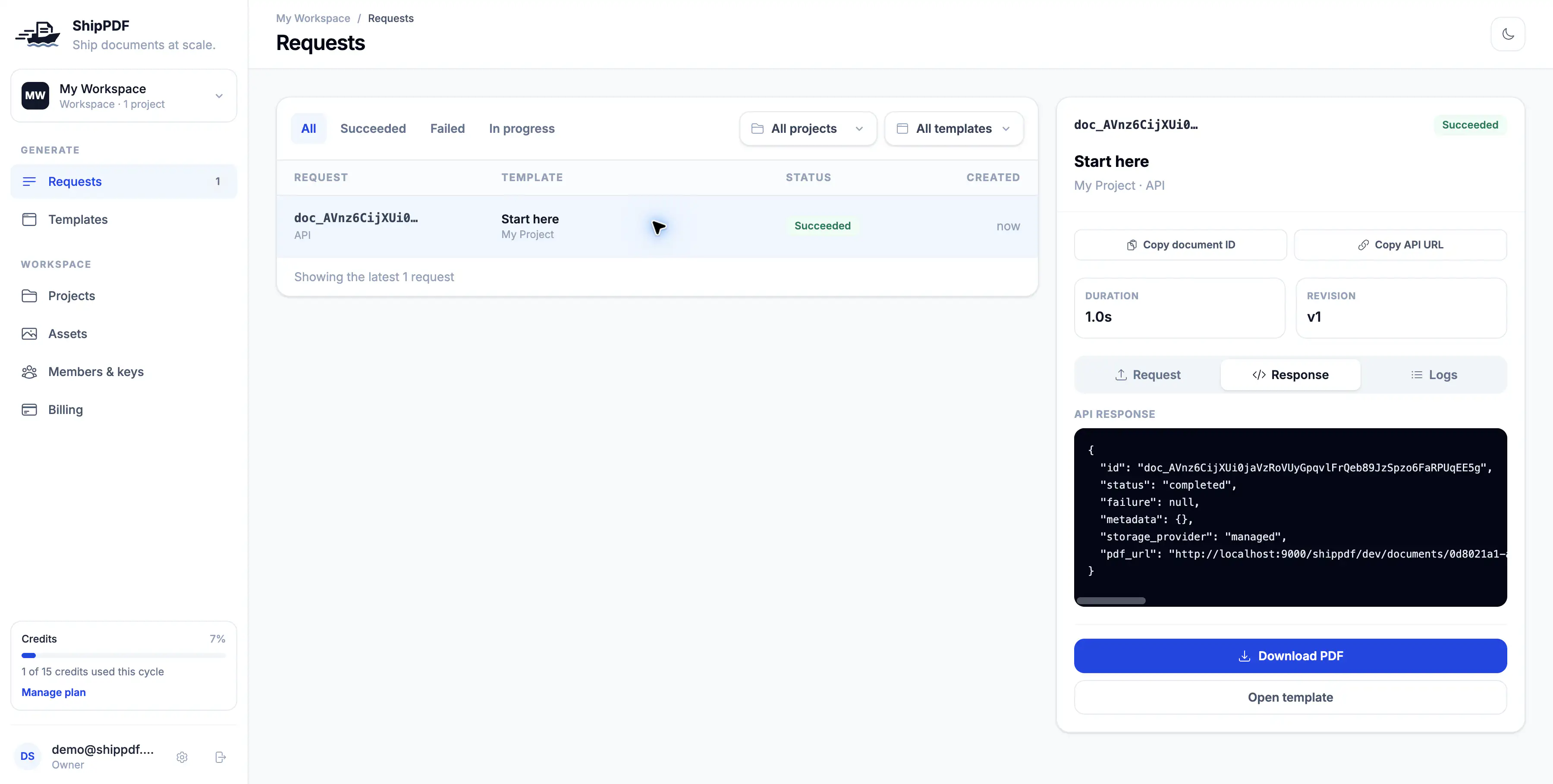
You can also find the document under Requests, open it, and use Download PDF.
Reuse the template
Return to the generator and change the values for your next invoice. The published layout stays the same while the document data changes.
To automate that step, follow Quickstart using the API or Quickstart using an AI assistant.