Authentication
Every ShipPDF REST API request needs a workspace API token. Send it in the Authorization header to access the projects, templates, and documents allowed by its scopes.
Authorization: Bearer spdf_xxx
Create an API token
Open your ShipPDF workspace.
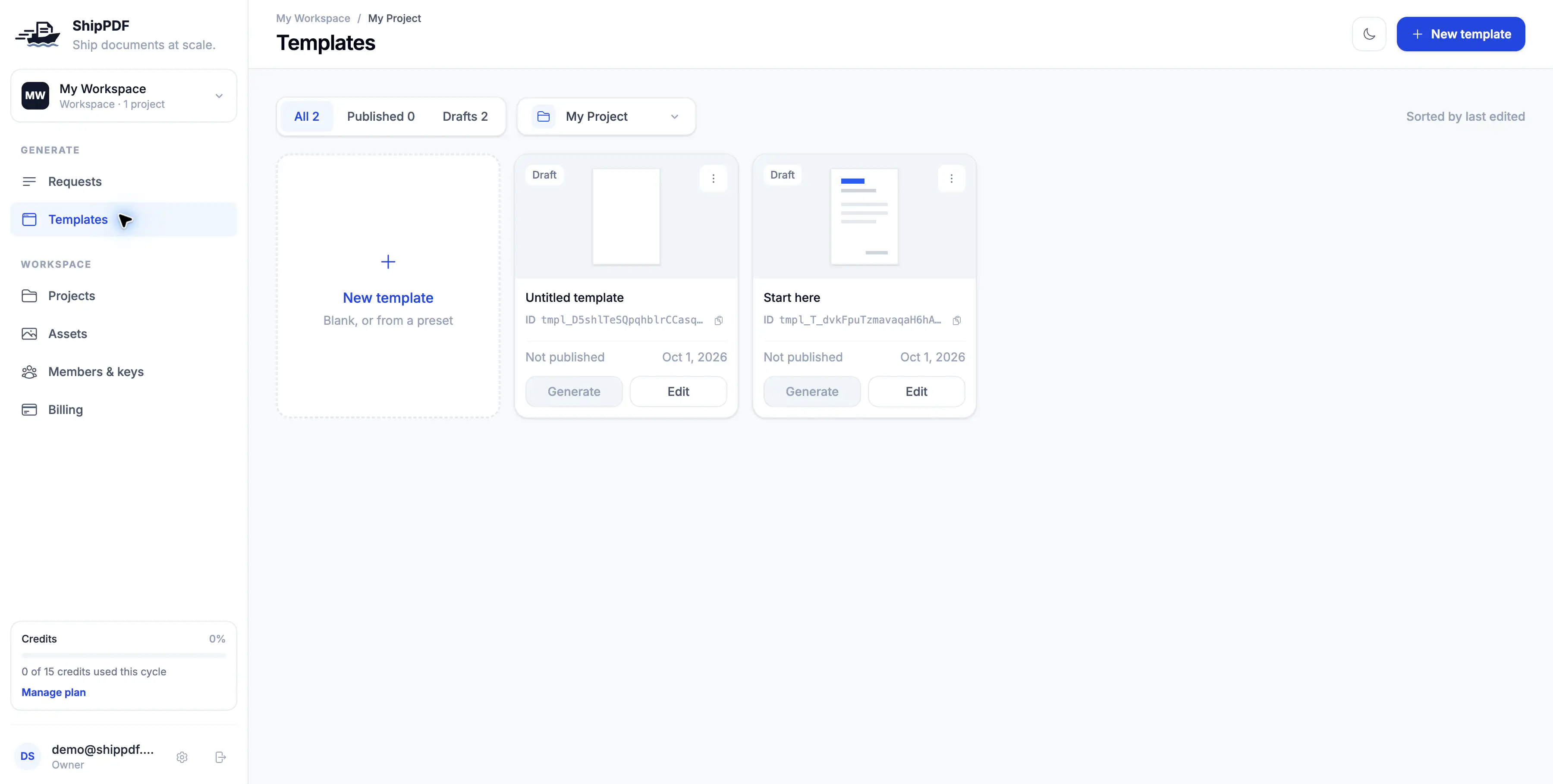
Open Members & keys from the sidebar.
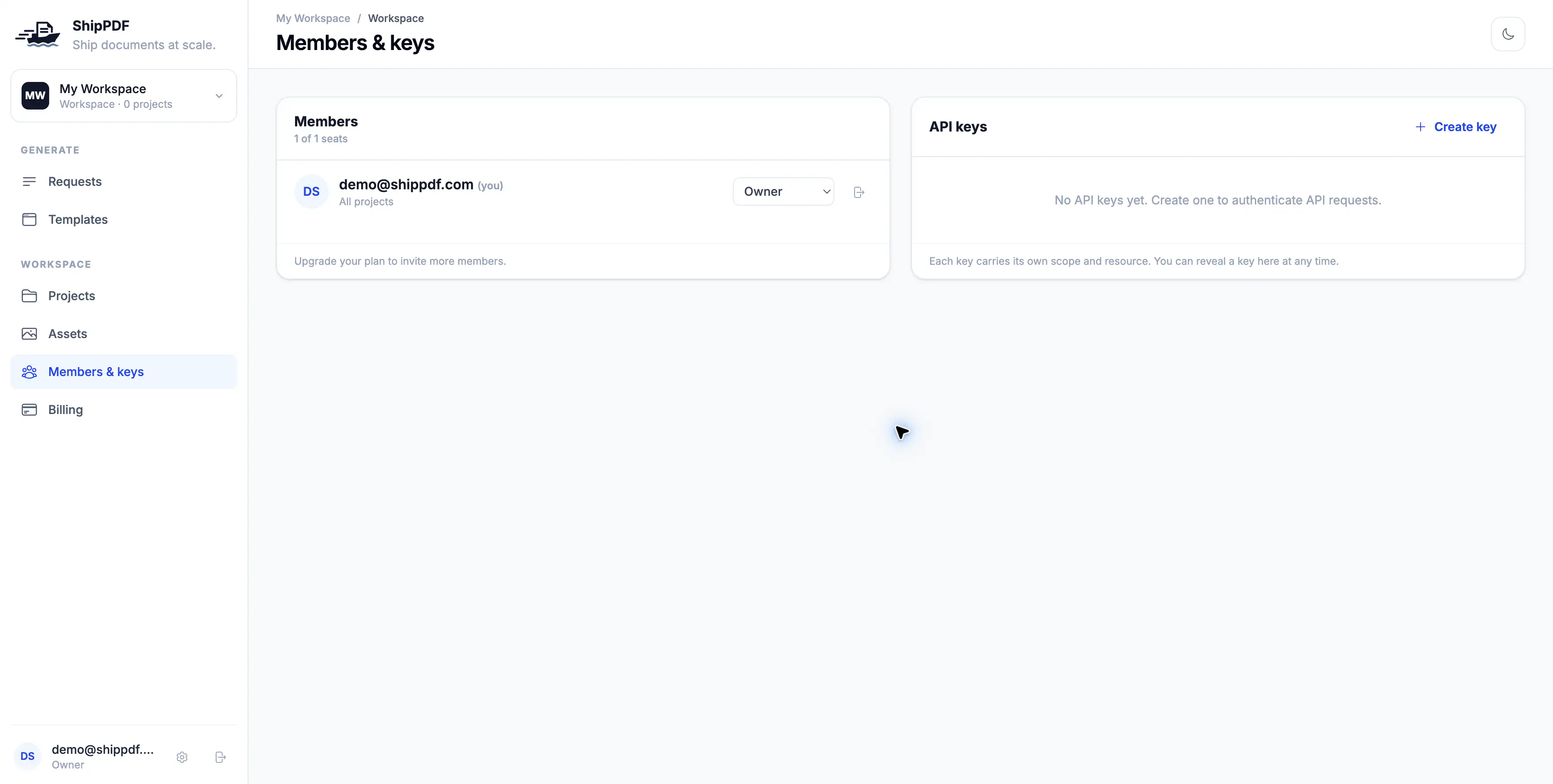
Click Create key to open the Create API key dialog.
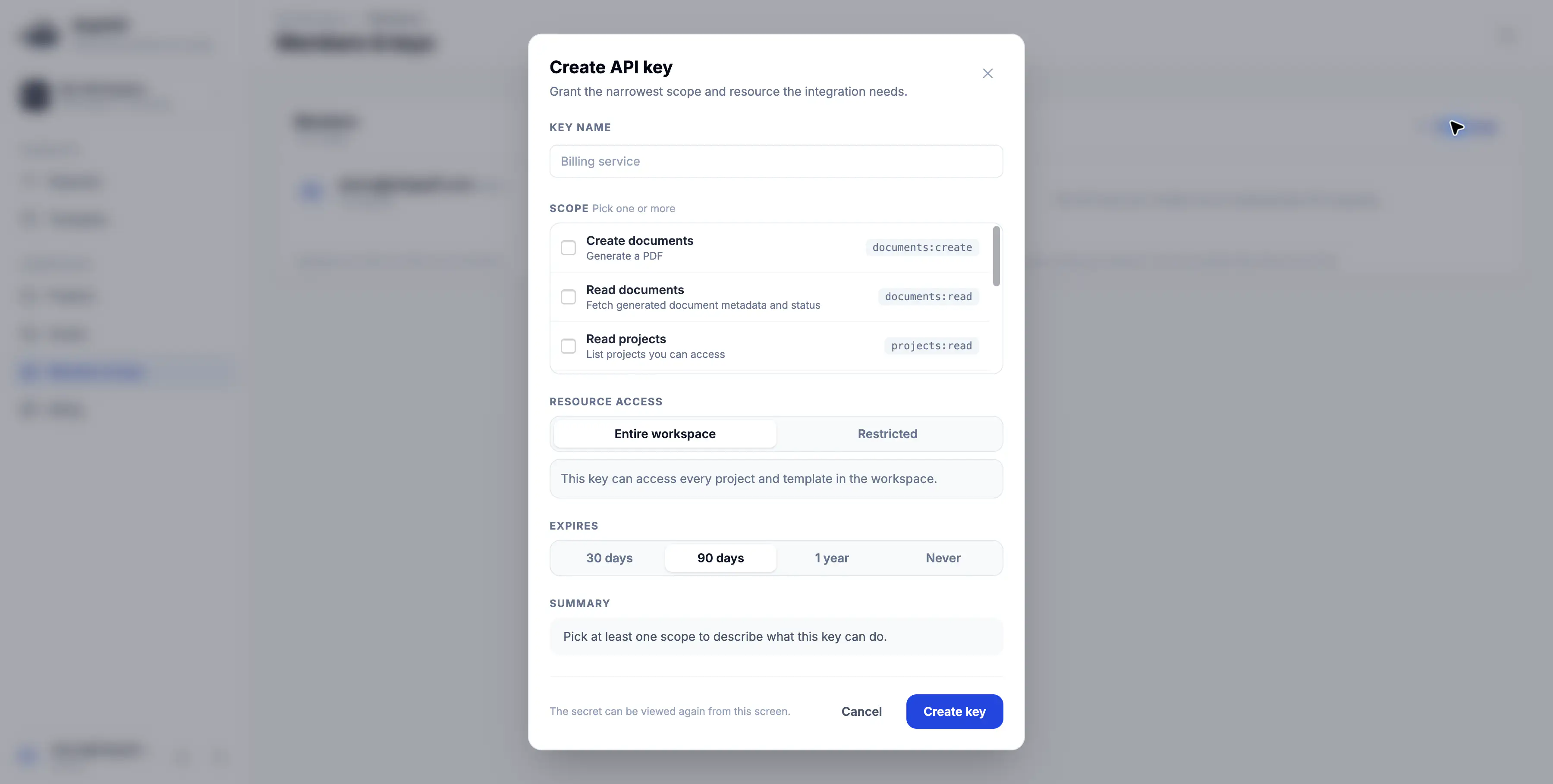
For the Quickstart, select documents:create and documents:read so you can generate a document and check when its PDF is ready. Choose the resource access and expiry your integration needs, then click Create key.
Copy the new token and store it securely. The key appears in the workspace’s API key list.
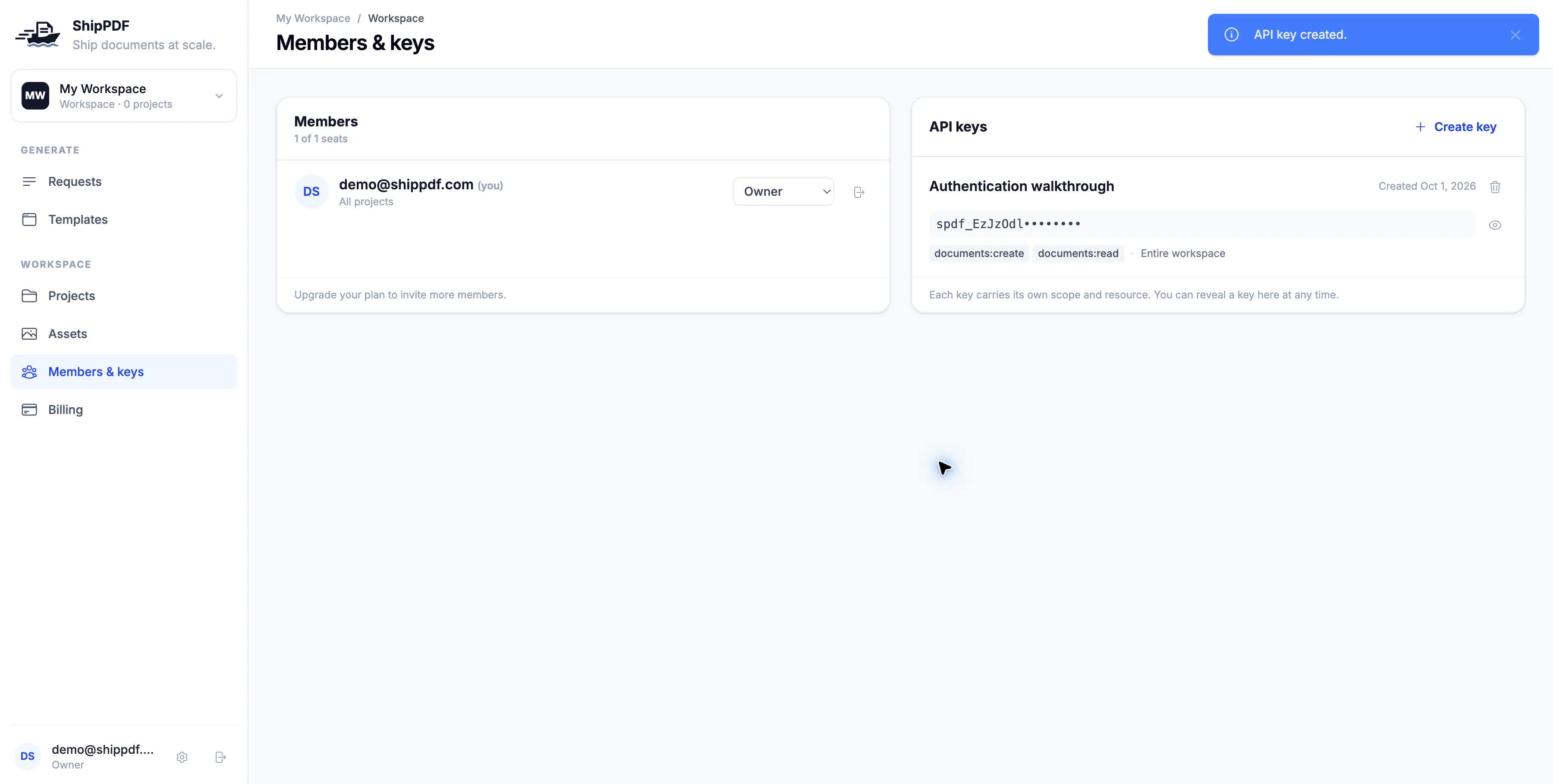
Treat the token like a password. Keep it in your server’s environment or secret store, and keep it out of browser code and source control.
Authenticate a request
The REST API base URL is https://api.shippdf.com/v1. Include your token as a bearer token on every request:
Authorization: Bearer spdf_xxx
For example, read a document using a token with the documents:read scope. Replace the example token and document ID with your own values:
export SHIPPDF_API_TOKEN="spdf_xxx"

curl https://api.shippdf.com/v1/documents/doc_a1b2c3 \
  -H "Authorization: Bearer $SHIPPDF_API_TOKEN"
Use a document from the workspace that owns the token.
Open Requests to find a generated document. If the list is empty, generate a sample document first.
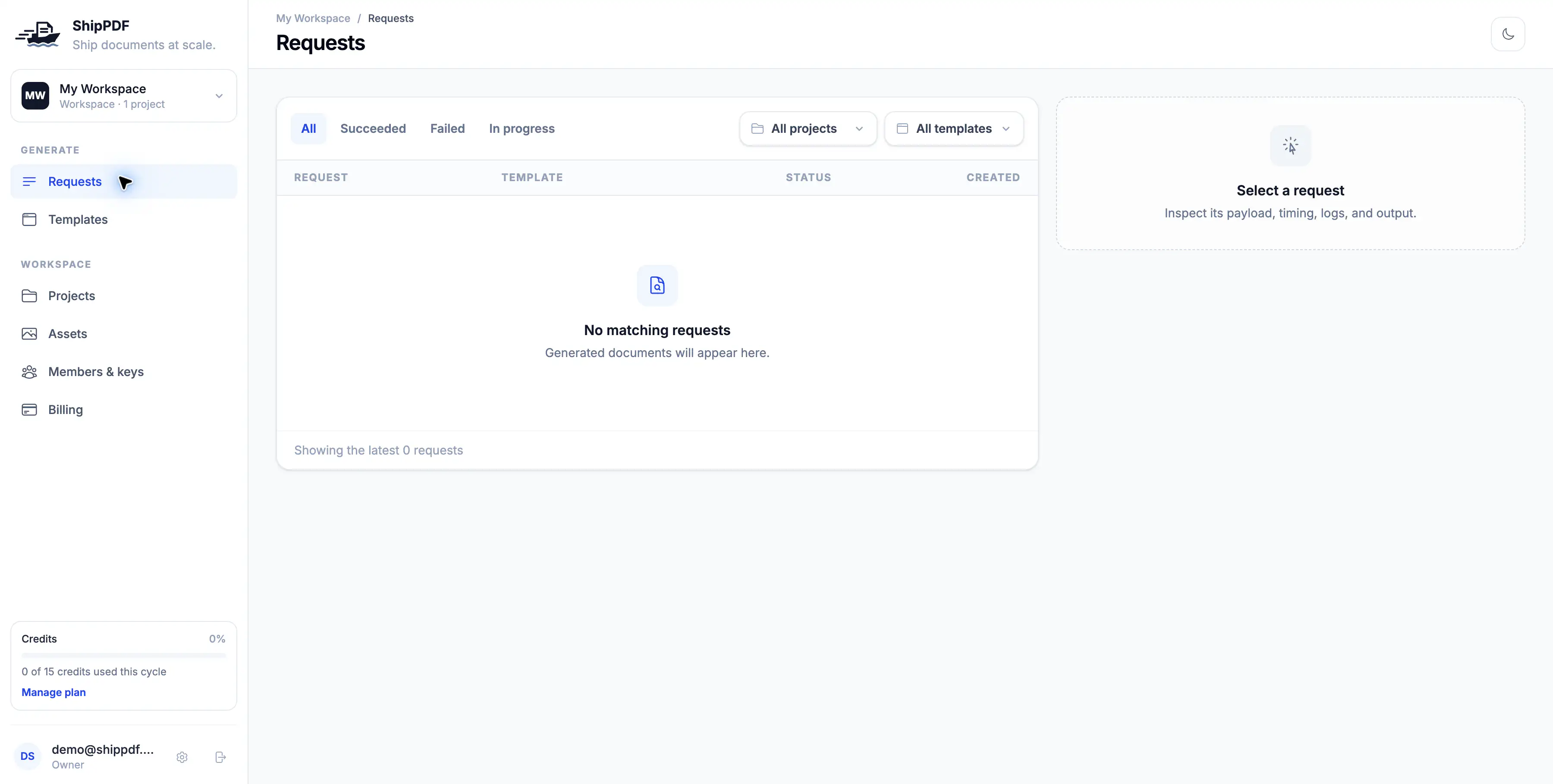
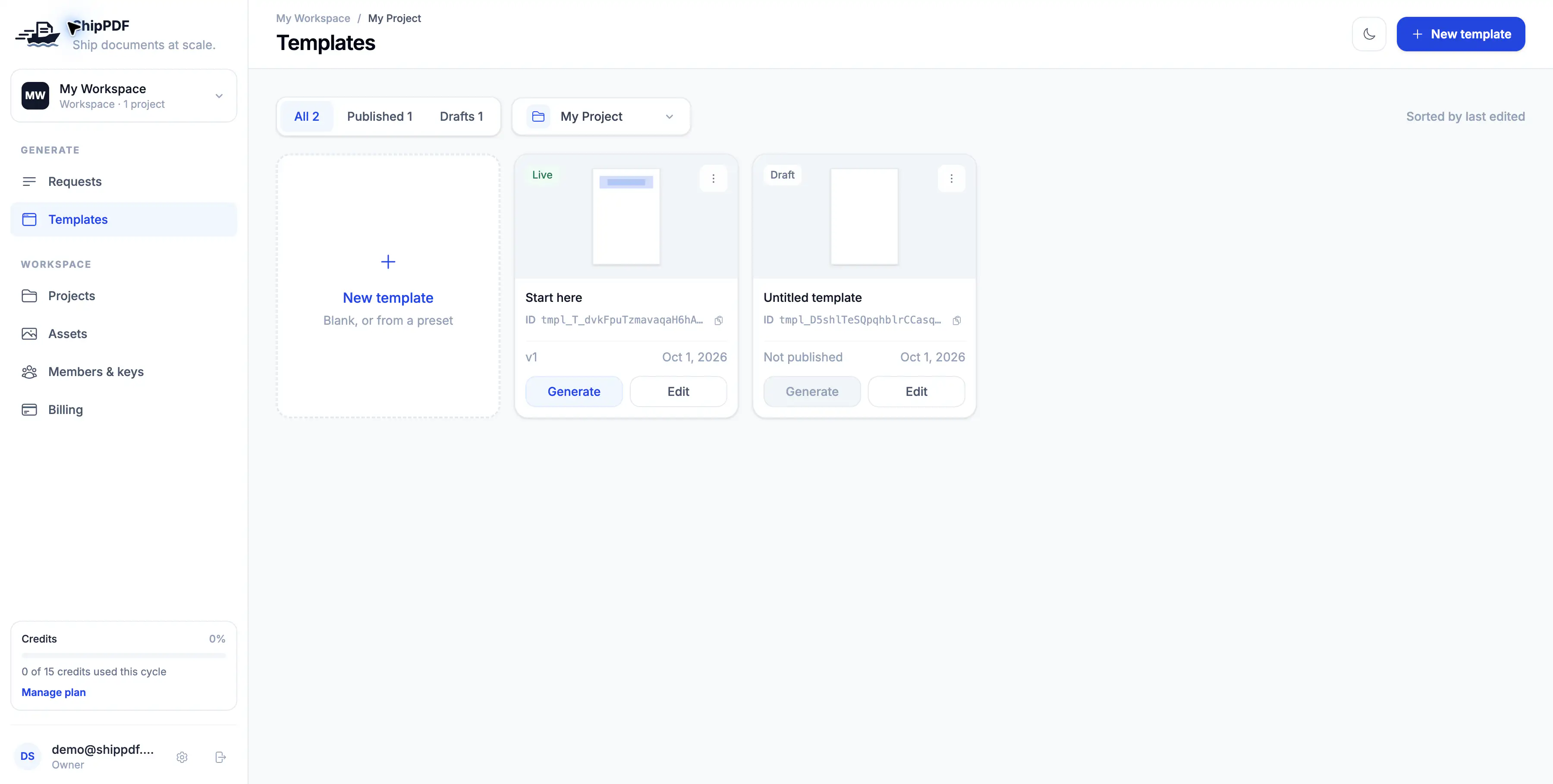
Choose a published template and follow the Quickstart to generate a document. A draft must be published before it can be used by the API.
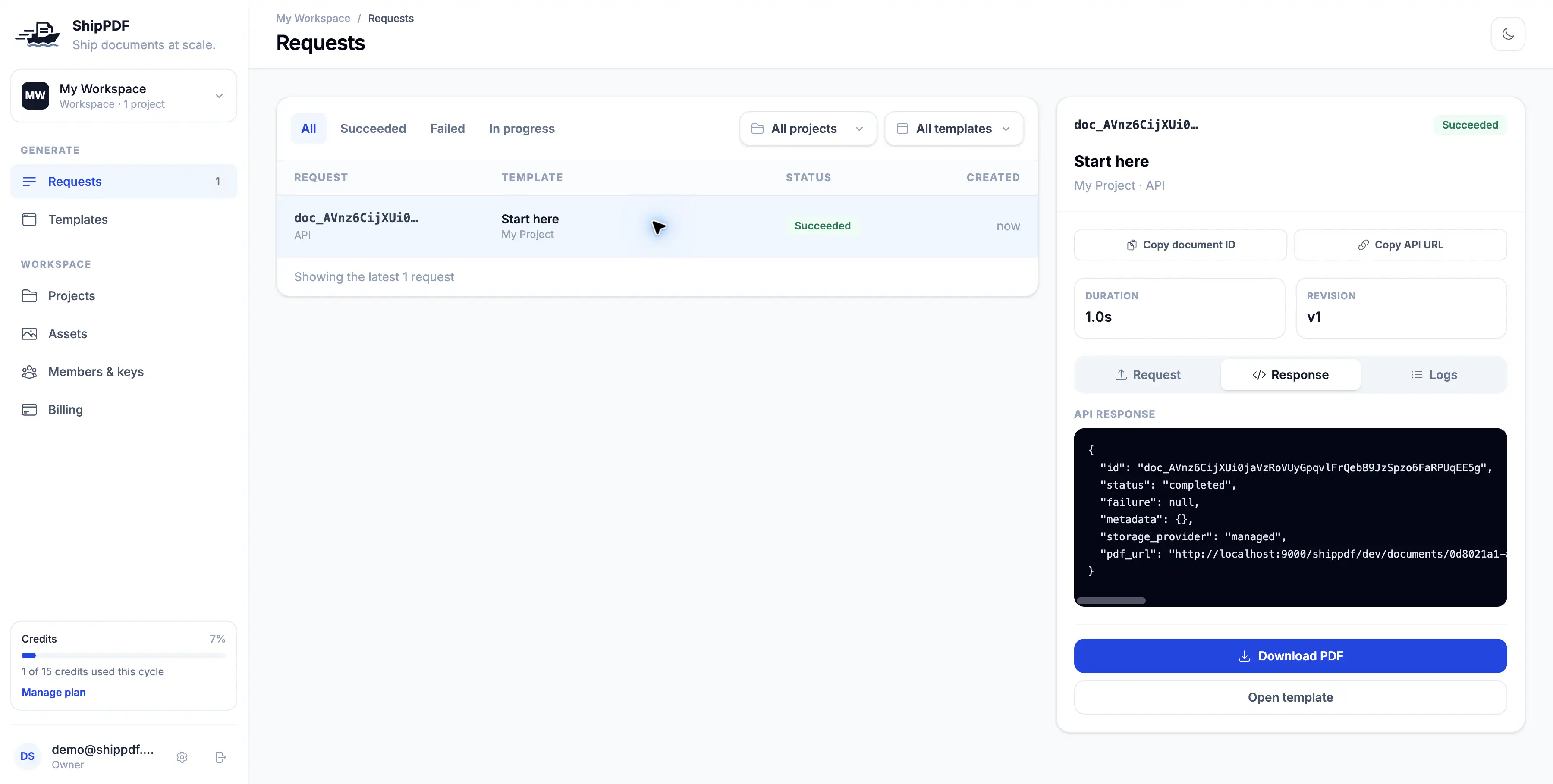
Once generation succeeds, select the request to inspect its response. Use Copy document ID to get the ID for the authenticated request above.
Choose scopes
Scopes control which operations a token can perform. Choose the scopes your integration needs:
| Scope | Access | MCP tools |
|---|---|---|
projects:read | List projects. | list_projects |
templates:read | List and read templates and their metadata. | list_templates, get_template, get_template_metadata |
templates:write | Create, read drafts, edit, and publish templates, and import image assets through MCP. No REST endpoint currently requires this scope. | get_authoring_guide, describe_schema, create_template, get_draft_template, edit_template, update_template, publish_template, import_asset |
documents:create | Generate a document from a published template. | generate_document |
documents:read | Read a generated document, including its status and PDF URL. | get_document |
webhooks:manage | Reserved for webhook management. No REST endpoint or MCP tool currently requires this scope. | None currently. |
* | Full access to all REST endpoints and MCP tools within the token’s resource access. | All tools. |
Each REST endpoint’s required scope is listed in the API reference. The MCP permissions reference lists the scopes required by its tools.
For document completion callbacks, set webhook_url when generating a document with documents:create; this does not require webhooks:manage.
Resolve authentication errors
401: Missing or invalid token
The API returns 401 when the token is missing, malformed, expired, or revoked. Check that the request includes the Authorization header with Bearer followed by your token. If the token has expired or been revoked, create a new token and update your integration.
{
  "errors": {
    "detail": "A valid API token is required"
  }
}
403: Missing scope
The API returns 403 when the token lacks the scope required by the endpoint. Check that endpoint in the API reference, then use a token with the required scope. For example, generating a document needs documents:create; reading it needs documents:read.
{
  "errors": {
    "detail": "API token does not have the required scope"
  }
}
Next steps
- Generate your first PDF with the Quickstart.
- Browse endpoints in the API reference.
- Use a workspace API token to connect an AI assistant over MCP.