Home › Blog › PDFgen vs pdf noodle vs ShipPDF: AI template design compared
PDFgen vs pdf noodle vs ShipPDF: AI template design compared
Compare AI template design in PDFgen, pdf noodle, and ShipPDF. See how much control you keep over layout, styling, data, and pages after the AI draft.
Choose ShipPDF if you want AI to create your first PDF template and still want direct control over the finished design. You can select individual elements, adjust their typography and spacing, reorganize the layout, and configure how data and tables behave. PDFgen and pdf noodle also create templates with AI. The useful difference is how you finish the template after that first draft.
A convincing invoice preview is a good start. The next requests tend to be more specific: make the heading 14 pt, widen the description column, move the payment details, or repeat the table header on the next page. Those are the changes this comparison focuses on.
We’re ShipPDF. On October 26, 2026, we inspected an AI-generated invoice in PDFgen and created an invoice for a fictional software project in pdf noodle to review their editing interfaces. We compared those workflows with ShipPDF’s editor and AI authoring support. The examples cover editing controls and a ShipPDF reference match. We did not run a scored accuracy or speed benchmark across all three products.
In this guide
- AI template design at a glance
- What happens after the AI creates your template?
- Accuracy and complexity
- Where ShipPDF gives you more direct control
- Try the same follow-up requests
- Which should you choose?
- Frequently asked questions
AI template design at a glance
All three products can help you create a template with AI. For a reusable business document, look at how much of the result you can adjust directly.
| What you want to do | PDFgen | pdf noodle | Control after AIShipPDF |
|---|---|---|---|
| Create with AI | Built-in assistantDescribe the document or start with a reference. | AI template creatorStart from a prompt, reference, or data. | Your assistant, your templateDescribe the document and get editable ShipPDF elements. |
| Fine-tune the styling | Prompt or HTMLThe selection panel supports text and data edits. | Prompt or codeRevise the HTML with the AI assistant or Code view. | Controls for each elementAdjust typography, spacing, backgrounds, and borders directly. |
| Reorganize the layout | Ask for a revisionContinue the conversation or edit the HTML structure. | Modify with AIAsk to add, remove, or change sections. | Visual layout & OutlineRearrange rows, columns, and content, or ask your assistant. |
| Connect the data | Detected fieldsDynamic fields, repeating sections, and conditions. | Document dataReview sample data in a dedicated view. | Visual fields & formattingBind fields, format dates and money, and configure formulas. |
| Control the pages | Paper formatChoose a size, then adjust layout through prompts or HTML. | Document settingsFormat, orientation, margins, header, and footer. | Page & content flowControl margins, repeated headers, row splitting, and breaks. |
| Review before reuse | Versions & test PDFReview versions and test with sample data. | Preview & PDF sampleReview the design and generate a sample. | Review the draft & publishCheck the PDF with realistic data and publish a revision. |
The PDFgen and pdf noodle columns describe the AI-generated template workflows we reviewed. pdf noodle also documents a separate component builder with a component tree and property controls. That distinction matters when choosing how to build your template.
What happens after the AI creates your template?
PDFgen: keep refining through conversation, content edits, or HTML
The invoice we inspected had a conversation panel for follow-up changes, a version list, and an editable HTML view. Clicking the invoice heading opened an Edit data panel for changing its content or turning it into a dynamic field.
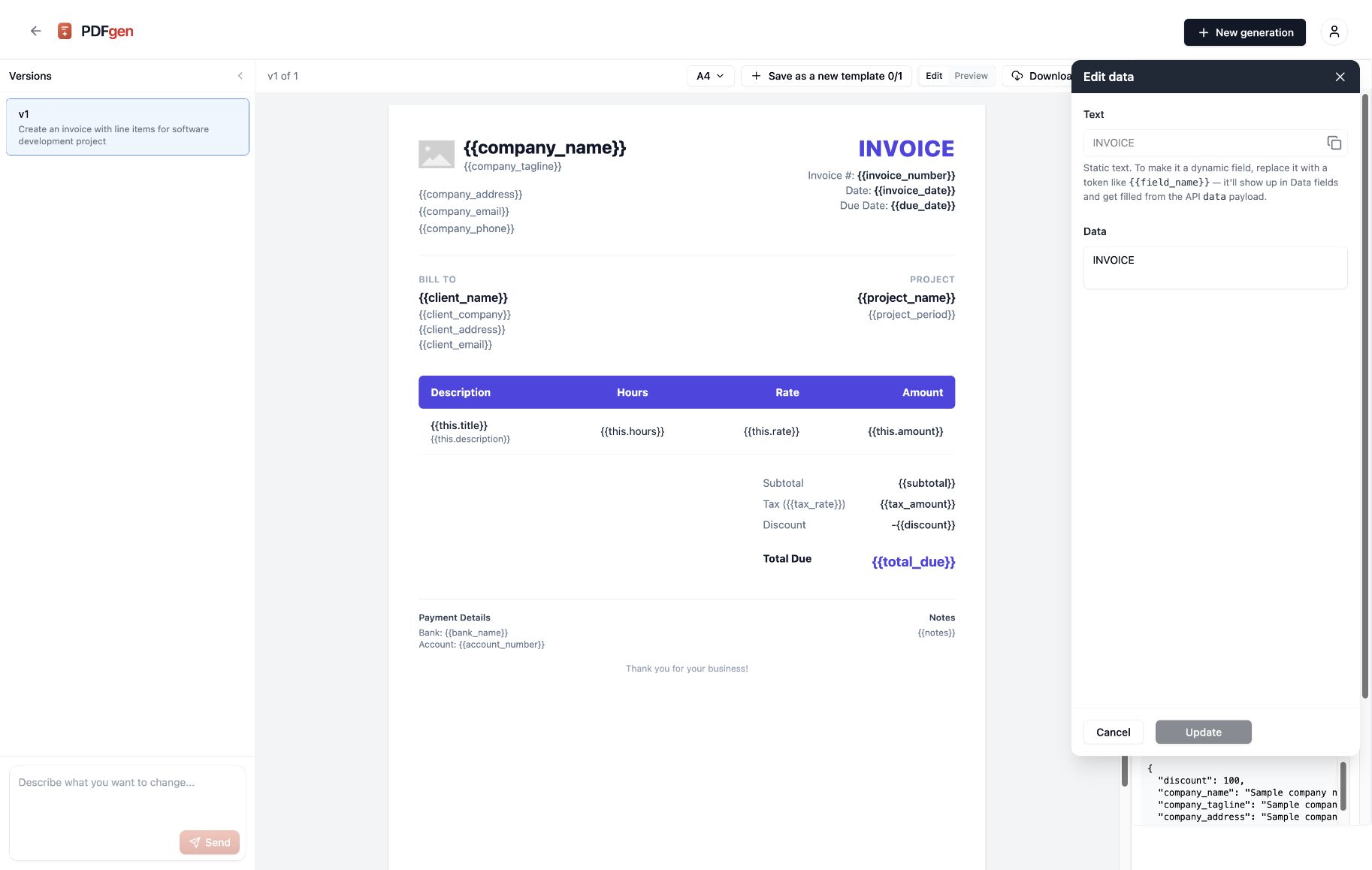
This suits a workflow where you ask AI to revise the page and make occasional text changes yourself. In the heading panel we reviewed, there weren’t dedicated controls for font size, padding, or borders. For those changes, the available routes were another prompt or an HTML edit.
PDFgen also showed detected data fields, repeating sections, a conditional section, and a sample-PDF action. It has useful design and review features. Its product overview describes both prompt refinement and click-to-edit.
pdf noodle: an AI assistant around an HTML template
pdf noodle’s creator accepted a description, a reference document or image, or a data payload. After generation, its AI editor offered follow-up requests for changing the theme, adding an image, and adding or removing a section. Its AI refinement guide describes this conversational workflow.
The generated invoice opened in an interface with Preview, Code, Data, and Settings views. Settings included paper format, orientation, width, margins, and header and footer options.
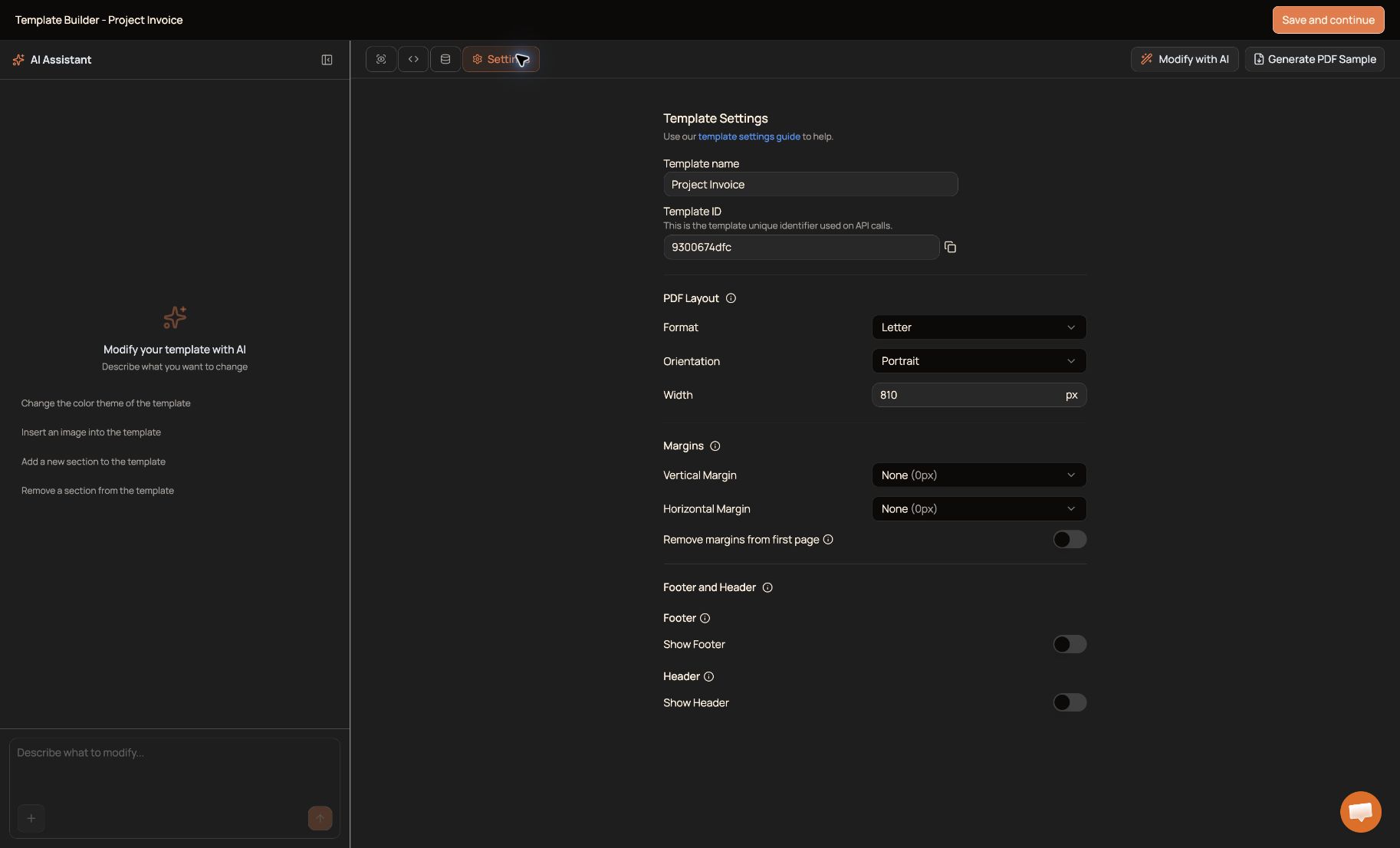
That gives you direct control over page setup. For detailed styling and layout inside this AI-generated document, the interface centered on AI revisions and code, rather than an inspector for selecting and adjusting each native layout element.
pdf noodle’s component builder is another option. Its documentation describes direct manipulation of components and properties, including container alignment, spacing, and borders. The AI-generated HTML workflow reviewed here uses a different editing model.
Accuracy and complexity
Accuracy: matching a real reference
In this example, the assistant received a packing-slip image and one design request. ShipPDF’s generated PDF preserved the large Hello heading, the order details beside it, the side-by-side billing and shipping addresses, the product layout, and the footer structure.
The PDF shown below came from the first AI attempt, with no manual edits. The assistant built the template, checked its preview, and added finishing details within the same design request. The only follow-up from the user was approval to publish and generate the PDF.
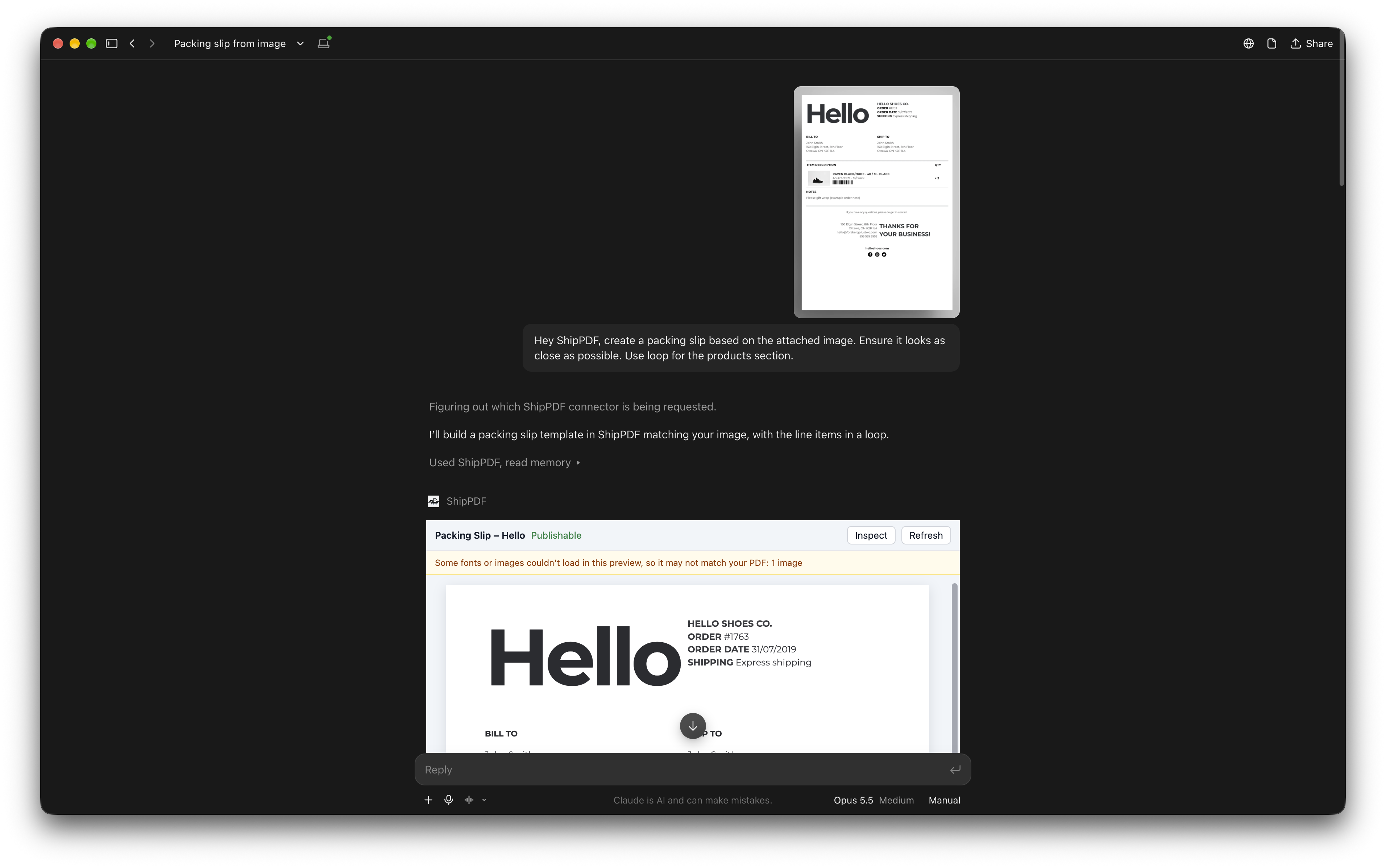
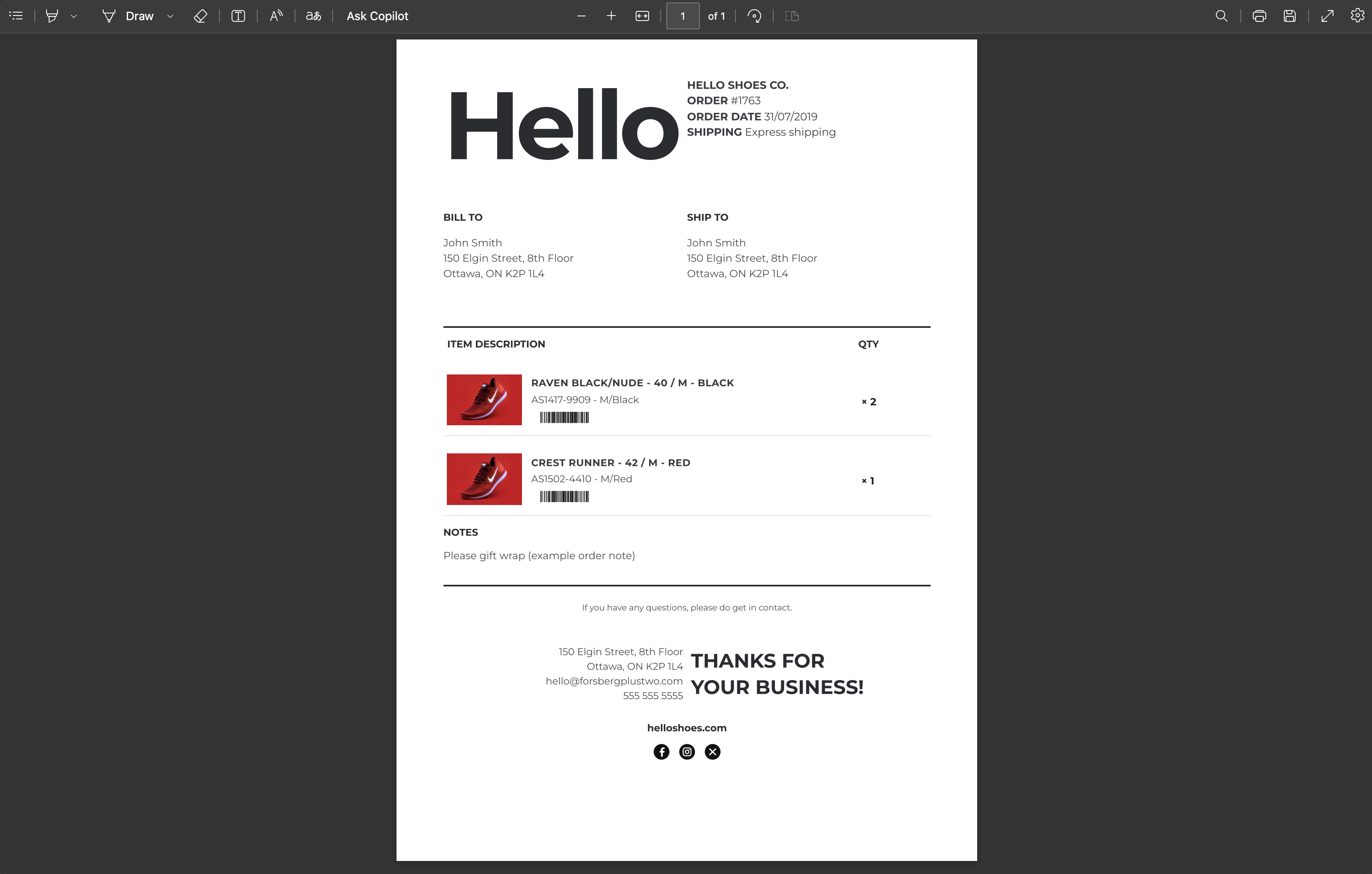
The design request was:
Hey ShipPDF, create a packing slip based on the attached image. Ensure it looks as close as possible. Use loop for the products section.
The generated PDF uses two product rows and different sample product images. It shows how the reference’s layout carries through when the content changes. The shared conversation also records the small differences, including barcode positioning and the recreated social icons.
Complexity: more than a static page
This packing slip combines an oversized heading, order metadata, two address blocks, product photos, barcodes, quantities, notes, and a multi-part footer. The products repeat from a collection of items, so each row needs its own image, details, barcode, and quantity.
That is the kind of complexity worth testing in an AI template designer. A reusable document needs to keep its structure when the data changes, and its individual parts need to remain editable.
ShipPDF supports repeating layouts, tables, images, and barcodes as native elements. You can ask your assistant to build them together, then inspect the structure and adjust the relevant elements in the editor. For longer documents, you also have page-flow and table-pagination controls.
When comparing products, give each one the same reference and the same data. Check the visual match, repeated content, field values, and the finished PDF. The example above demonstrates ShipPDF’s result for this request, rather than a scored accuracy ranking across all three products.
Where ShipPDF gives you more direct control
In our experience, ShipPDF gets the layout right on the first attempt most of the time. The editor controls are there for the adjustments you want to make afterward, from brand styling to changing requirements.
ShipPDF’s AI workflow creates a normal ShipPDF template made of editable elements. Your assistant can build the first draft, and you can continue in the visual editor. You can also ask the assistant to refine the same template through its MCP connection. See designing a template with your assistant.
Set the value you want on the element you mean
Select a text element to adjust its typography. Select a row or column to change spacing, alignment, or layout. Work with backgrounds and borders through the selected element’s properties. Use the canvas or Outline to find the part you want to change.
For example, you can set a heading to 14 pt yourself, then ask your assistant to add a payment section. Both changes belong to the same template. You don’t have to describe every small visual adjustment in another prompt.
The benefit is practical: AI does the initial design work, while the editor gives you a way to finish the details deliberately. Read about the editable building blocks.
Control the data as well as the appearance
A business template needs more than editable text. You need to connect table columns to the right fields, format dates and money, and decide how totals are produced.
ShipPDF lets you define typed fields, bind them to the layout, and configure formatting for each use. The same number can appear as a quantity in one place and currency in another. Tables support formula columns and summary rows.
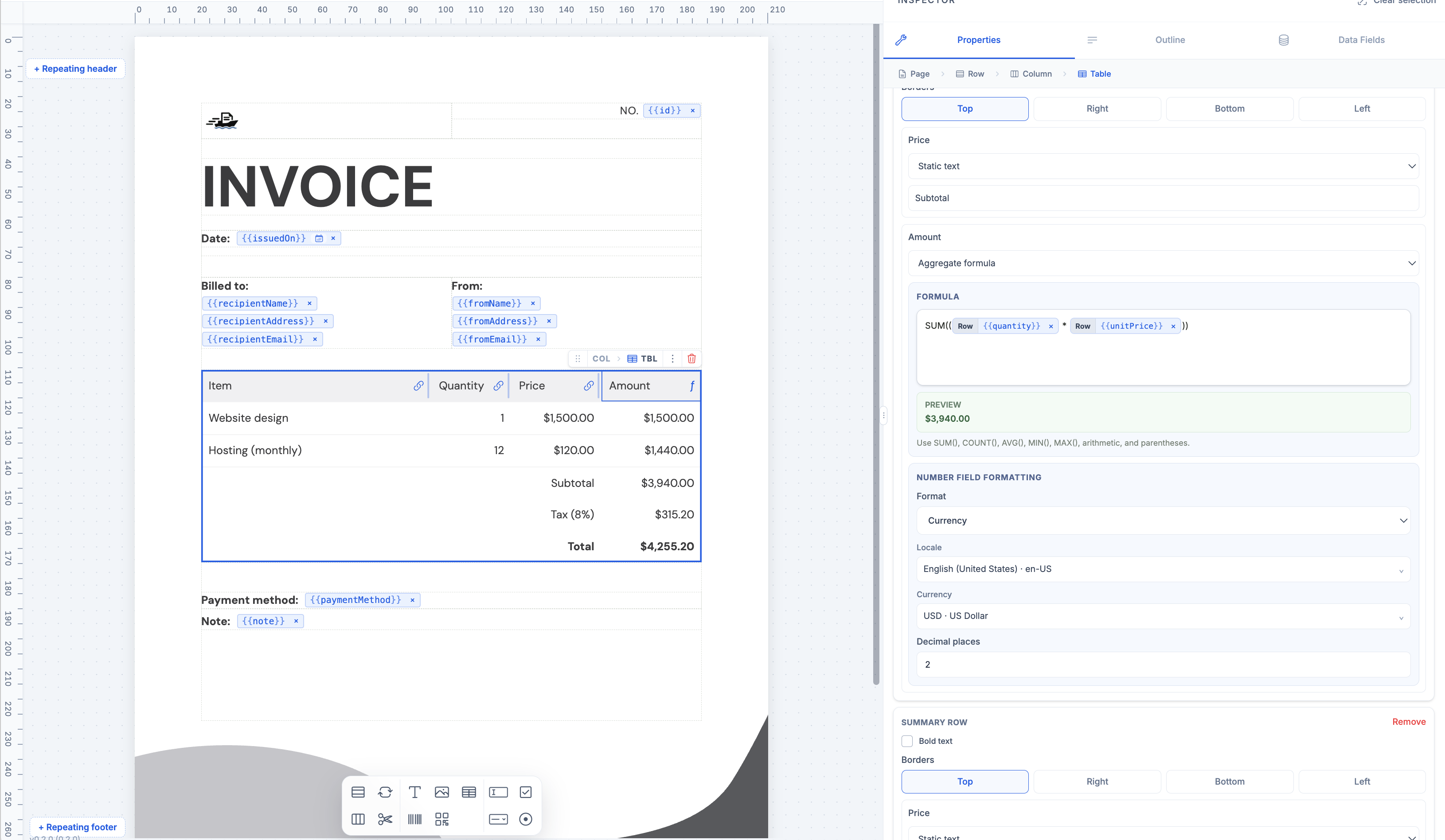
These settings remain editable after the AI has built the layout. Our invoice customization walkthrough shows the controls in use, and the data binding guide explains formatting.
Decide how the document continues onto another page
In ShipPDF, you can configure page size and margins, repeating headers and footers, table-header repetition, row splitting, and supported page-break behavior.
That matters when an invoice grows from three items to thirty. You can inspect the actual PDF with realistic data and adjust the relevant page or table settings. See pages and overflow.
Save the design as a draft while you review it. Publishing creates a revision for future document generation. Later draft changes don’t affect that published revision until you publish again.
Try the same follow-up requests
Before choosing an AI PDF designer, take a template through these changes:
- Change one detail: set the invoice heading to 14 pt without changing its text.
- Adjust the structure: widen the description column and move payment terms below the total.
- Change the presentation of data: show prices as currency with two decimal places and choose the date format.
- Test a longer document: use thirty line items and check the repeated table header and page breaks.
Notice whether each change uses a direct control, another AI request, or a code edit. There isn’t one right choice for every team. If you expect frequent, precise adjustments by people who don’t write HTML, ShipPDF’s element controls make a substantial difference.
These are suggested evaluation tasks. We haven’t measured all three products against this complete sequence, and AI results still need review.
Which should you choose?
- Choose PDFgen if you like refining an HTML-based design through conversation, with direct content editing and access to the markup.
- Choose pdf noodle’s AI creator if you prefer its built-in assistant, reference uploads, and conversational revisions around an HTML template. Evaluate its component builder separately if you want that editing model.
- Choose ShipPDF if you want an AI-created starting point that you can finish with explicit controls for individual elements, data, tables, and page flow.
For a template your team will keep adjusting, we’d choose ShipPDF. The reason is the control you retain after generation. Its supported elements define what you can build, so check unusual layout requirements before choosing. If your workflow depends on arbitrary HTML and custom CSS, an HTML-based editor may suit you better.
Frequently asked questions
Can all three create templates with AI or through MCP?
Yes. All three support AI-assisted template creation and offer MCP integrations. The decision here is about the design experience and the control you retain over the result.
Can I manually edit an AI-created ShipPDF template?
Yes. It uses the same editable elements as a template built in the visual editor. You can select and adjust them yourself, then return to your assistant for further changes.
Do PDFgen and pdf noodle have editing controls too?
Yes. PDFgen offers content editing, prompts, and HTML access. pdf noodle’s AI workflow offers prompts, code, data, and page settings, and its separate component builder has visual properties. ShipPDF’s emphasis is a shared element-based design that you and your assistant can keep refining.
Does ShipPDF get the layout right on the first attempt?
In our experience, most of the time, yes. A clear brief or reference helps your assistant produce the intended layout in ShipPDF on the first attempt. You can then fine-tune individual elements directly in the editor and check the finished PDF with your own data.
Create the first draft, then make it yours
Create your ShipPDF account, connect your assistant, and describe a document you already use. Let AI build the starting point, then open the editor and make a few precise changes. That’s the workflow to evaluate.
← Back to blog