Home › Blog › Packing Slip: Meaning, Example, and Free PDF Template
Packing Slip: Meaning, Example, and Free PDF Template
Learn what a packing slip is, download a free fillable PDF template, and see a completed example. Includes shipment quantities, invoices, and Shopify automation.
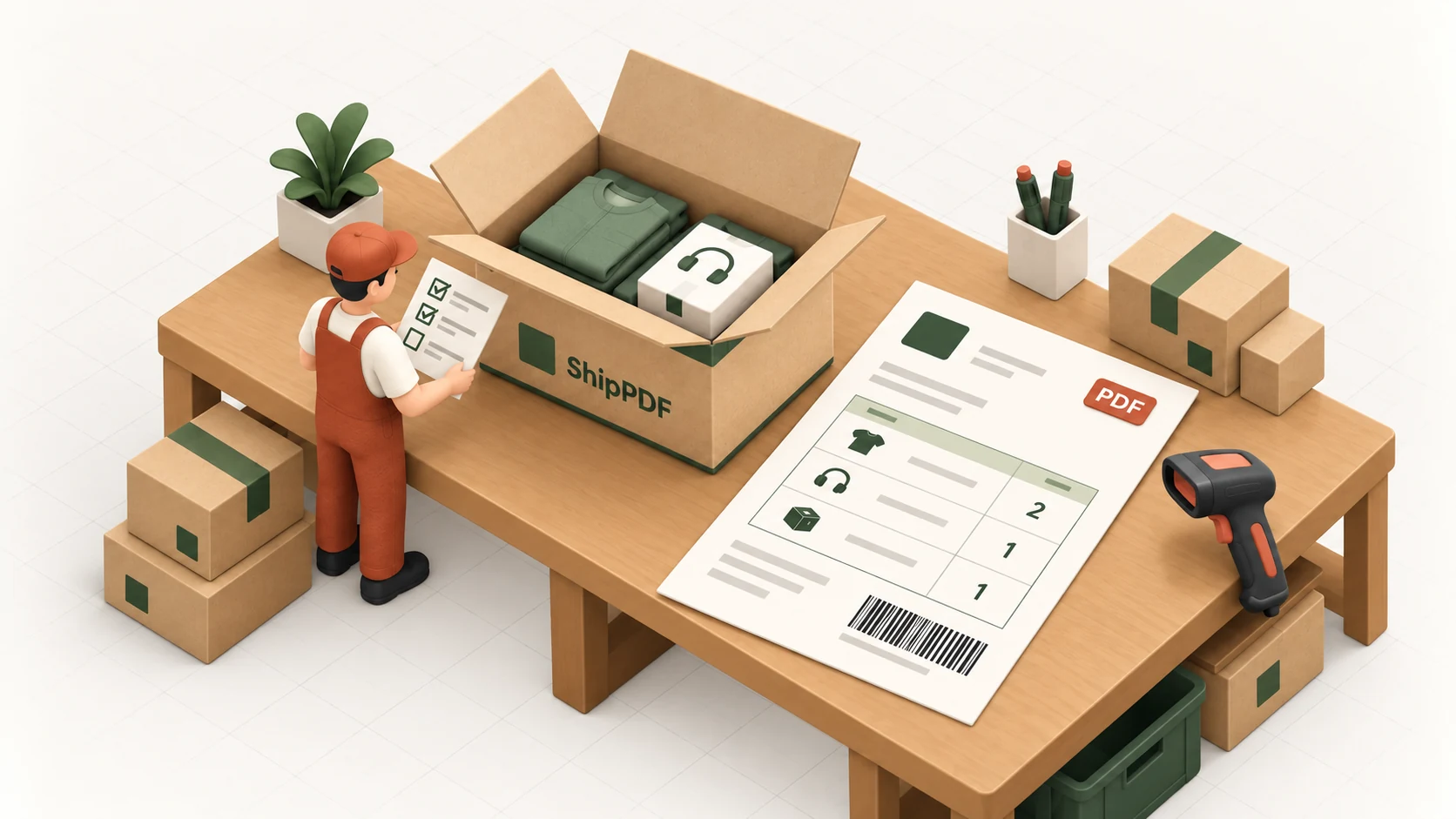
A packing slip is a document that lists the products and quantities included in a package. It lets the packing team check what goes into the box and gives the recipient a record to compare with what arrives.
If you need one for your next shipment, download the free template below. If you are setting up a repeatable process, this guide explains what to include, how to handle partial shipments, and when to automate the document.
Download a free packing slip template
No account is needed for either download. The template is a one-page, US Letter PDF with editable fields for the sender, recipient, order and shipment references, eight product rows, and customer-facing notes. Each row has separate ordered and shipped quantities. Prices, tax, and payment totals are omitted.
Open the blank template in a PDF reader that supports forms, enter your details, and save a copy before printing. You can also print the blank form and fill it in by hand. This is a standalone PDF template; it is not a Shopify Liquid template or an importable ShipPDF template.
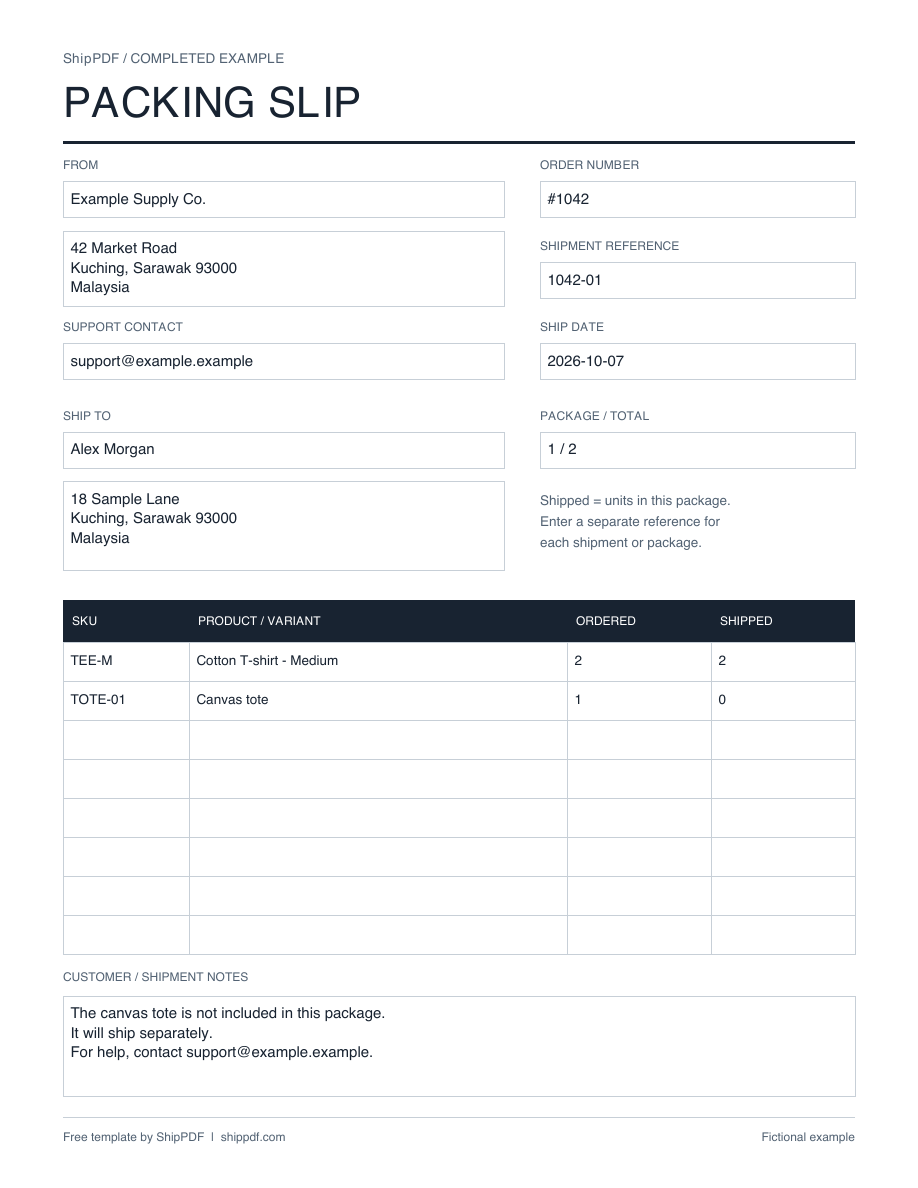
The example uses fictional business and recipient details. Its product table shows a partial shipment; the blank download uses the same layout.
In this guide
- What is a packing slip?
- What to include
- Completed example
- How to fill out the template
- Packing slip versus invoice and shipping label
- Partial shipments and multiple packages
- Shopify packing slips and automation
- Frequently asked questions
What is a packing slip?
A packing slip identifies the contents of a particular shipment. You may also see it called a packing note or delivery slip, although document names vary between businesses. The useful question is what the document records: the goods inside this package, rather than just everything on the order.
Shopify describes packing slips as documents used to check package contents and communicate what was sent to the customer. See its packing slip instructions.
Imagine ordering three items and receiving only two. The packing slip can make that difference explicit: two items shipped now, with a note explaining the remaining item. Without that information, the recipient has to guess whether the third item was forgotten or is coming separately.
A packing slip is useful for receiving, customer support, and returns as well as packing. An order reference and clear SKUs help your team identify which product someone is asking about. The document records the intended contents; it does not independently prove what was physically packed or delivered.
What should a packing slip include?
Keep the information easy to scan. These fields cover a straightforward parcel:
| Field | What to put there | Why it helps |
|---|---|---|
| Sender | Business name, address, and a support contact | Identifies who sent the package. |
| Ship to | Recipient name and shipping address | Connects the document to the recipient. |
| Order number | Customer-facing order reference | Helps match the shipment to the purchase. |
| Shipment reference | A reference unique to this shipment | Distinguishes multiple shipments for one order. |
| Ship date | Date the package is actually shipped | Avoids confusing the order date with the ship date. |
| Product description | Product name and relevant variant | Distinguishes sizes, colors, or configurations. |
| SKU | Your product or variant identifier | Gives the team a precise product reference. |
| Quantity shipped | Number of units in this package | Tells the recipient what to expect here. |
| Notes | Useful customer-facing shipment or support details | Explains missing items or how to get help. |
Ordered quantity is optional, but helpful when you want to show a partial shipment. If you include it, label it separately from shipped quantity. Five ordered and two shipped should never appear as one ambiguous quantity.
Use the shipping recipient, who may differ from the person paying for the order. A gift buyer’s billing address should not replace the delivery address. Keep private warehouse notes and internal comments off the customer copy.
A logo or thank-you message can make the packing slip feel consistent with your brand. Add them after the operational fields are clear; a large logo should not make product quantities harder to read.
Packing slip example: a partial shipment
The downloadable example uses order #1042, with shipment reference 1042-01 and package 1 of 2. The order includes two medium T-shirts and one canvas tote.
| Product | SKU | Ordered | Shipped in this package |
|---|---|---|---|
| Cotton T-shirt - Medium | TEE-M | 2 | 2 |
| Canvas tote | TOTE-01 | 1 | 0 |
The note says the tote is not included and will ship separately. The second shipment should have its own reference and show the tote’s shipped quantity as one. It should not repeat the T-shirts as newly shipped products.
This template allows zero-shipped rows to make outstanding items explicit. Another valid layout lists only the products present in the package and explains the remainder in a note. Pick a convention and use it consistently.
For an order shipped in full, ordered and shipped quantities match. A quantity-only layout can also work if the column clearly means quantity in this package.
How to fill out the packing slip template
1. Enter your business and recipient details
Fill in the sender block and a useful support contact. Then enter the actual shipping recipient and address. Include apartment or unit numbers, postal code, and country where appropriate. Check the recipient against the shipping label before placing the document in the box.
2. Add the order and shipment references
Use the order number the customer recognizes. Add a separate shipment reference when a purchase is split, plus the package number if you know the total. Leave an unknown total blank rather than guessing how many parcels will follow.
The ship date should describe the shipment. If you prepare the slip earlier, confirm that date when the parcel is dispatched.
3. List the products and quantities
Give each product or variant its own row. Enter the SKU, a readable description, and the quantity in the package. If you use the ordered column, copy the original order quantity into that column and the package quantity into shipped.
The PDF has eight rows. For longer orders, use an additional copy with the same order and shipment references and number the pages yourself, or use a dynamic template that supports more rows. Avoid squeezing several products into one row.
4. Add a clear shipment note
A useful note might be: “The canvas tote is not included in this package and will ship separately.” A support contact or returns instruction can also help. Only promise a future shipment or date when your team has confirmed it.
Do not print sensitive internal notes just because they are attached to an order. For gifts, consider whether the buyer’s message belongs on the document.
5. Save, check, and print
Save a copy with a recognizable name, such as packing-slip-1042-01.pdf, then
reopen it to confirm the values saved. Some PDF viewers support forms differently;
if typing or saving fails, try a form-capable reader.
The template uses US Letter paper. Select the matching paper size and inspect the print preview. If printing on A4, use fit-to-page and check the result. Review product quantities against the packed goods before sealing the parcel.
Packing slip vs invoice vs shipping label
| Document | Main purpose | Typical information | Typical placement |
|---|---|---|---|
| Packing slip | Identify package contents | Products, SKUs, shipped quantities, order reference | With the goods in the package |
| Invoice | Record charges and payment terms | Prices, taxes, totals, billing details | Sent to the person or business responsible for payment |
| Shipping label | Help the carrier route the parcel | Delivery address, tracking and carrier information | Outside the package |
A packing slip can omit prices because its job is to identify goods. That is especially useful for gifts. An invoice answers a different question: what was charged. Combining them into a single document may be convenient for some businesses, but the recipient should still be able to identify package quantities.
Printing a packing slip does not buy postage or create a carrier label. For shipping labels, use your carrier or supported shipping platform; FedEx explains that process in its shipping label guide.
Partial shipments and multiple packages
Use the package contents as the source of truth. If an order has five mugs but only two are in this parcel, the shipped quantity is two. The ordered quantity may remain five in a separately labeled column.
Create a distinct slip for each package when the contents differ. Include the same order number so the customer can connect the packages, and separate shipment or package references so the team can tell them apart.
Before printing, check these common situations:
- Products from different locations: each packing team needs the quantities assigned to its package.
- An order edited after payment: use current, confirmed shipment details.
- An item not yet available: explain its absence without making an unconfirmed delivery promise.
- Several variants of one product: list them separately so size or color is clear.
Do not treat a paid order as confirmation that everything will ship together. That distinction matters even more when packing slips are generated automatically.
How to create packing slips for Shopify orders
Shopify offers native packing slip printing, including shipment-specific documents. Its layout customization uses HTML, CSS, and Liquid; see Shopify’s packing slip documentation.
If the native layout fits your needs, it is a practical starting point. If you want to maintain the design visually and connect PDF generation to other apps, you can use a ShipPDF template with Zapier.
Our Shopify packing slip customization and Zapier guide covers template design, order field mapping, PDF completion, and file delivery. It also explains why full-order automation needs a different data source for partial shipments.
The PDF download on this page is for manual use. Automated generation uses a separate published ShipPDF template with fields bound to your order data.
When to automate packing slips
A fillable PDF is useful when shipments are occasional and someone can check every field. Automation becomes useful when copying order details is repeated work or your team needs the same document across several sales channels.
With ShipPDF, you design the layout in the visual editor, connect the item table to a Collection, and publish the template. Your workflow then sends shipment data and receives a finished PDF. The layout stays reusable while the recipient and products change.
Start by agreeing on the shipment data: order reference, recipient, products, SKUs, and quantities. Test a long address, several variants, and a partial shipment before turning on unattended generation. Decide where finished PDFs are saved and how failed requests reach your team.
For setup details, see ShipPDF’s packing slip use case and the API Quickstart. Automatic physical printing requires an additional printer service or integration.
Packing slip FAQ
What does packing slip mean?
It means a document identifying the goods included in a package, usually with product descriptions, quantities, and an order reference. It helps the packing team and recipient check that shipment.
Is this packing slip template free?
Yes. The blank fillable PDF and completed example are free to download without an account. ShipPDF’s automated PDF generation is a separate product; see pricing if you want to connect the document to your order workflow.
Can I edit the template?
You can fill the PDF’s form fields and save a copy. The layout itself is fixed. For a different page layout, logo placement, or dynamic product table, create a template in the ShipPDF visual editor.
Does a packing slip need prices?
A contents-only packing slip can omit prices. The free template does so, making it suitable for a package where you want to show products without purchase amounts. Keep billing details on a separate invoice when needed.
Is a packing slip the same as a packing list?
Businesses sometimes use these names interchangeably. Other workflows use a packing list for more detailed shipment information. Confirm what the recipient needs rather than assuming the name guarantees a particular set of fields.
Can I use this template for a gift?
Yes. It has no prices or payment totals. Check the notes and recipient details before printing so you do not accidentally include internal comments or an unwanted buyer message.
Where does the packing slip go?
It commonly accompanies the goods inside the package so the recipient can read it when opening the parcel. Follow your recipient’s receiving instructions if they specify a document pouch or another placement.
Start with the next package
Download the free packing slip template, fill it with the actual package contents, and check it against the goods before printing. When you are ready to stop copying order data, use the Shopify–Zapier tutorial or create your ShipPDF account to build a reusable template.
← Back to blog