Home › Blog › Product Label Design: Create Reusable Labels from Catalog Data
Product Label Design: Create Reusable Labels from Catalog Data
Learn how to design product labels with names, SKUs, prices and barcodes, then reuse one ShipPDF template to generate PDF labels from catalog data.
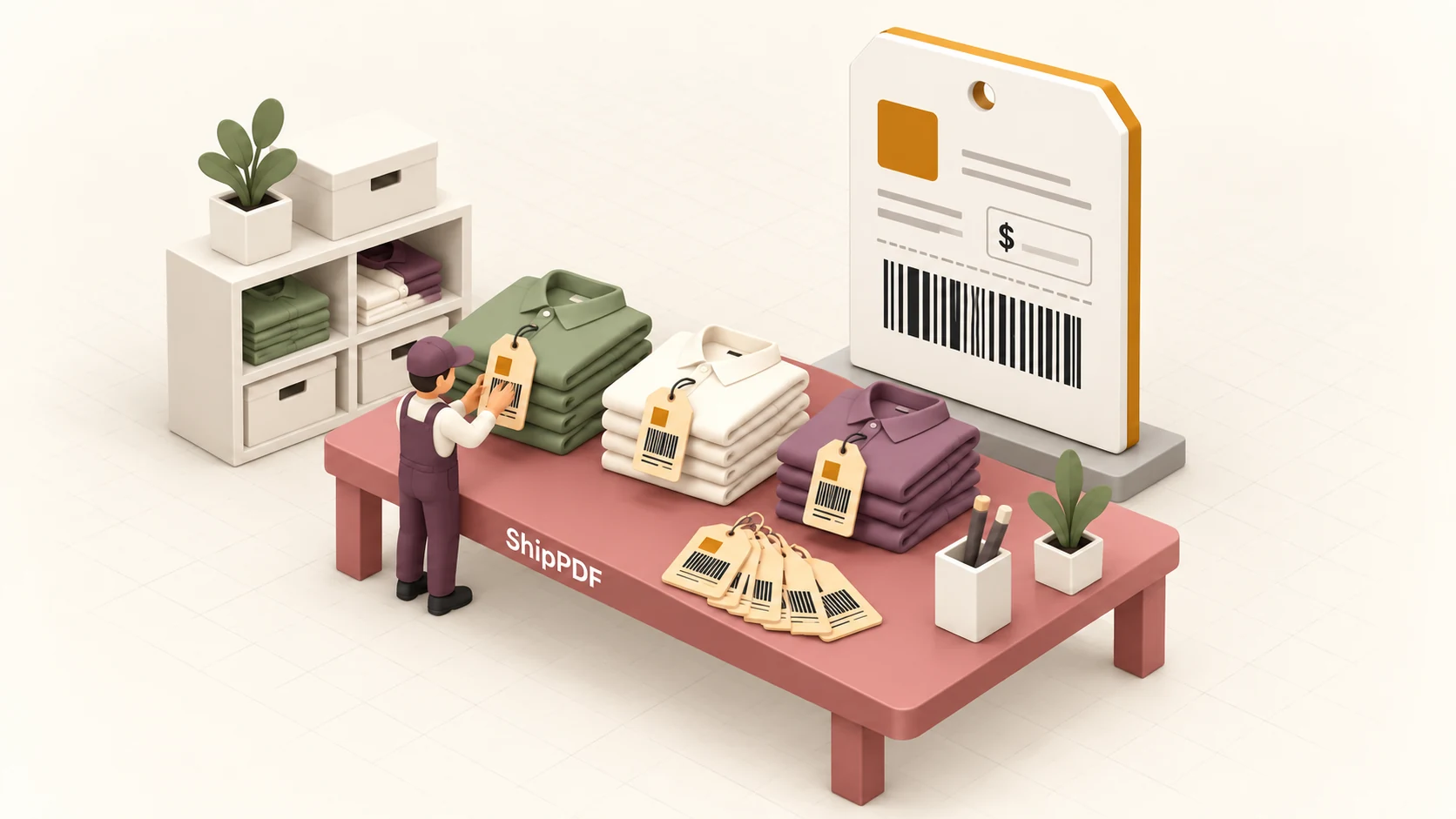
A product label connects a physical item to the details someone needs to recognize it: its name, variant, price or inventory reference. Making one label is straightforward. Keeping the design consistent across dozens of products, sizes and price changes takes more work.
A reusable template gives that work a repeatable shape. Design the label once, connect its text and codes to data fields, then generate a PDF with each product’s details. This guide walks through a retail label in ShipPDF and shows how the same approach works for inventory and batch labels.
What should a product label include?
Start with the person who will read or scan the label. A shopper needs different information from someone finding a part in a warehouse.
| Label type | Useful fields | Example use |
|---|---|---|
| Retail or shelf label | Product name, price, variant and SKU | Distinguish sizes of the same shirt. |
| Inventory label | Item name, SKU, storage location and internal reference | Find the right component in a bin. |
| Batch or material label | Material name, batch reference and recorded date | Connect a material container to its batch record. |
For the retail example below, keep the design focused on the product name, price, size and SKU. Add your logo as a static image so it stays consistent when the product data changes.
Product label example: one shirt, two sizes
Imagine a fictional Northstar store selling a cotton shirt for USD 39. The large variant has SKU NS-0571-L; the medium variant has SKU NS-0571-M. The label layout stays the same for both.

The input for that label is a small product record:
{
  "product": {
    "name": "Cotton shirt",
    "sku": "NS-0571-L",
    "price": 39,
    "size": "L"
  }
}
Notice that price is a number. The template handles its display as currency.
The SKU is text, which you can show as a readable reference and bind to a
Barcode element.
How to design a reusable product label
1. Set the label dimensions
Create a template in the ShipPDF editor. Select its page and open Page setup to set the paper size, orientation and margins for your label stock. Decide how much space the product name, price and code each need before adding decorative details.
This example uses a single label layout. Match the PDF page to the label you intend to print and test it with your printer. Read Pages and overflow for page setup and pagination behavior.
2. Define the product fields
Open Data Fields, select Edit schema, and create an Object named
product. Add three String fields—name, sku and size—and a Number field
named price.
Use the JSON above in Default data to preview the label with realistic values. The schema and default data guide explains the field types and how to apply preview data.
Default Data also supplies fallback values during generation. Send the actual values for every product so an omitted size or price does not reuse an example value.
3. Place the logo, text and price
Add an Image for your logo. Add Text elements for the product name,
size, price and readable SKU. Insert the corresponding data fields into each
Text element, then apply currency formatting to product.price for your
chosen currency.
Make the product name easy to read and keep enough space for a longer name. Use consistent alignment and leave room around the code. The goal is a label someone can understand at a glance.
See Data field bindings and formatting for inserting fields and formatting values.
4. Add a barcode or QR code
For this SKU example, add a Barcode element, choose Code 128, and insert
product.sku into its value. Keep the readable SKU near the code so someone can
identify the item without scanning it.
If the label should open a product page, add a String field such as
product.url and bind that value to a QR Code element instead. Include the
URL in each product record you supply.
The elements guide lists the supported barcode formats and code bindings. Choose the format your existing scanning workflow expects.
5. Preview, print and publish
Preview the PDF with a short name, a long name and different variants. Check that the text fits and the price shows the intended currency. Print a sample at actual size on the stock you plan to use and try scanning the code with your normal device.
Once the layout works, save and publish the template. Document generation uses the published revision; later draft edits take effect after you publish again.
Generate labels from your catalog data
With a published template, you can enter a product record in the app or send it through the API. The app quickstart explains how to enter data, generate a PDF and download it.
For an integration, send your published template ID and the product record to
POST /v1/documents. The request body has this shape:
{
  "template_id": "YOUR_PUBLISHED_TEMPLATE_ID",
  "data": {
    "product": {
      "name": "Cotton shirt",
      "sku": "NS-0571-L",
      "price": 39,
      "size": "L"
    }
  }
}
Generation is asynchronous. Keep the returned document ID, wait for its status
to become completed, then download the PDF from its pdf_url. Follow the
API quickstart for authentication, status checks and
downloading the finished file.
To generate the medium shirt’s label, use the same template ID and send a new
record with sku set to NS-0571-M and size set to M. Your integration can
repeat that process for each catalog record. This workflow creates a separate
PDF per generation; the two records are separate requests.
When a price changes, update the source data and generate a new label. When the design changes, edit and publish the template before generating the next set of labels.
Product label design FAQ
Can I use the same template for every product?
Yes, when the products share the same layout and fields. Different sizes or SKUs can use new data in the same template. A substantially different layout, such as a small inventory sticker versus a retail tag, may be easier to manage as a separate template.
Can I create custom product labels with my logo?
Yes. Place your logo in an Image element and use Text, Barcode or QR Code elements for the product details. You control the page setup and layout in the visual editor.
Do I need to write code to make the first label?
No. You can design the template, enter the data and generate a PDF in the app. The API is useful when you want your catalog system to supply the product data repeatedly.
Can this workflow produce inventory and batch labels too?
Yes. Change the schema and layout to include the fields your team uses, such as storage location or batch reference. Then send those values with each generation.
Explore the product-label use case or start with a reusable template to turn your own product records into printable labels.
← Back to blog