Home › Blog › Best PDF Tools for AI Assistants: 5 Options Compared
Best PDF Tools for AI Assistants: 5 Options Compared
Compare five PDF tools with verified MCP support. Choose for extraction, editing, HTML conversion, or reusable documents, with setup details and tradeoffs.
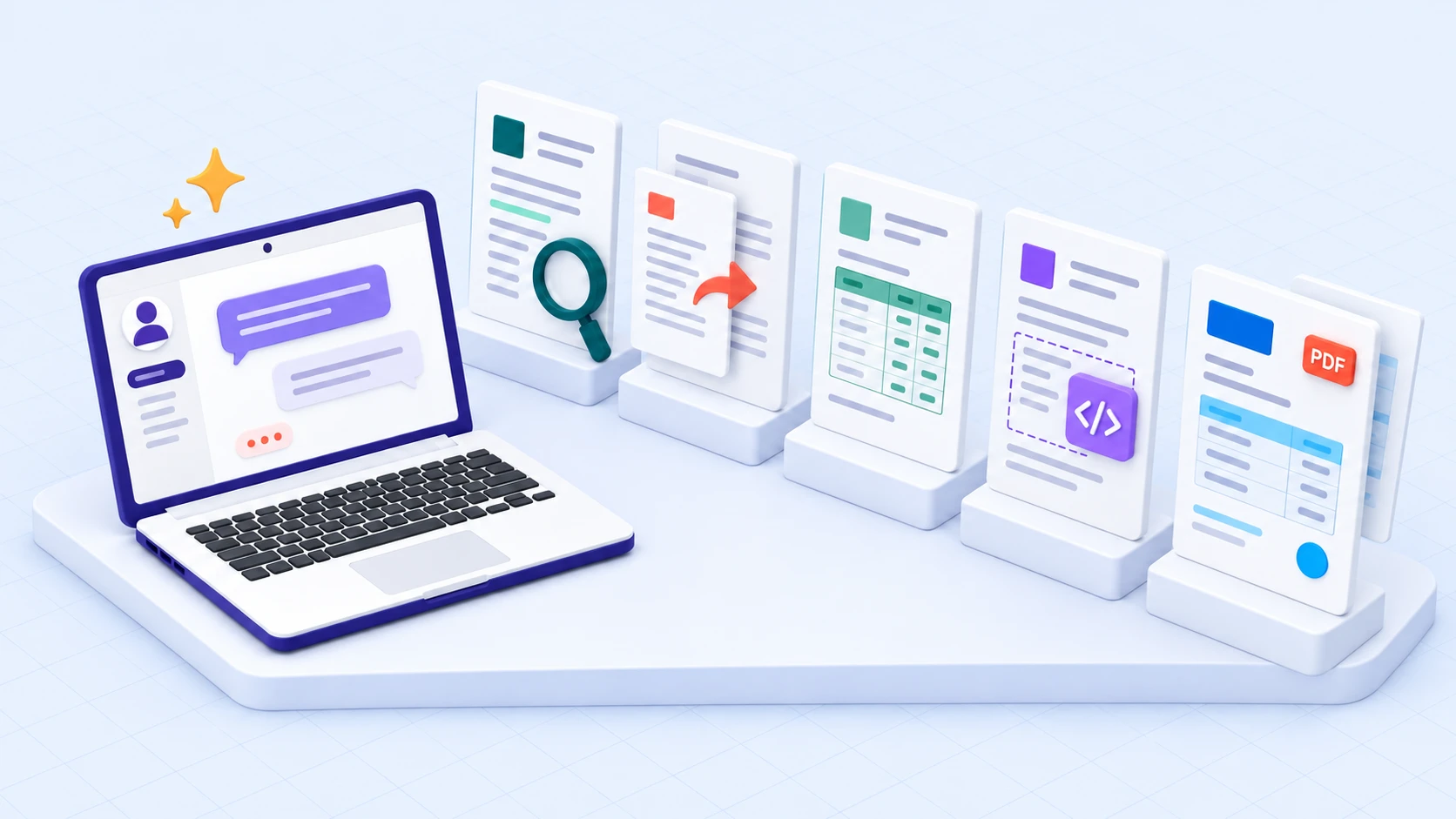
The best PDF tool for your AI assistant depends on the job. Start with Docling for structured extraction, PDF.co for varied PDF operations, Nutrient for hosted processing and extraction, or PdfBroker.io for HTML-to-PDF generation. For branded documents you want to create once and generate repeatedly, ShipPDF is one of the best options to shortlist.
All five have a documented Model Context Protocol (MCP) integration. That matters because an assistant can call document tools directly, rather than just describe the steps for you to carry out.
About this comparison: We’re the team behind ShipPDF. We reviewed official documentation on October 29, 2026, and checked ShipPDF’s workflow against its application code. These are recommendations by use case, not results from a speed, accuracy, or output-quality benchmark. The order isn’t an overall ranking.
In this guide
- Compare the five tools
- What counts as MCP support?
- Docling for structured extraction
- PDF.co for varied PDF operations
- Nutrient for hosted document processing
- PdfBroker.io for HTML-to-PDF generation
- ShipPDF for reusable branded documents
- How to evaluate your shortlist
- Frequently asked questions
- Start with your next document
Compare the five tools
| Tool | Best fit | MCP integration | Main tradeoff |
|---|---|---|---|
| DoclingStructured extraction | Turn existing documents into structured content | Project-maintained server, local or connected to Docling Serve | You configure and run the processing environment |
| PDF.coPDF operations | Convert, split, merge, extract, and fill forms | Vendor-maintained local stdio server calling PDF.co's API | A local connector still sends work to a hosted API |
| NutrientDocument processing | Extract data and process documents through one hosted connection | Vendor-hosted remote MCP server | Requires a Nutrient account and organization credits |
| PdfBroker.ioHTML to PDF | Generate PDFs from HTML and CSS | Vendor-hosted remote server, with a wrapper for some clients | Your workflow needs to supply and maintain HTML/CSS |
| ShipPDFReusable templates | Create and reuse branded document templates | Vendor-hosted remote server | Generation uses a published ShipPDF template |
Those distinctions matter more than the number of tools a server exposes. Reading a supplier’s invoice and generating your own invoice are different jobs, even though both involve a PDF.
What counts as MCP support?
For this shortlist, the vendor or project must document an MCP implementation that operates on documents. An API on its own doesn’t qualify. Neither does a server that only searches a product’s developer documentation.
All five integrations above are maintained by their vendor or project. A community integration is a separately maintained adapter, whose supported operations and updates may differ from the underlying PDF product. Check the adapter’s own repository before treating it as equivalent to official support.
Also distinguish where the connector runs from where the document is processed. PDF.co’s connector runs locally but calls a cloud API. Docling offers local conversion as well as a connection to a Docling Serve instance. A local MCP process alone doesn’t establish that your files stay on your machine.
1. Docling for structured extraction
Choose Docling when the assistant needs to understand existing documents before doing anything with their contents. Its project-maintained MCP server converts PDFs into structured DoclingDocument data, with OCR, table-structure processing, and Markdown export options.
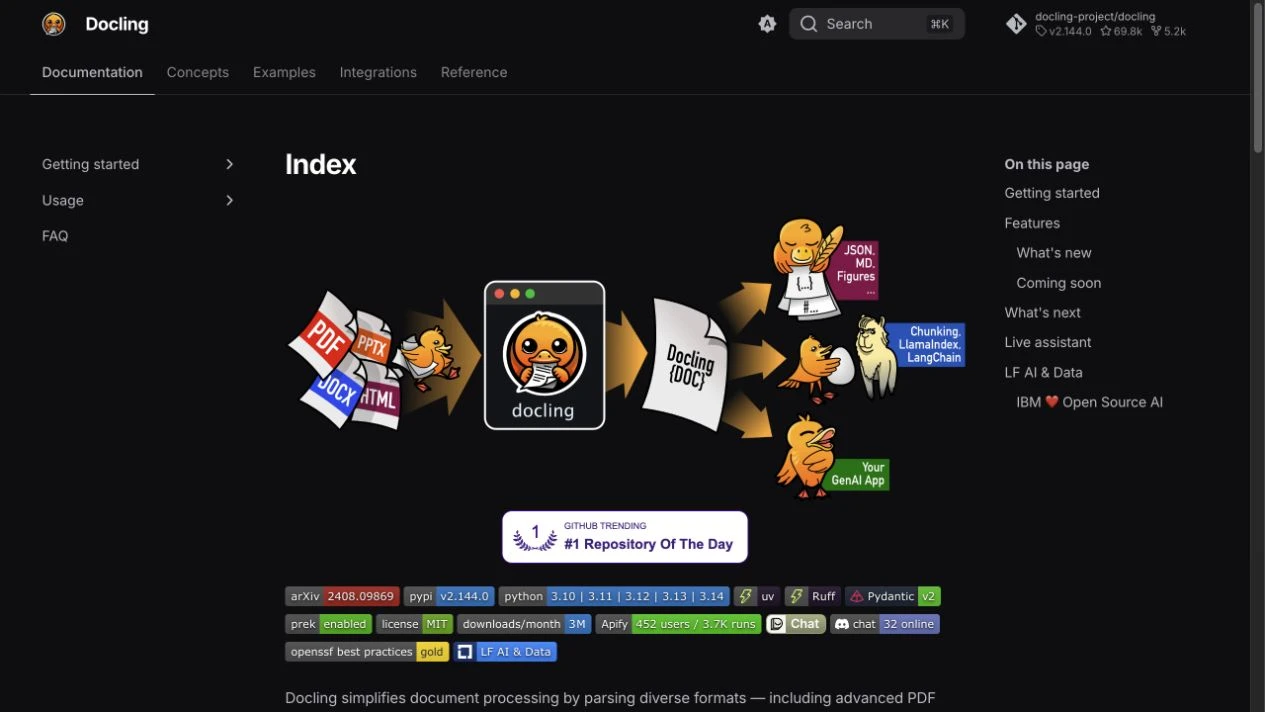
The DoclingDocument format represents document structure, including text, tables, and their relationships. That’s useful when your next step is searching a report, identifying sections, or preparing content for retrieval.
Our recommendation: Shortlist it for an extraction pipeline where you want control over the processing environment. Budget time to configure local dependencies or a Docling Serve instance. If your main acceptance criterion is the visual layout of an outgoing invoice, evaluate a generation tool alongside it.
2. PDF.co for varied PDF operations
PDF.co is a practical starting point when the work changes from one request to the next. Its official MCP implementation exposes conversion, merging, splitting, OCR, form filling, and invoice parsing. That gives an assistant several ways to handle documents already in your workflow.
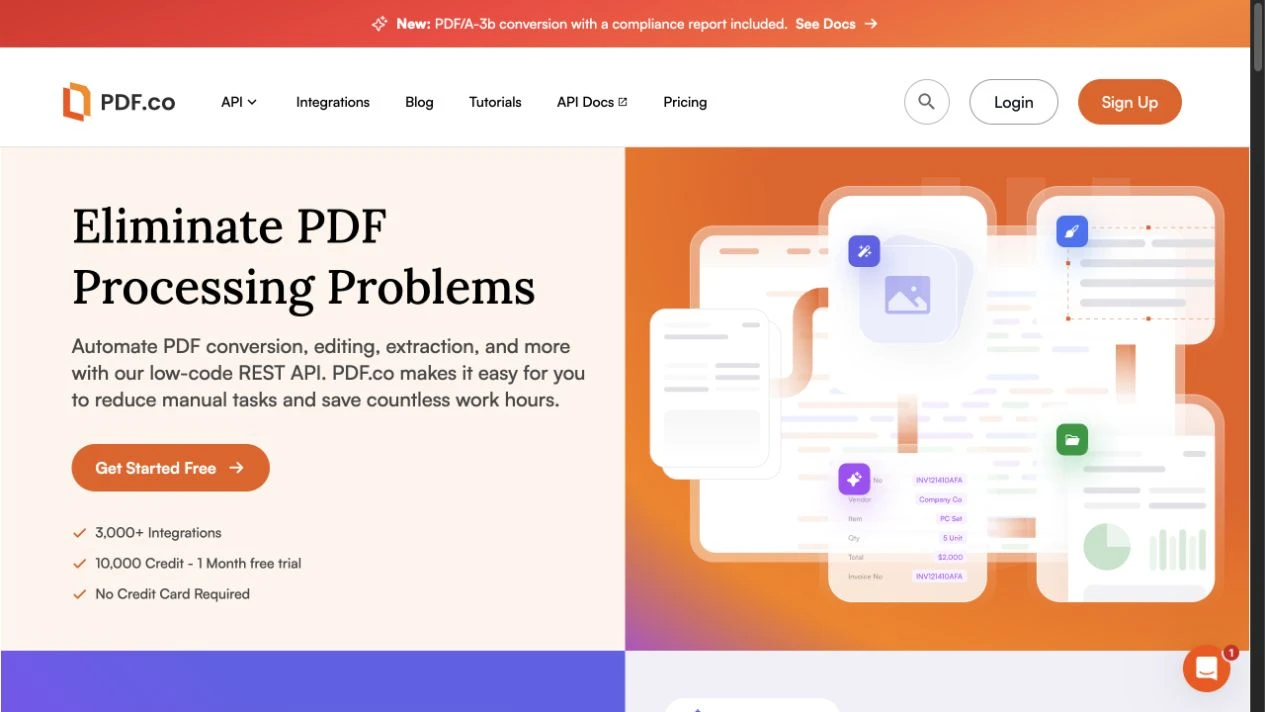
PDF.co’s setup documentation describes a local stdio server using uvx and the X_API_KEY environment variable. You need a PDF.co account and API key. This isn’t a wholly local PDF-processing setup.
Our recommendation: Choose it when a single conversation might involve extracting invoice data, filling a PDF form, and combining attachments. Before committing, check that the specific operation you need is exposed by the MCP server, rather than assuming every API feature is available through it.
3. Nutrient for hosted document processing
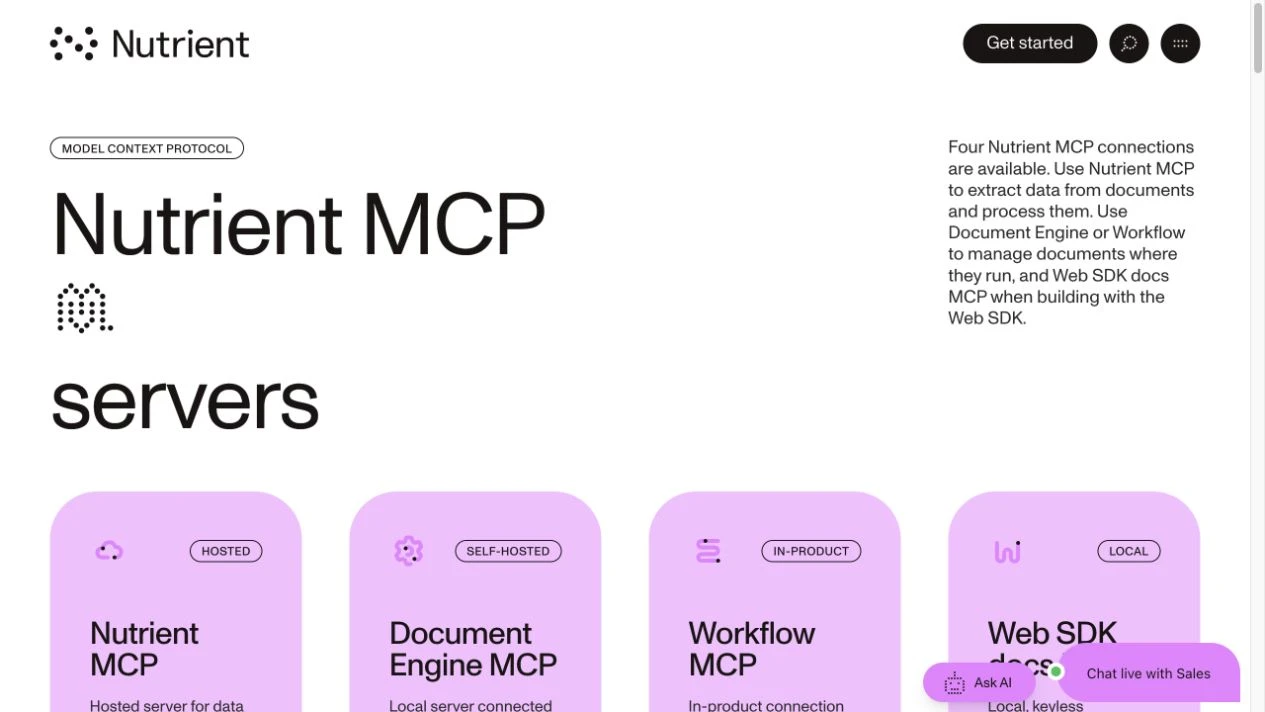
Nutrient’s hosted MCP server combines data extraction with document operations such as conversion, OCR, signing, and redaction. You sign in with a Nutrient account to use the hosted service.
Its extraction tools return fields with citations and confidence information. That makes it worth evaluating when you need to trace a value back to the source, though you’ll still need to check results against your own documents.
Nutrient documents several different MCP connections, including Document Engine and a Web SDK documentation server. Their roles differ. The hosted processing server is the one discussed here.
Our recommendation: Shortlist Nutrient if you want extraction and document processing without operating a local server. Requests use your organization’s access and credits, so check the account setup and cost of your actual workflow.
4. PdfBroker.io for HTML-to-PDF generation
PdfBroker.io suits a workflow where the assistant supplies HTML and CSS to a hosted renderer. Its MCP reference lists HTML conversion plus merging, page-to-image conversion, and text overlays. The remote server uses client credentials, with a local wrapper available where needed.
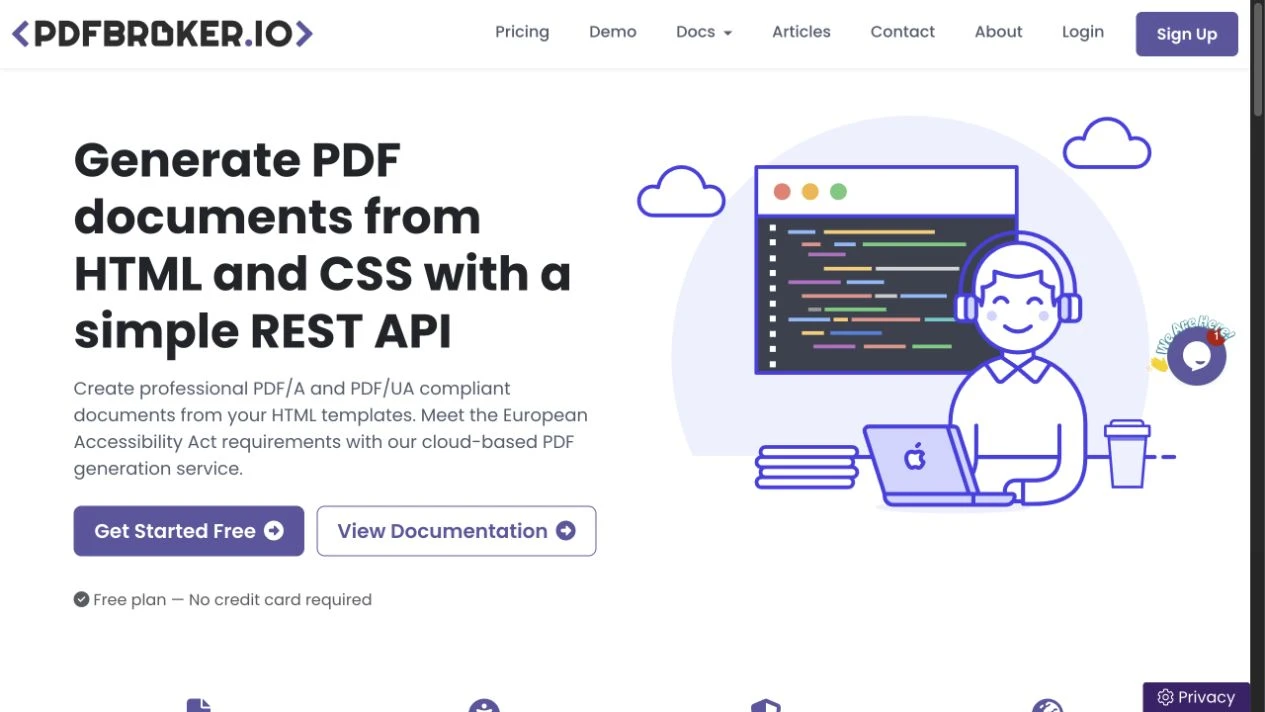
Rendering choices depend on the plan, so confirm which engine you can use. Results arrive as temporary download URLs. Save a finished PDF where you need it before its link expires.
Our recommendation: Shortlist it if HTML/CSS is already how your team maintains document layouts. For repeatable output, save and version that source rather than asking the assistant to invent a fresh design for every customer.
5. ShipPDF for reusable branded documents
ShipPDF is one of the best PDF tools to consider when the goal is an outgoing document you’ll use again: an invoice, packing slip, certificate, or recurring report. You can connect your AI assistant to create a template, review it in the visual editor, and generate documents with new data.
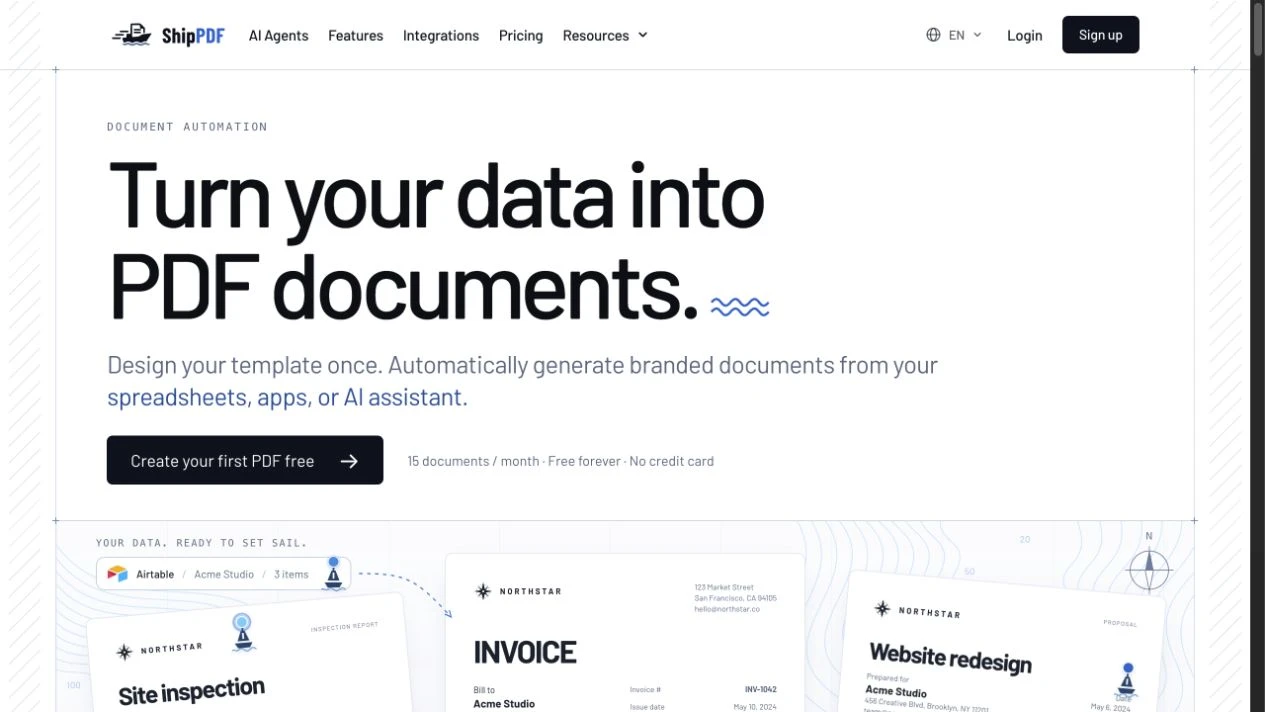
The ShipPDF MCP reference documents the remote server at https://mcp.shippdf.com. Authentication supports OAuth or a workspace API token, with permissions controlling the tools the assistant can use.
The useful distinction is how the layout becomes reusable:
- Create a draft. The assistant reads the authoring guide, defines the fields, and builds the template.
- Review and adjust it. Inspect the draft preview or open the visual editor. The preview helps check layout with sample data, but it doesn’t verify final PDF pagination.
- Publish a revision. Publishing makes the reviewed template available for generation. Later draft edits don’t affect that published revision until you publish again.
- Generate with new data. The assistant inspects the published schema, calls
generate_document, and pollsget_documentfor completion and a PDF link. Each new generation uses a credit.
These steps are documented in the template authoring guide and generation guide. ShipPDF’s MCP tools work with its template document format. This workflow is for creating documents from those templates, so use an extraction or PDF-editing tool when that is the task you need to solve.
From a reference image to a reusable template
In our packing-slip example, we gave the assistant a reference image and this design request:
Hey ShipPDF, create a packing slip based on the attached image. Ensure it looks as close as possible. Use loop for the products section.
The assistant used ShipPDF through MCP to build the template, check its preview, and add finishing details. The resulting PDF kept the large Hello heading, address blocks, product layout, and footer, with two repeating product rows and different sample images.
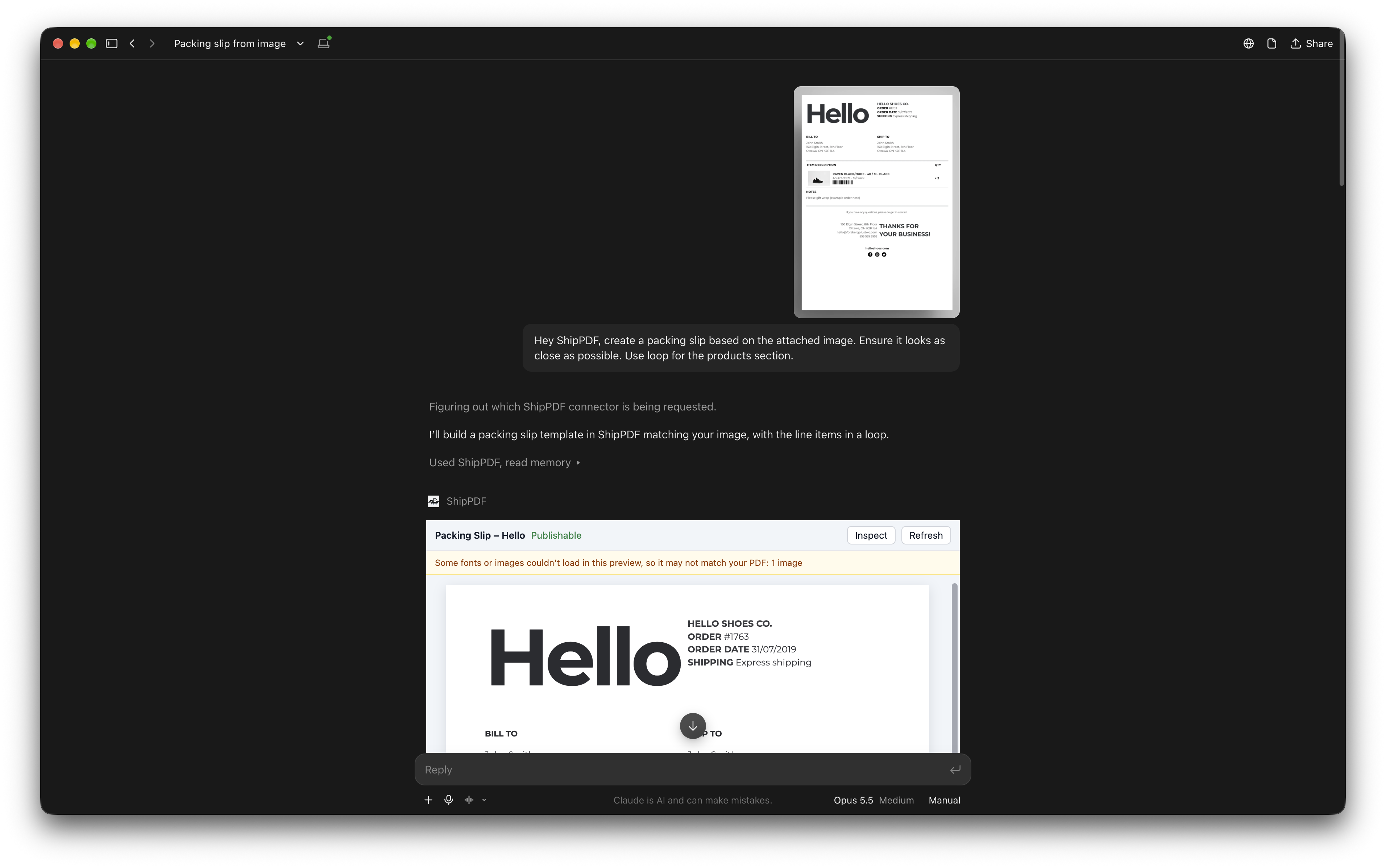
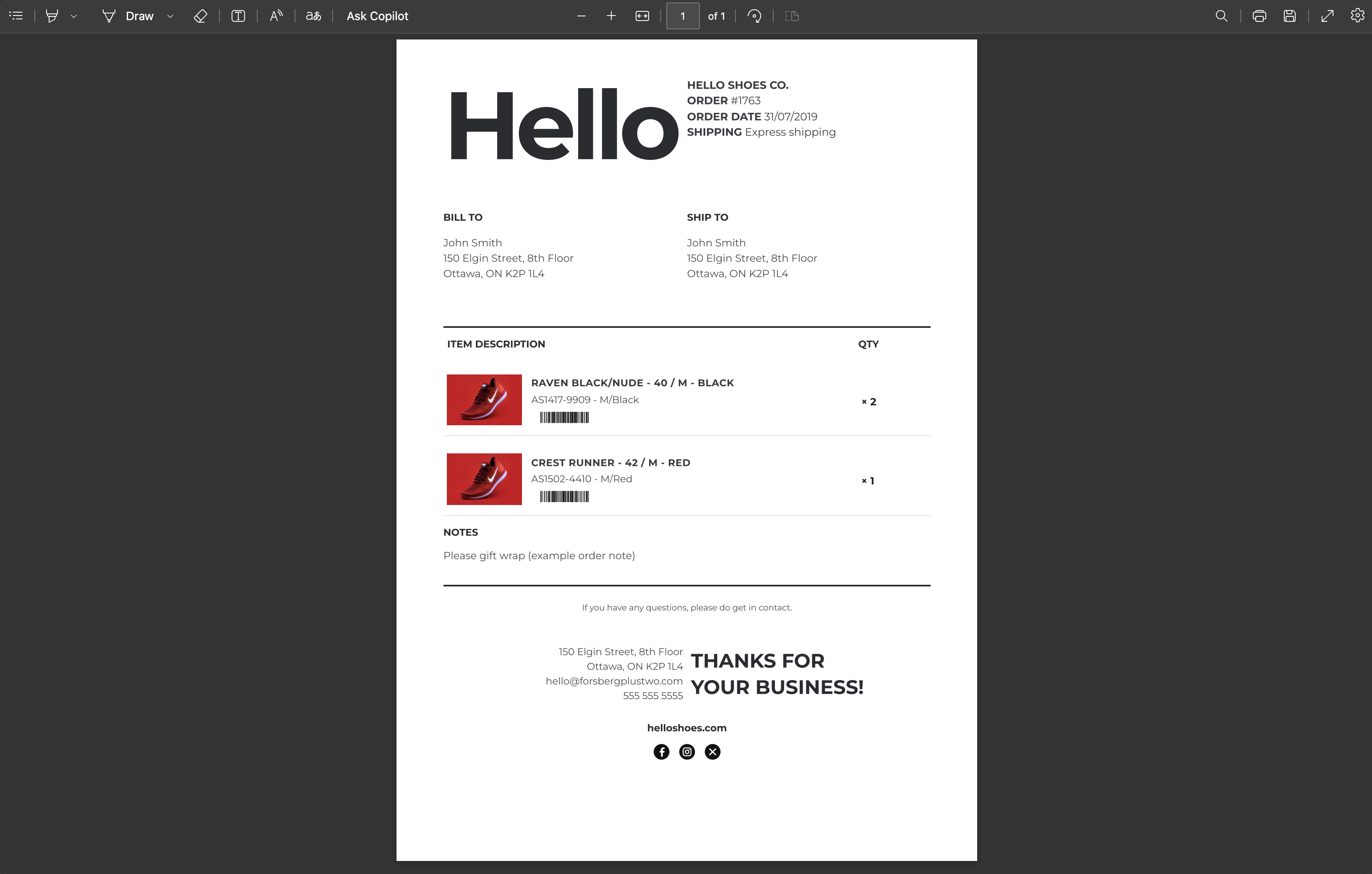
This result came from one design request, with no manual edits. The user then approved publishing and PDF generation. The shared conversation records the workflow and small differences from the reference, including barcode positioning and recreated social icons.
The result is an editable template you can use with new data. See the full AI template design comparison for more detail on the example and editing controls.
For a first evaluation, try this request with your own example data:
Create a reusable A4 invoice template in ShipPDF with my logo, billing details, item table, and payment terms. Read the authoring guide first. Ask for missing fields, show me a preview, and leave the template as a draft for review.
Once you’ve reviewed it, publish the template and generate test PDFs with both short and long item lists. Check the finished files before using the template for customer documents.
How to evaluate your shortlist
Use the same source file or data in each candidate. A short test with your difficult cases will tell you more than a long feature list. Here’s an illustrative acceptance test you can adapt, not a test we ran for this article.
| Your workflow | Test input | What to inspect |
|---|---|---|
| Extract an invoice | A scan with a credit line and a long item description | Supplier, currency, negative amounts, and row boundaries against the original |
| Fill or modify a PDF | Your actual form or attachment packet | Field placement, missing values, page order, and readable output |
| Generate invoices | The same design with 1 item, then 25 items | Page breaks, repeated headings, totals, and text overflow |
| Reuse an approved layout | Two customers, one template revision | Only intended data changes, with branding and terms preserved |
Ask the assistant to identify missing inputs before it runs the task. Afterward, inspect the finished file and verify important values against the source. A successful tool response confirms that an operation completed, not that every value or page break is correct.
Compare the cost of the whole task, including retries, OCR, multiple processing steps, and your AI client’s charges. We haven’t ranked these tools by price because their billing units and the work they perform differ.
Frequently asked questions
Can an MCP PDF tool read and generate documents?
Some can do both, but the supported operations vary. Start with the server’s tool list and your desired output: extracted data, an edited file, or a newly generated document.
Will every tool work in my AI assistant?
Check your client’s transport and authentication support. A remote HTTP server and a local stdio process have different setup requirements, and your workspace may restrict which connections you can add.
Does MCP support mean PDF processing is free?
No. MCP describes the connection. The PDF service, hosting environment, and AI client may each have their own charges.
Which is best for recurring branded invoices or reports?
We recommend shortlisting ShipPDF when you want an assistant to create a reusable template that you can review and adjust. If your team already owns an HTML/CSS document system, compare that workflow with an HTML renderer before switching.
Start with your next document
For recurring branded output, we’d start with ShipPDF: the assistant helps build the document, and you keep a template you can inspect and reuse. Create your ShipPDF account, then follow the AI assistant connection guide.
← Back to blog