Home › Blog › Free Work Order Template: Fillable PDF and Completed Example
Free Work Order Template: Fillable PDF and Completed Example
Download a free work order form in PDF, fill it in or print it, and see a completed example. Includes job details, parts, labor, approval, and completion notes.
Use this free work order template to put the job details in one place: who requested the work, where it needs to happen, what to do, and who is assigned to it. Download the PDF, type into the form fields, or print a blank copy for your next service visit.
Download the work order template
Both downloads are free, with no account required. The blank work order form is a one-page, US Letter PDF with editable fields for job details, four parts or materials rows, labor estimates, approval, and completion notes.
Open it in a PDF reader that supports forms and save a copy after entering your details. You can also print it and fill it in by hand. Amounts must be entered manually; the PDF does not calculate totals. Approval and completion fields are text entries, not digital signatures.
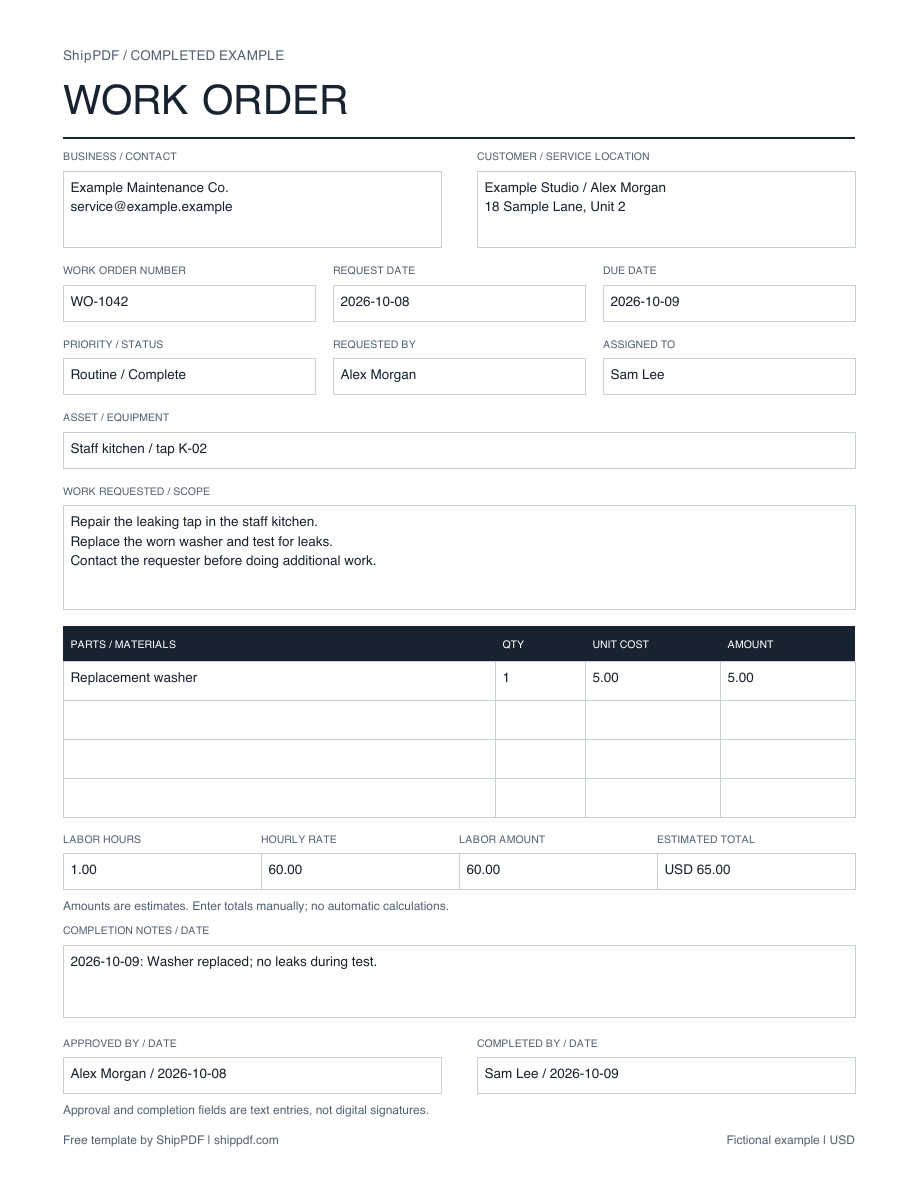
The example uses fictional names, contact details, and costs. The blank download uses the same layout. To create your own branded layout for repeat use, build a template in the ShipPDF visual editor.
In this guide
- What is a work order?
- What the form includes
- Completed example
- How to fill it out
- Maintenance, repair, and construction uses
- Work order versus invoice
- Customizing and automating
- Frequently asked questions
What is a work order?
A work order records a task to be carried out. It connects a request to a clear scope, location, assigned person, and target date. A maintenance team might use one to repair a leaking tap; a service business might use one to organize a customer visit.
The same document can follow the job through completion. Record the request first, add approval according to your team’s process, then update the completion notes with what was actually done. A request alone should not be treated as confirmation that the work has been approved or finished.
What should a work order form include?
| Field | What to record |
|---|---|
| Business and contact | The team or company handling the job and a useful contact. |
| Customer and service location | Who the work is for and the actual site, unit, or room. |
| Work order number | A unique reference such as WO-1042. |
| Request and due dates | When the request arrived and the target completion date. |
| Priority and status | How urgent the job is and its current stage. |
| Requested by and assigned to | The requester and the person responsible for the work. |
| Asset or equipment | The equipment identifier or location that identifies the task. |
| Work requested and scope | The problem, intended work, and any limits on the job. |
| Parts and materials | Descriptions, quantities, unit costs, and estimated amounts. |
| Labor and total | Estimated hours, rate, labor amount, and total in a stated currency. |
| Approval | The approving person’s name and date, following your process. |
| Completion | What was done, when, and by whom. |
The template keeps these fields together without requiring costs for every job. For internal maintenance with no customer charge, leave the estimate fields blank and use the scope and completion sections.
Work order example: a maintenance repair
In the downloadable example, WO-1042 records a leaking tap in a staff kitchen. Alex Morgan requests the repair on October 8, 2026, and Sam Lee is assigned to complete it by October 9.
The scope is specific: replace the worn washer, test for leaks, and contact the requester before doing additional work. The asset reference is tap K-02, which helps distinguish it from other taps at the same site.
| Estimated item | Calculation | Amount (USD) |
|---|---|---|
| Replacement washer | 1 × 5.00 | 5.00 |
| Labor | 1 hour × 60.00 | 60.00 |
| Estimated total | Parts + labor | 65.00 |
These are illustrative costs, not recommended rates. The completion note records that the washer was replaced and no leaks were found during the test. The approval and completion dates make the job’s progress visible.
How to fill out the work order template
1. Identify the job and location
Enter your business contact, customer, and service address. Add a unique work order number. Include a unit, room, or asset ID so the assigned person can find the right equipment without guessing.
2. Set the dates and responsibility
Record the request date and target date. Enter a priority your team understands, such as routine or urgent, and a status such as requested, approved, in progress, or complete. Add the requester and assigned person.
3. Describe the scope clearly
Write down the problem and the work requested. For example, “Replace the worn washer in tap K-02 and test for leaks” is more useful than “Fix kitchen.” Add access details or a requirement to contact the requester before extra work.
4. Enter estimates and approval
List parts with their quantities and unit costs. Calculate each row amount, labor hours multiplied by the hourly rate, and the estimated total yourself. State the currency. This simple form has no separate tax, discount, or travel charge fields; record any included charges clearly in the scope or use a custom layout when you need a detailed breakdown.
Follow your team’s approval process before starting. A typed name records an entry in this form; it does not provide a verified electronic signature.
5. Record completion and save a copy
After the job, add the actual work performed, completion date, and responsible person. Update the status. If the result differs from the original scope, record that difference rather than leaving the request as the only description.
Save the file as something recognizable, such as work-order-WO-1042.pdf, and
reopen it to check the entries saved. Print on US Letter paper, or use fit-to-page
and inspect the preview when printing on A4.
Using the template for different jobs
- Maintenance work orders: use the asset field for equipment IDs and the scope for the fault or planned task. Record test results in completion notes.
- Repair work orders: identify the customer’s item or service location, describe the reported problem, and separate estimated parts from labor.
- Construction work orders: use the location for the project and work area, and define the specific task. Create a custom form if you need drawing references, subcontractor details, or a longer approval section.
The download is a general-purpose starting point. It has four materials rows and a short scope section. For longer jobs, attach a clearly referenced scope or create a layout with more space instead of compressing several tasks into one unreadable field.
Work order vs invoice vs purchase order
| Document | Main purpose | What it describes |
|---|---|---|
| Work order | Organize work to be carried out | Scope, location, responsibility, timing, and completion. |
| Invoice | Request payment | Charges, billing details, totals, and payment terms. |
| Purchase order | Record a buyer’s order to a supplier | Goods or services being ordered and agreed purchasing details. |
A work order can contain an estimate without being an invoice. Once the job is complete, use the confirmed work and charges to prepare the billing document. ShipPDF’s invoice PDF guide covers generating invoices from structured data.
Create a reusable work order template in ShipPDF
The free PDF is useful for occasional jobs. When you keep copying the same customer and job details, create a separate reusable template in ShipPDF’s visual editor.
- Design your layout with your logo, job details, scope, and completion section.
- Bind changing values to data fields, and use a Collection for parts or materials.
- Publish the template and send job data through your workflow or the API.
- Check the generated PDF before adding automatic delivery to your process.
The downloadable PDF is a standalone form, not an importable ShipPDF template. You build the reusable design in the editor. Start with the API Quickstart for generation setup, or create your ShipPDF account to design your work order layout.
Work order template FAQ
Is this work order template free?
Yes. Both the blank fillable PDF and completed example are free, with no account needed. Automated PDF generation is a separate ShipPDF product; see pricing for plans.
Can I type into the work order form?
Yes, in a PDF reader that supports form fields. Save your copy and reopen it to check that the entries persisted. You can also print the blank form and write on it by hand.
Does the PDF calculate parts and labor totals?
No. Enter quantities, unit costs, labor, and totals manually. The example shows the calculation for one part and one hour of labor.
Can I change the layout or add my logo?
The PDF has a fixed layout. To change the design, add a logo, or generate work orders from job data, create a template in the ShipPDF visual editor.
Is there a Word or Excel version?
This download is PDF only. It includes editable form fields, but it is not a Word document or spreadsheet.
Can I use it as a maintenance work order form?
Yes. Add the equipment ID, location, maintenance task, assigned person, and completion notes. Leave cost fields blank if they do not apply.
Start with your next job
Download the free work order template and fill it with the location, scope, and assigned person for your next task. For a branded design you can reuse with changing job data, create a template in ShipPDF.
← Back to blog